
With this integration, you can manage your tasks, issues, and bugs from your Jira Data Center account within your monday.com account. Put everything that matters to you in one place and make sure you and your team are up to date on everything that’s happening! Learn more about our Jira Data Center integration app below.
Adding integration with Jira Data Center
To add the app, go to the board where you want to add the integration and click the Integrate button, located in the upper right part of the screen as shown below: 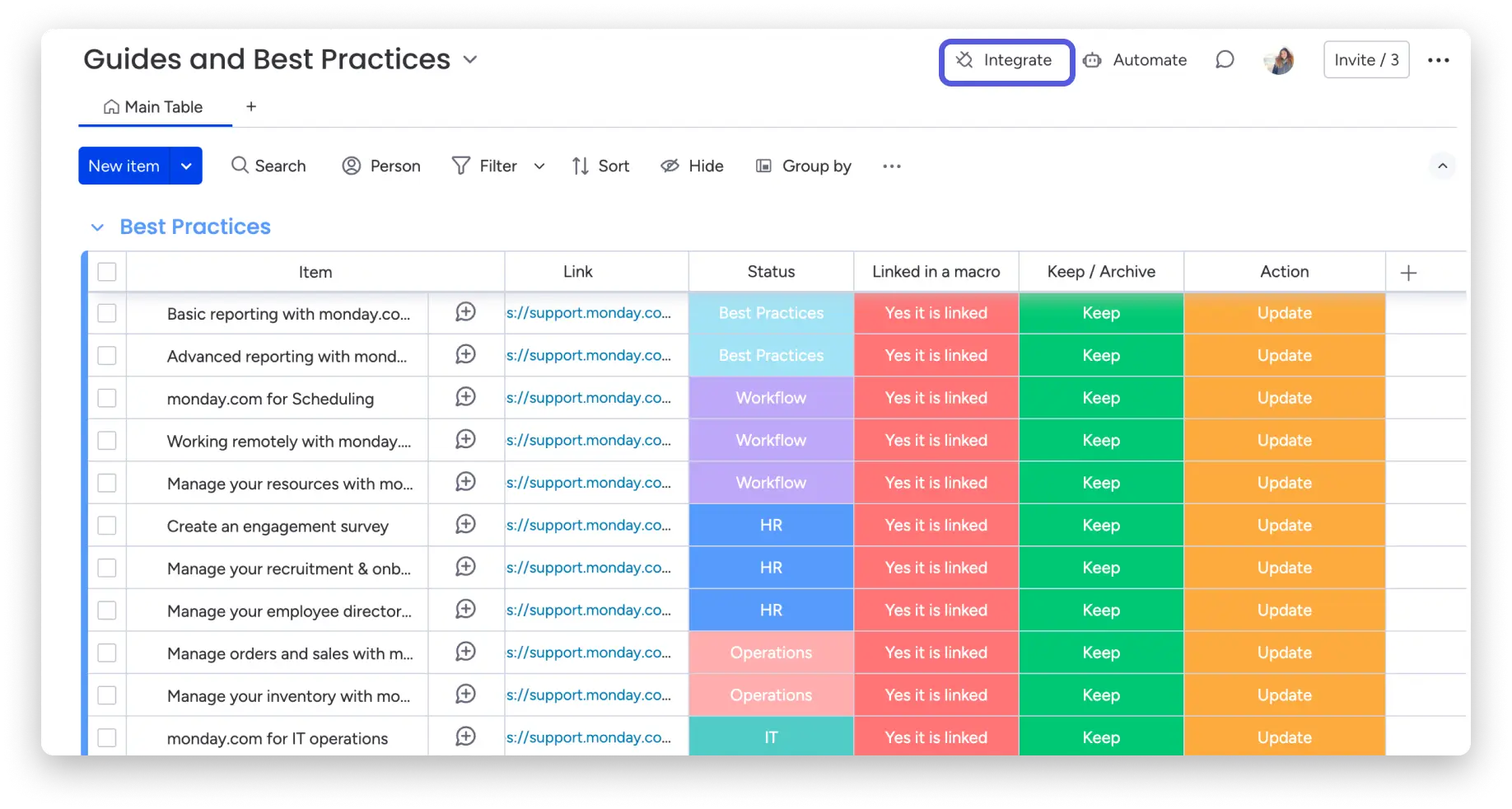
Scroll down to find or search for the Jira Data Center app: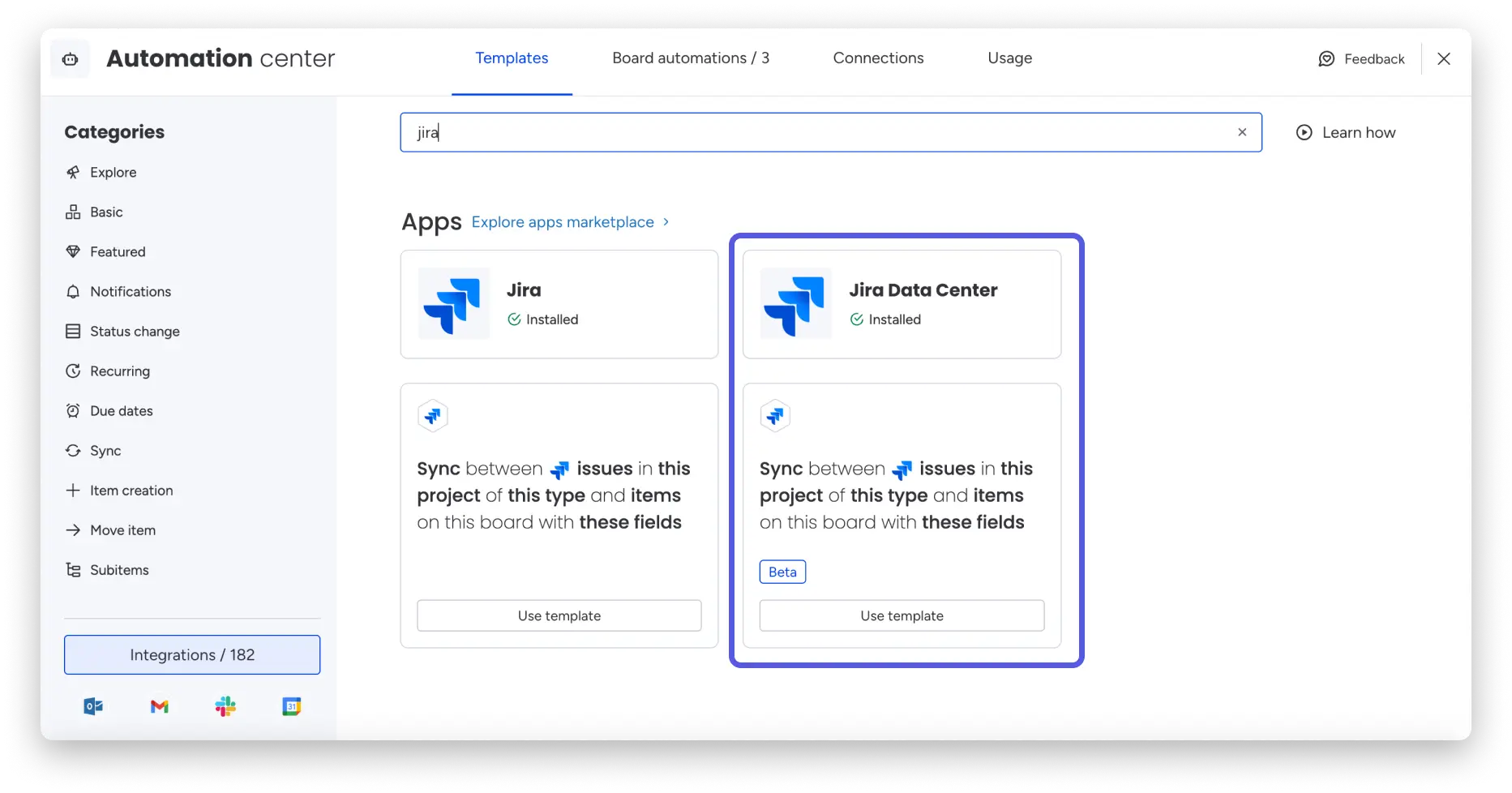
After you click on the Jira Data Center app banner, you will find the template that the app offers: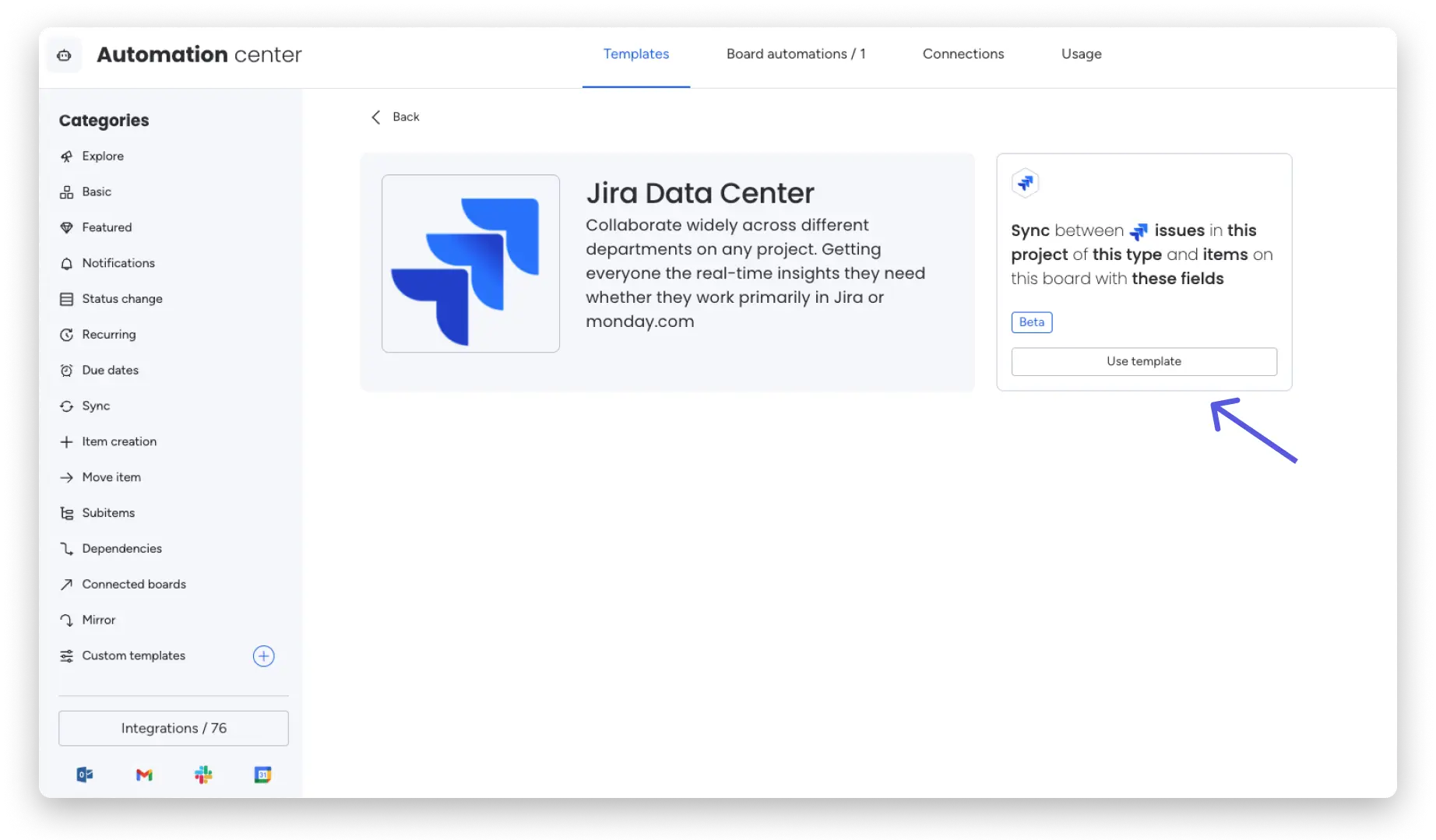
To connect to the Jira Data Center for the first time, you (the Jira administrator) will need to complete two steps:
1. Create a new Jira instance – you as the administrator need to log in to the general account
2. Connect to the Jira user – Only after creating a new instance can each user connect to their user profile for that general account
If the Jira administrator has already connected the instance, individual users can log in to their user profile.
Create a new Jira instance
To create a new Jira instance, click Administration and then go to Application links in the left panel. Click Create link: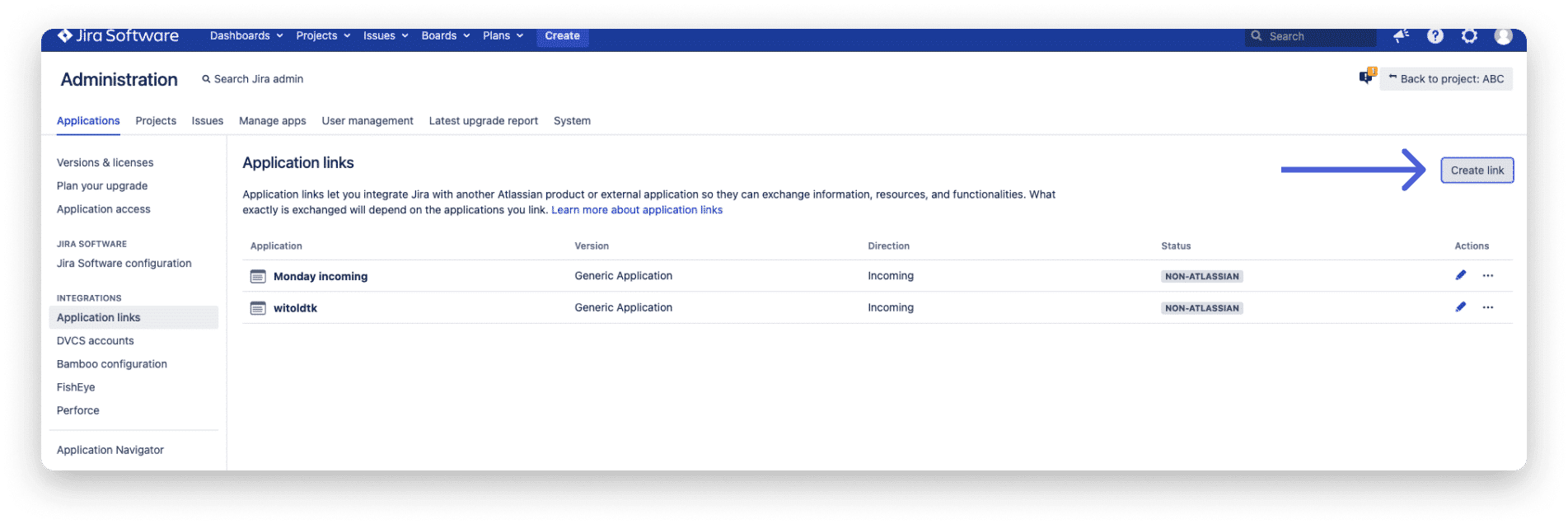
Then, select External application as the application type, and Incoming as the direction:
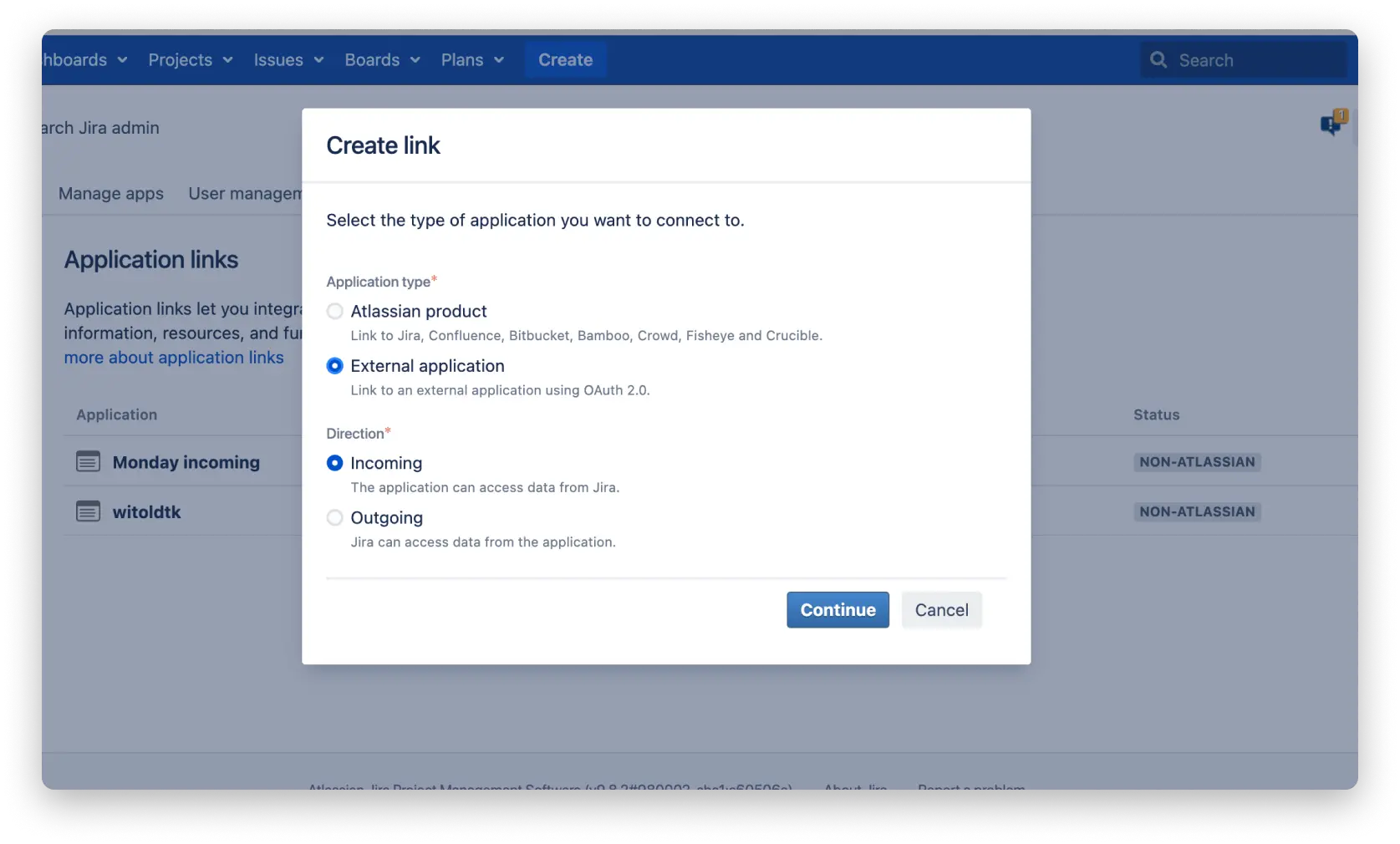
Next, you will see a page called Configure an incoming link. Fill out the form as follows:
Name : Enter a unique name for the link.
Seeding URL: https://integrations-by-monday-jiradc.monday.com/oauth/callback/app/jira-data-center
(Copy and paste the URL above exactly as it is)
Permission: System Administrator
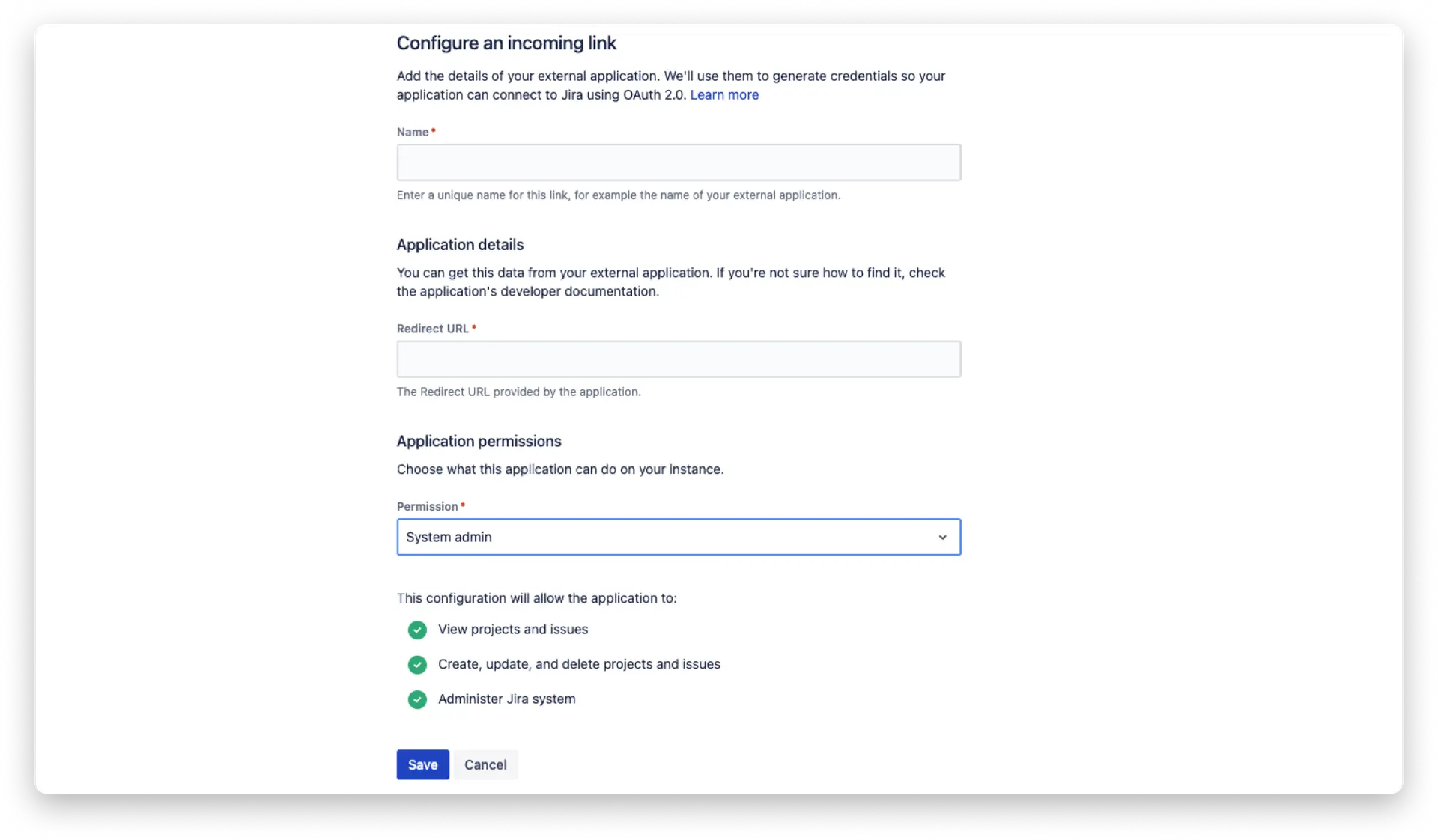
Finally, click Save. You are now finished setting up a new Jira instance.
Connecting to your Jira Data Center account
To connect your Jira Data Center account to a template on monday.com, first select the template you want to use. To connect to your Jira account, you need to click on the Jira icon and then click Connect as shown below: 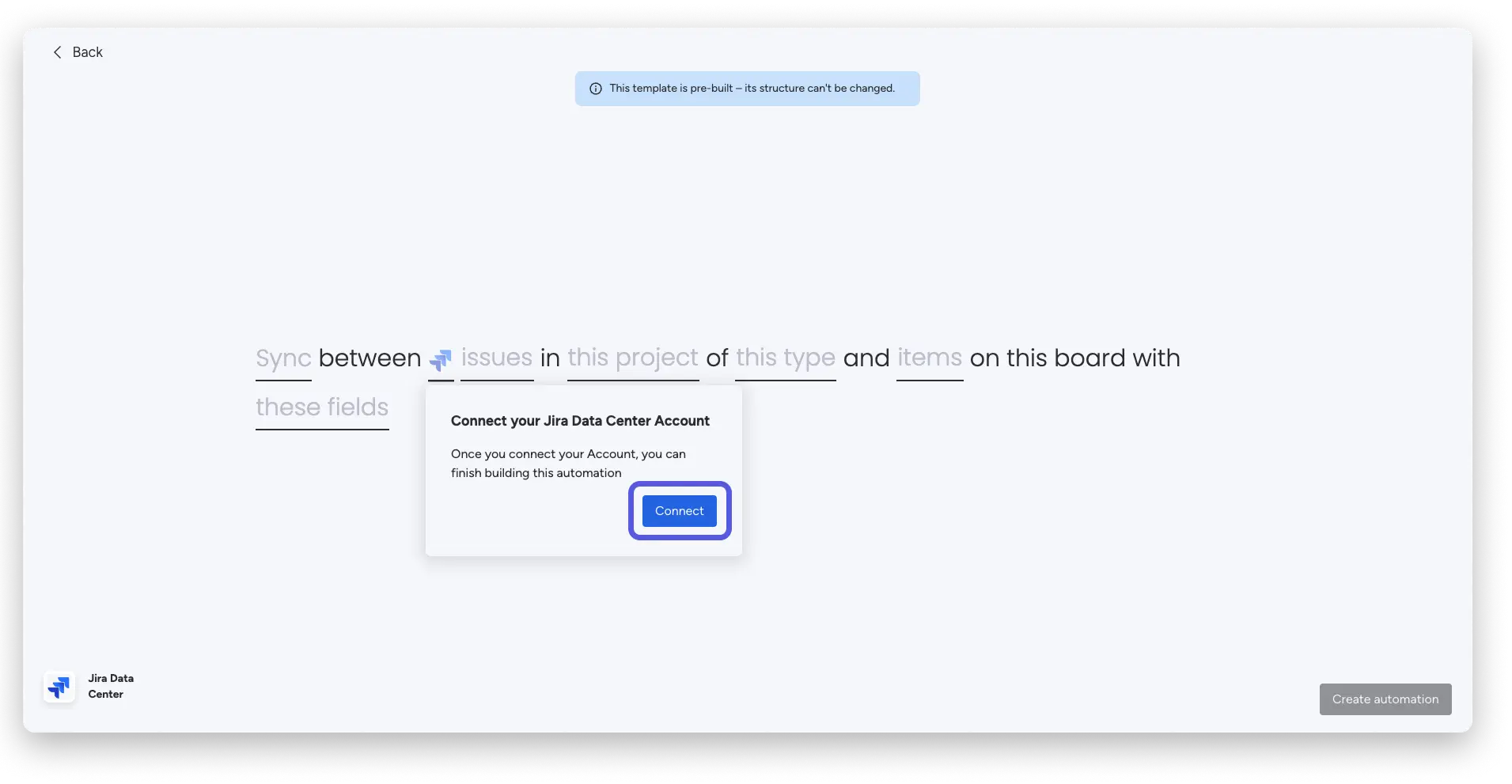
Next, you will see this screen, which will ask you to log in to your Jira Data Center account which should: 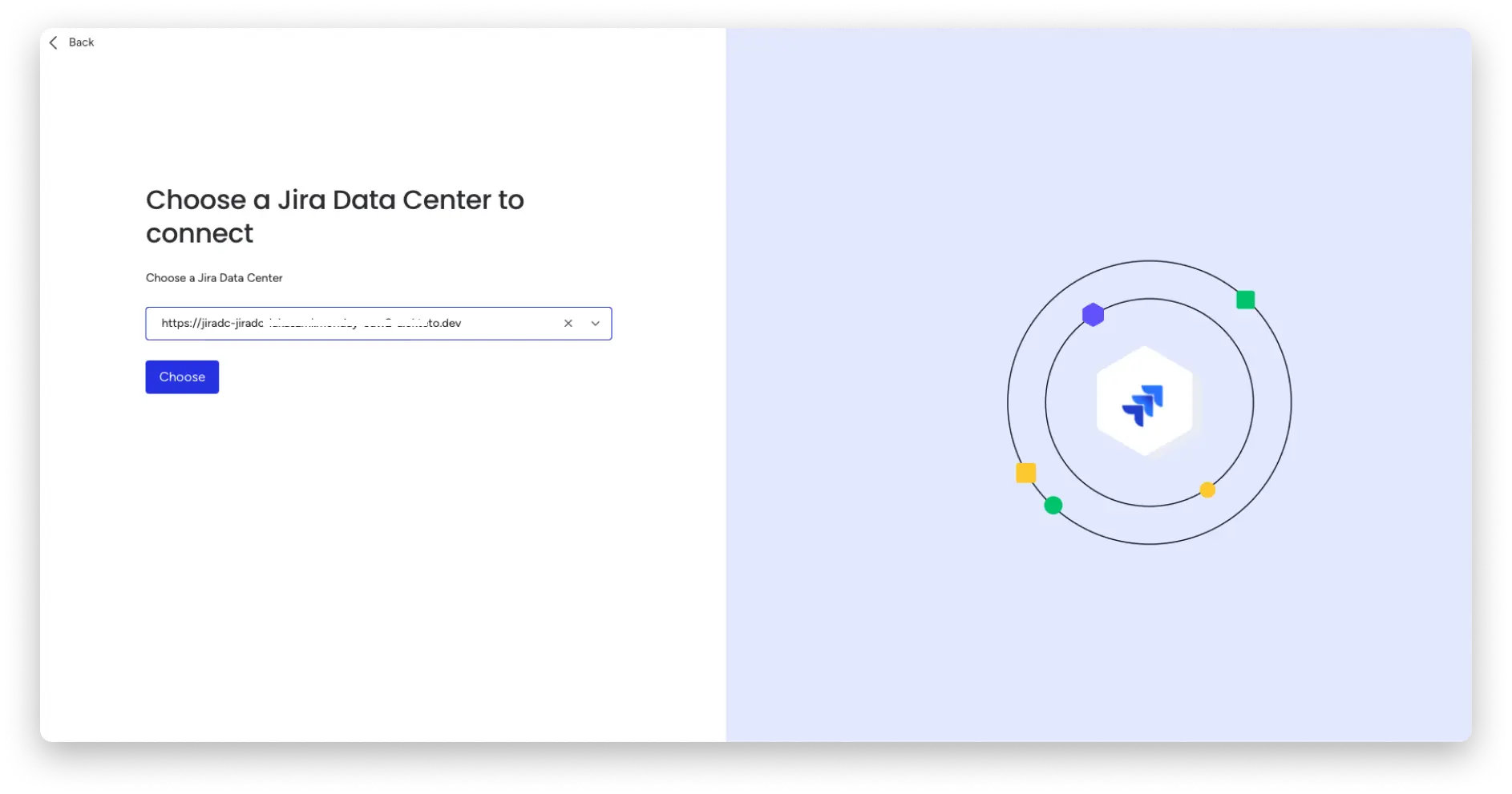
You can also add a new Jira Data Center account by clicking + Add new Jira Data Center in the drop-down menu. 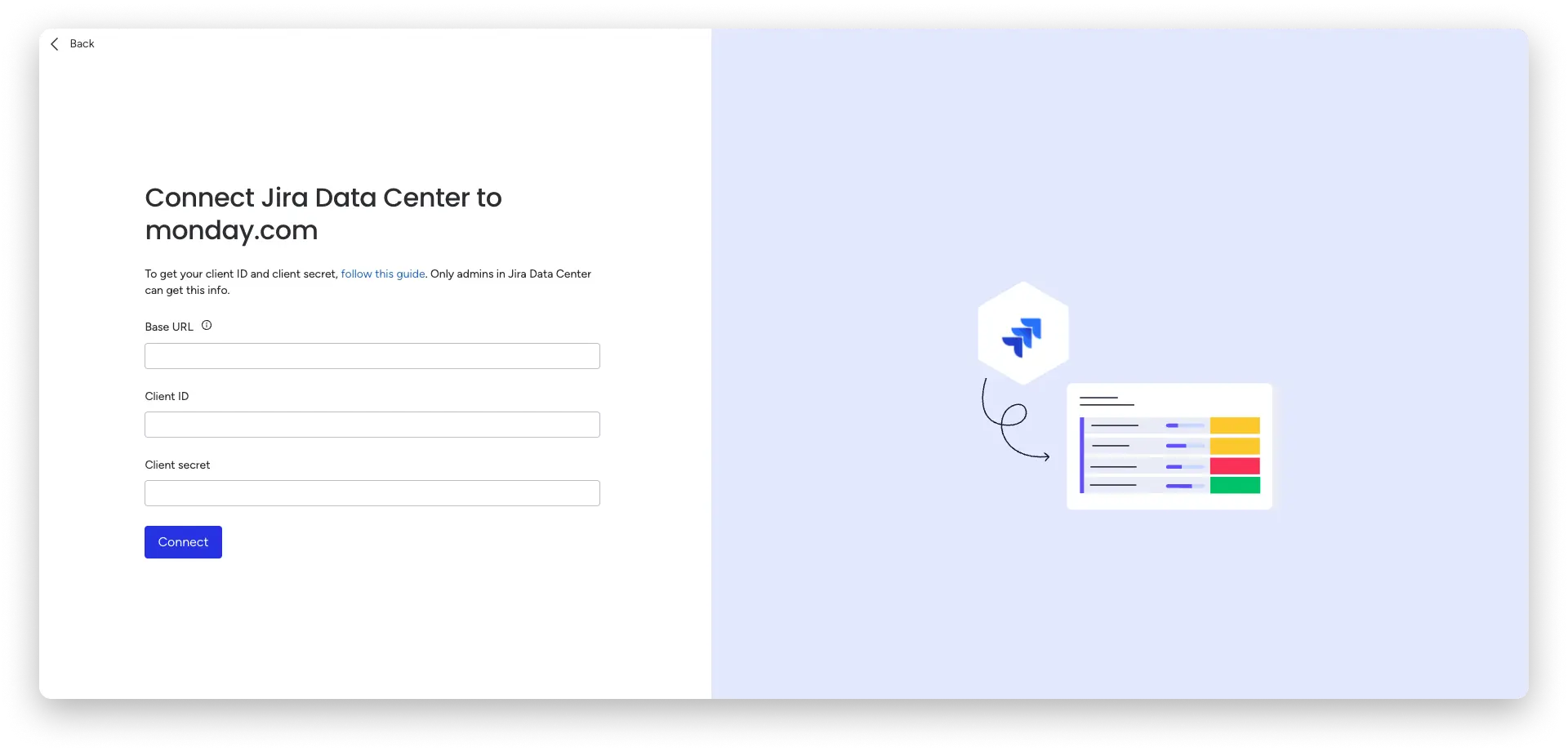
To find your Client ID and Client Secret:
Log in to your Jira account, click the settings icon in the top right corner, and then click Applications. Navigate to Integrations in the left panel, and then click Application links.
Click on the three dots next to the application (note: you must create an application in Jira before you can use it, please refer to the Jira documentation for instructions) that you are using, and then on view credentials , where you will see the option to copy your Client ID and Client secret: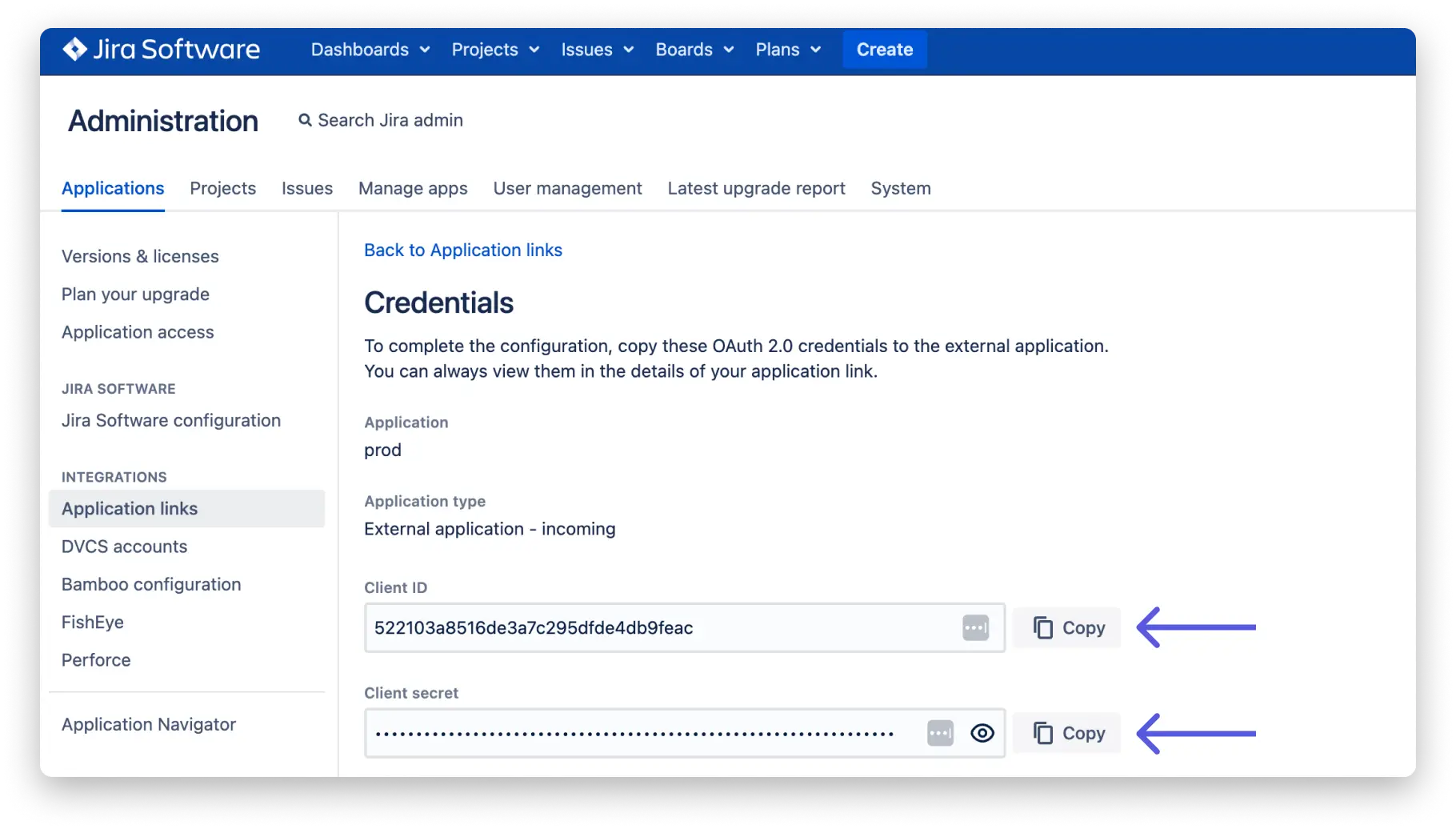
To find the Base URL, navigate to Jira and then click the Administration tab in the settings icon in the top right corner of the navigation bar. Then, click System and copy the value listed next to Base URL. 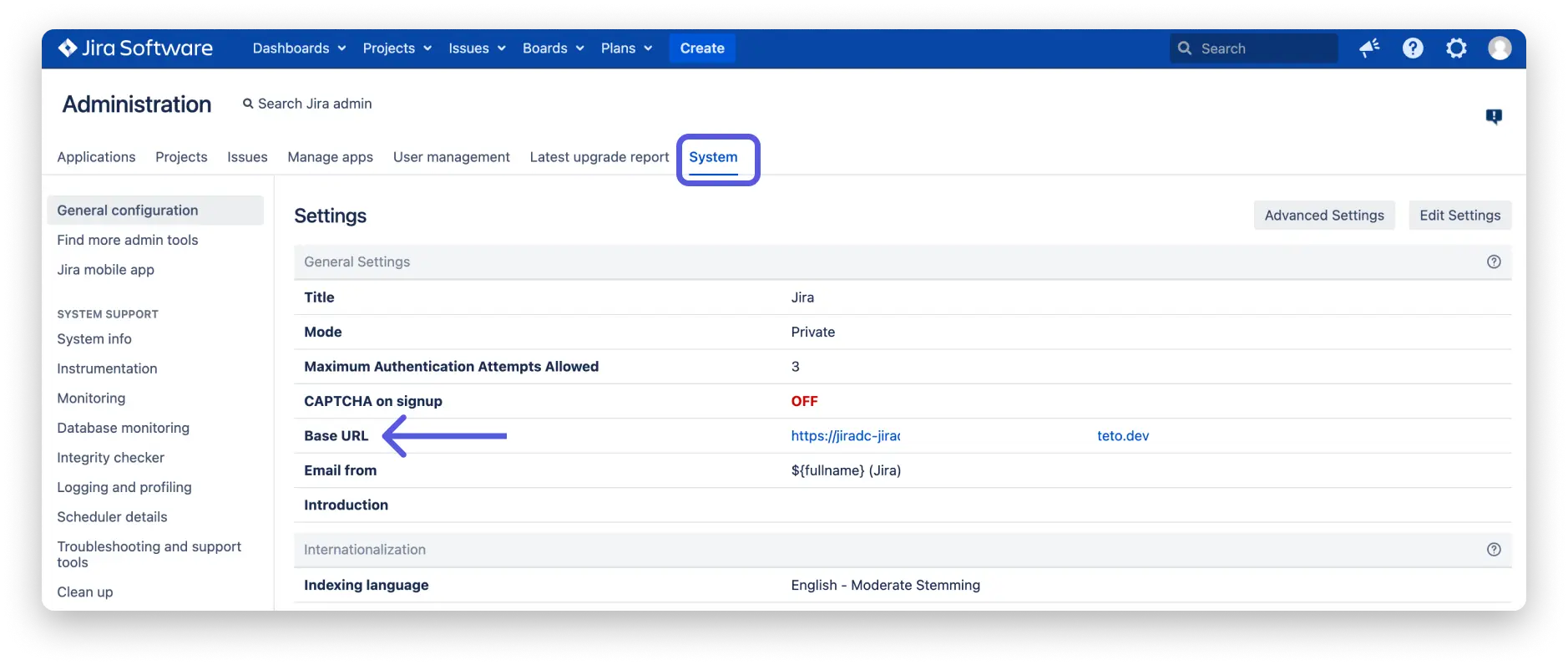
Once you have all your credentials, fill them out as shown below: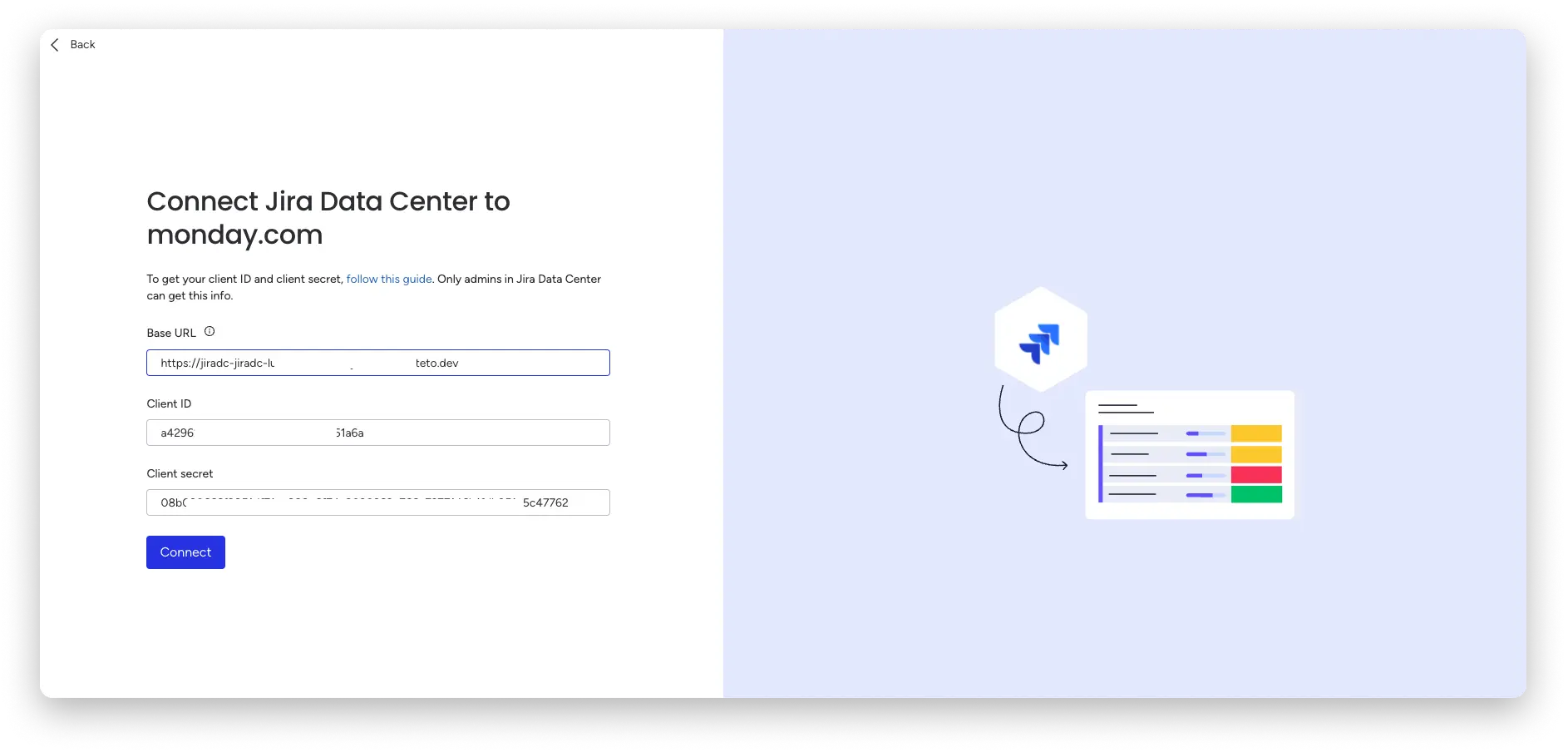
When you’re done, click Connect. You’ll then be taken to a Jira screen that will ask you to grant monday access to your Jira account. Click Allow.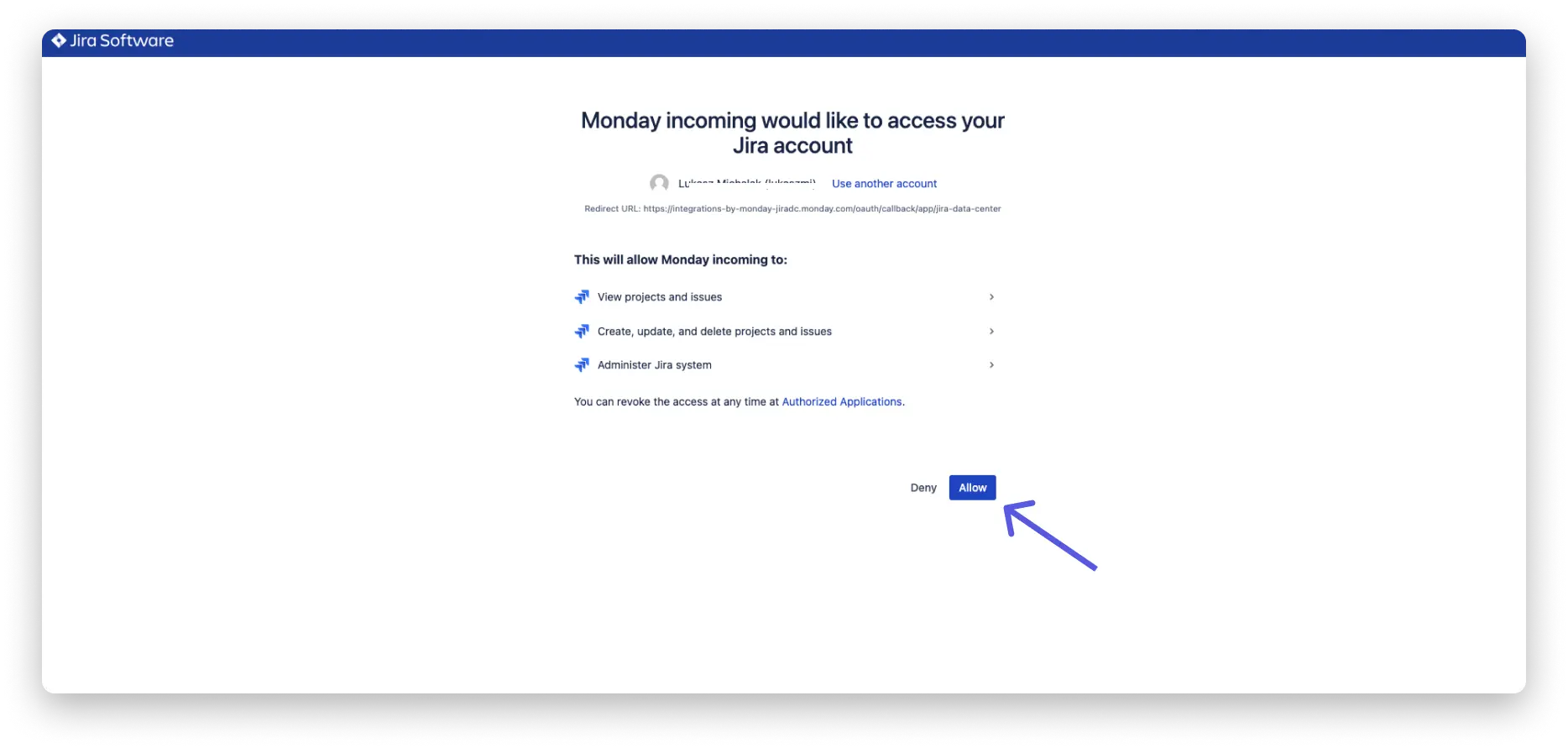
The initial setup is complete! Now everyone in your account can define their own users.
Using the Jira Data Center template
To use the template, once the initial connection has been established, you need to click on the Jira icon and then select which Jira Data Center connection you want to use.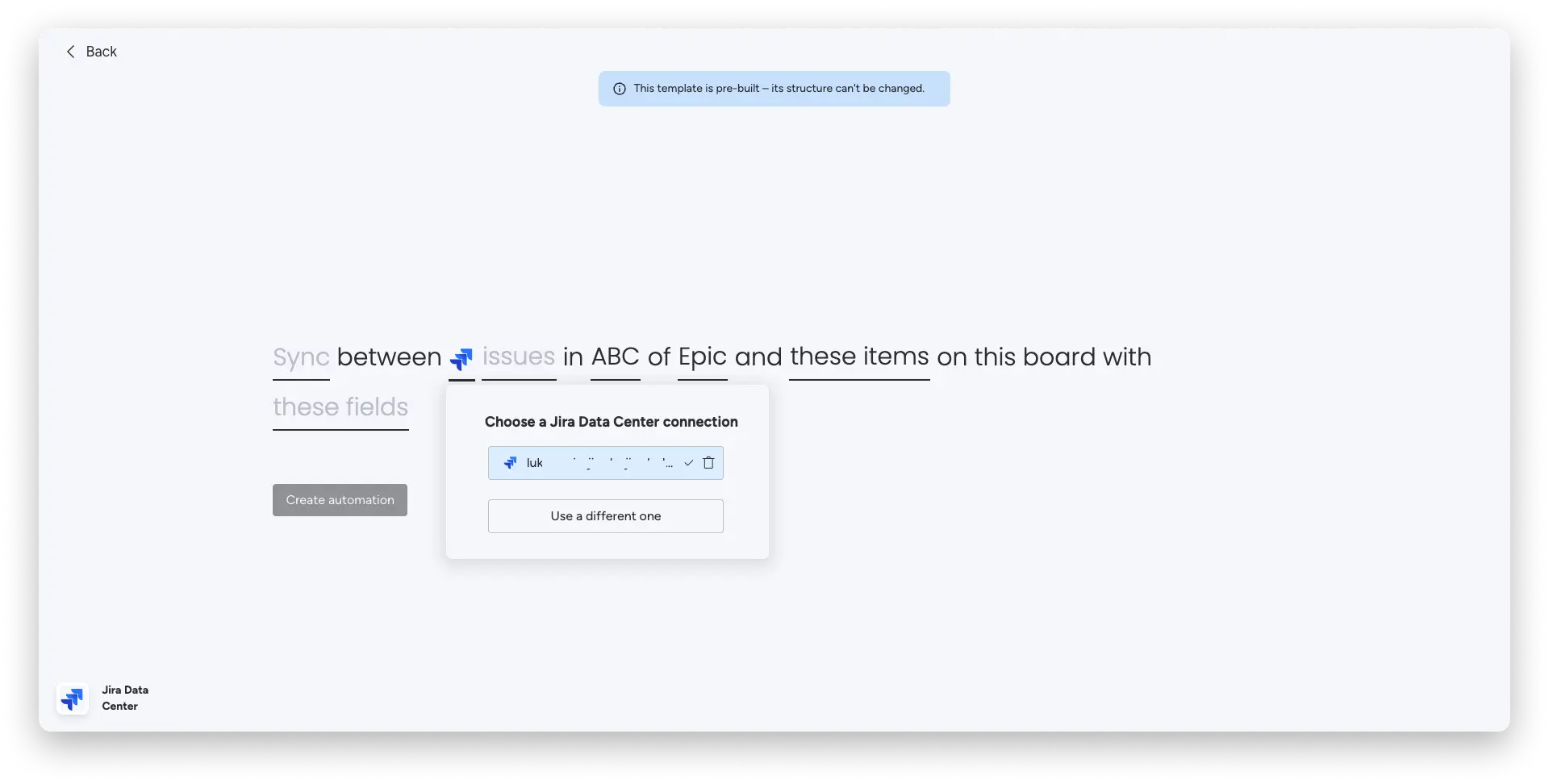
You can then complete the rest of the template as needed.
Create two-way synchronization
Two-way sync occurs when data is transferred from both Monday.com to Jira and from Jira to Monday.com. This allows your data to be consistent across both platforms and stay up to date.
To create a two-way sync for new creations, click Sync and select the direction you want to use for new creations.
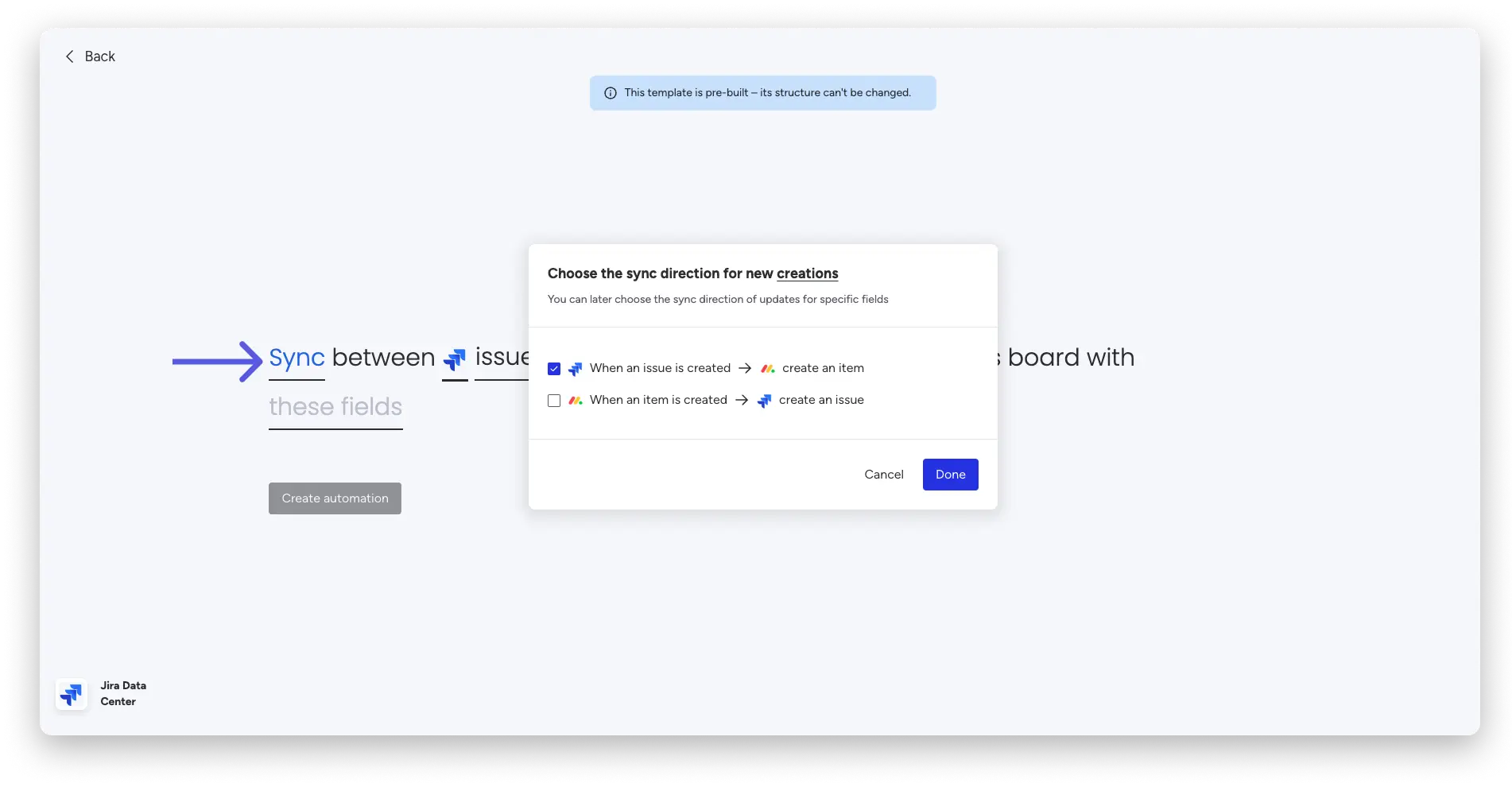
To select a synchronization direction between fields, click on these fields to map the integration between Jira and monday. 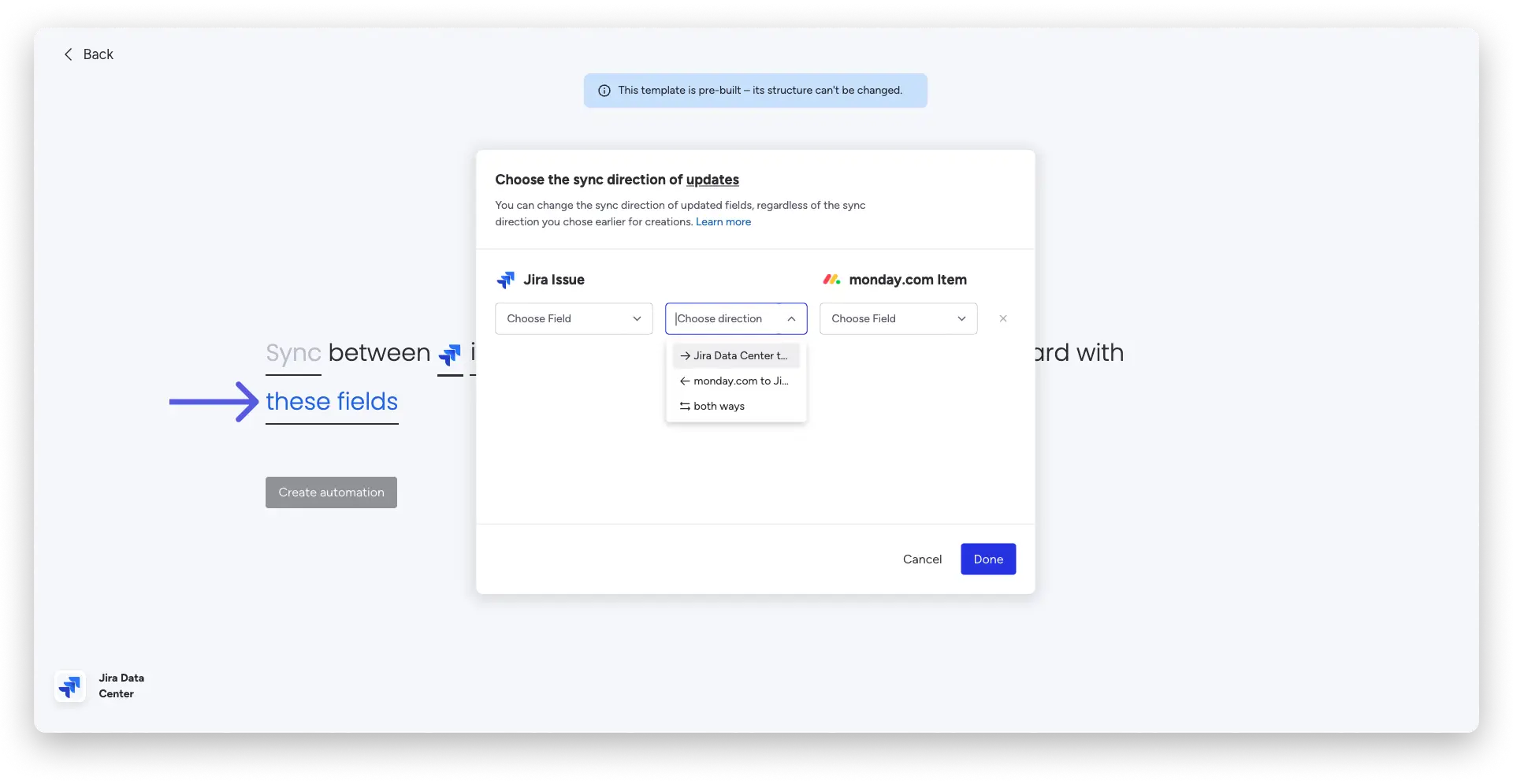
Supported fields for mapping
The following fields are supported for mapping the integration from Jira to monday.com :

The following fields are supported for the monday.com to Jira integration mapping:
Once you have filled in all the options in the template, it is ready to use.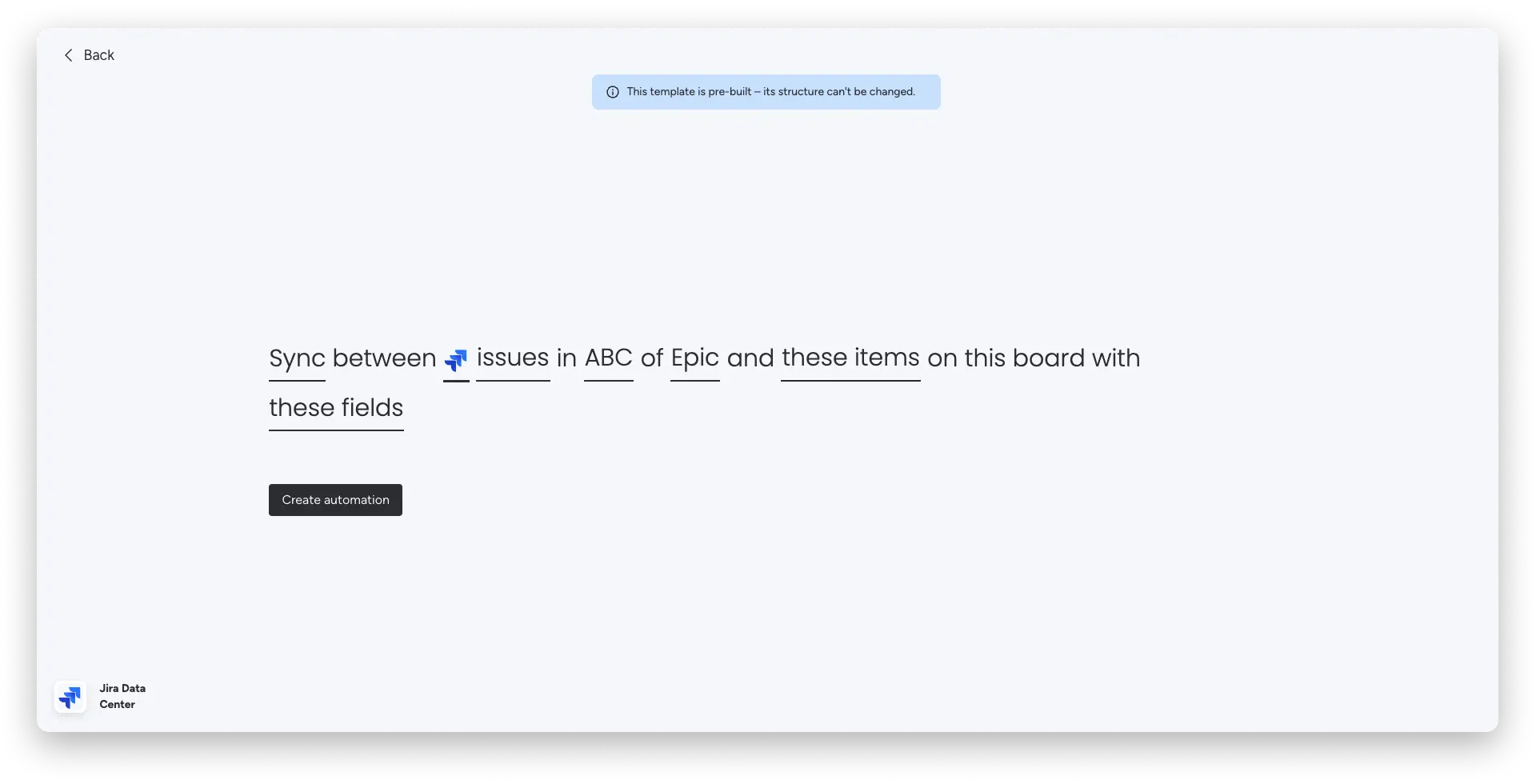
How to delete the integration
To delete the integration, navigate to the Automation Center and then select the Board Automations tab. Click the three-dot menu to the right of the Jira Data Center integration and click Delete Integration. 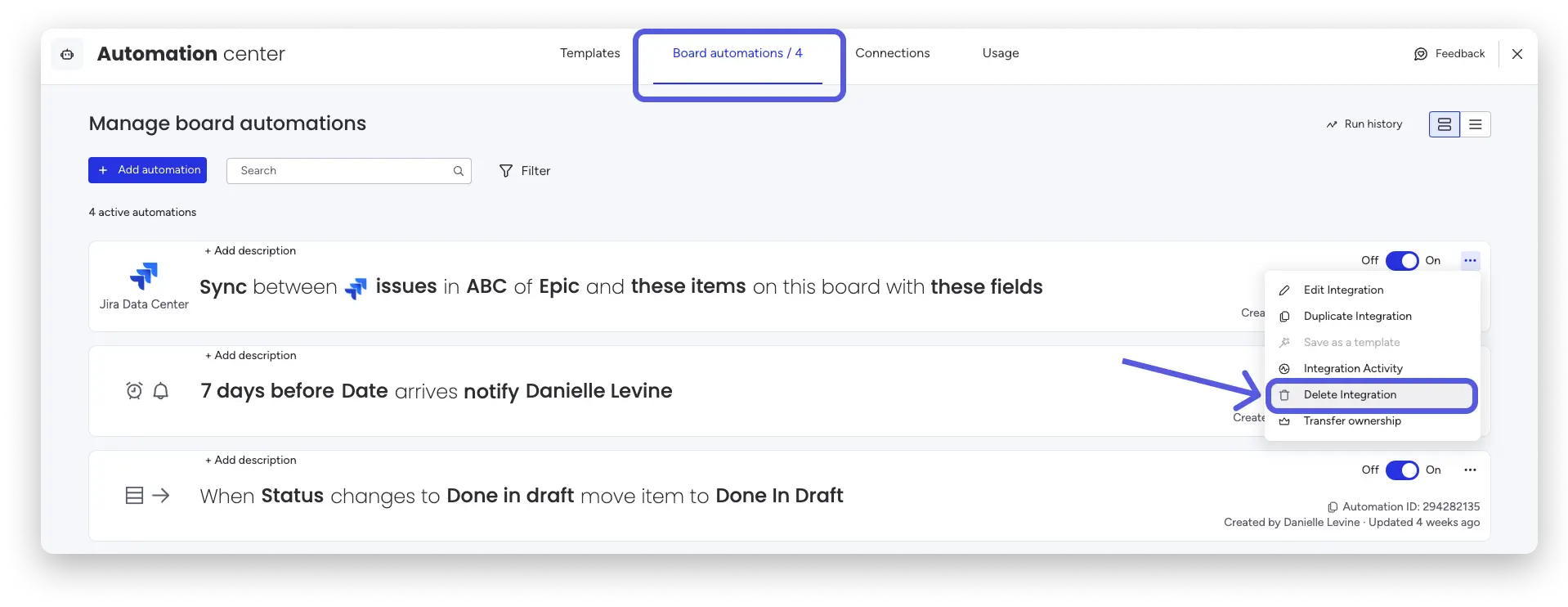
Important to know
- The user overseeing the integration needs to make sure to map the item name to the summary field. If not, the integration will fail when you try to run it.
- The Jira Data Center app does not offer the option to select ” Any ” as an issue/project option. You must select a specific issue/project to sync it.
- Team-managed projects (formerly called “next-generation projects”) are supported by integration.
We would love to hear from you.
As we continue to improve this feature, we’d love to hear your feedback. If you have any comments, suggestions, or questions, please fill out the form .
If you have any questions, don’t hesitate to contact our team here . We are available 24/7 and will be happy to help.