Integration with Copper on monday.com: A solution to help manage customers
 Copper is a CRM (customer relationship management) tool that works natively within G-suite and you can integrate it with monday.com!
How to add it to your workflow?

Step 1
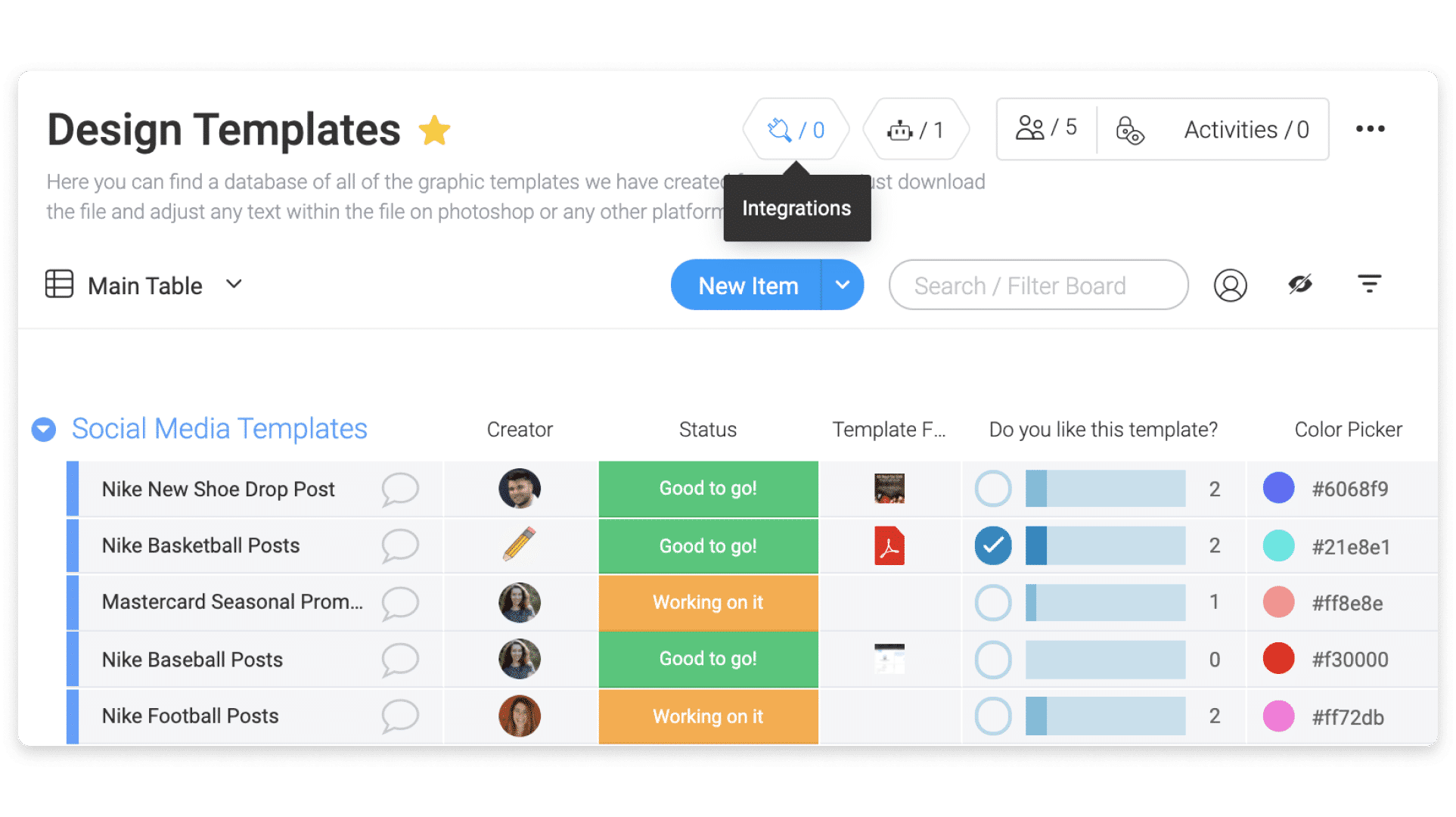
To add an integration, go to the board where you want to create the integration and click the integration button, located in the upper right corner of your screen, as shown below:
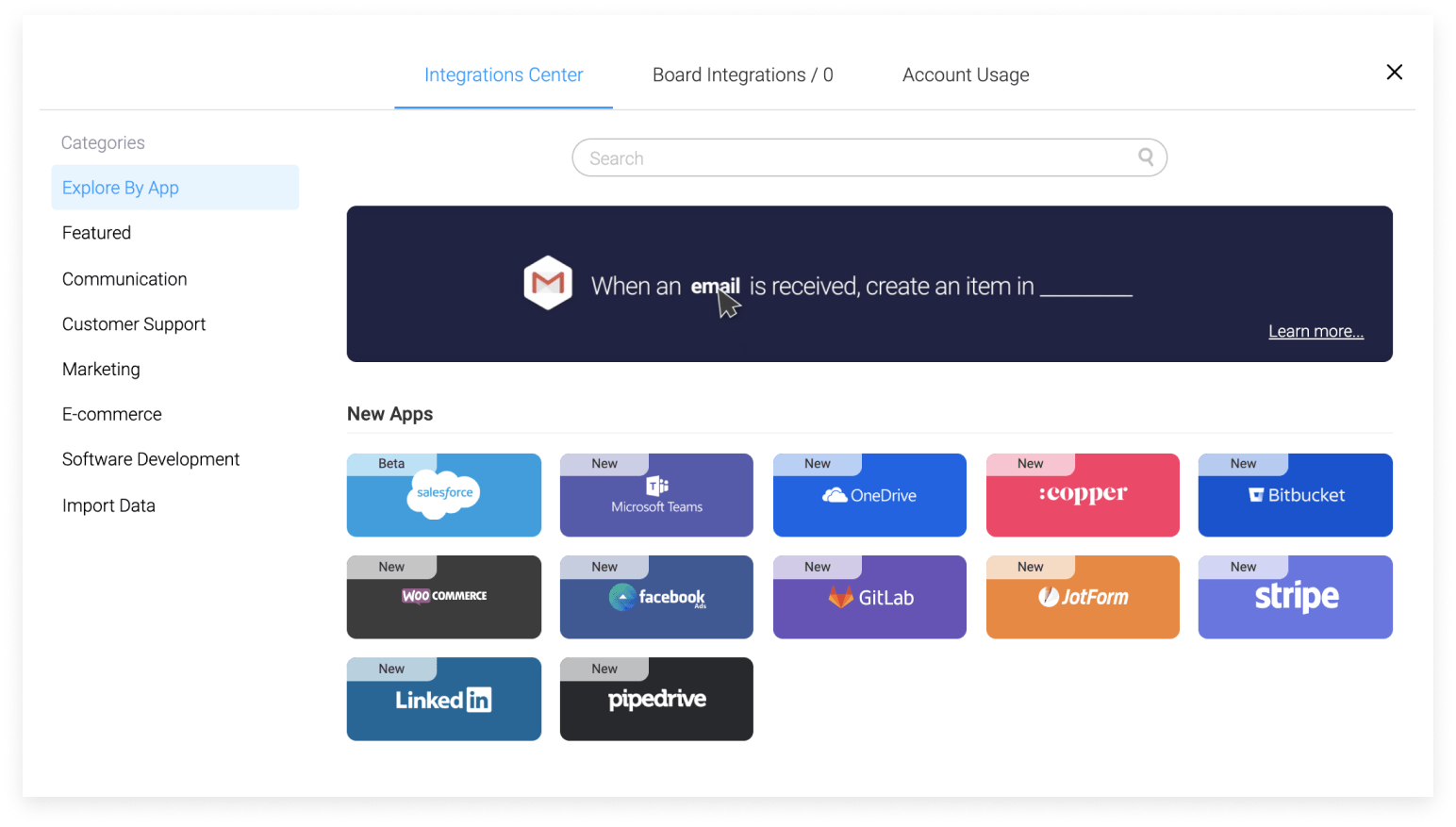
Once you’re on the page, you’ll see all the amazing apps we offer for integration, then choose “Cooper”:
Step 2
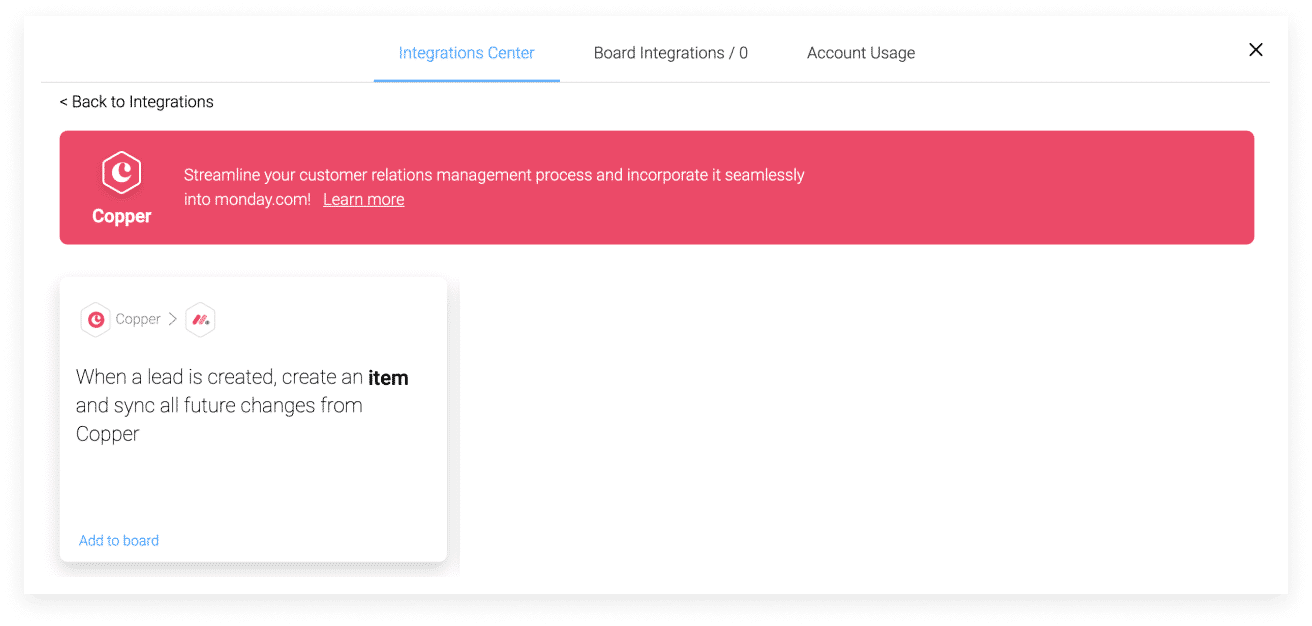
After you click on the Cooper integration banner, you will see the recipe that the integration offers: When a lead is created in Cooper, an Item must be created and all future changes must be synchronized from Cooper.
Step 3
When you click on one of the recipes, you will be asked to connect your monday.com account with your Cooper account:
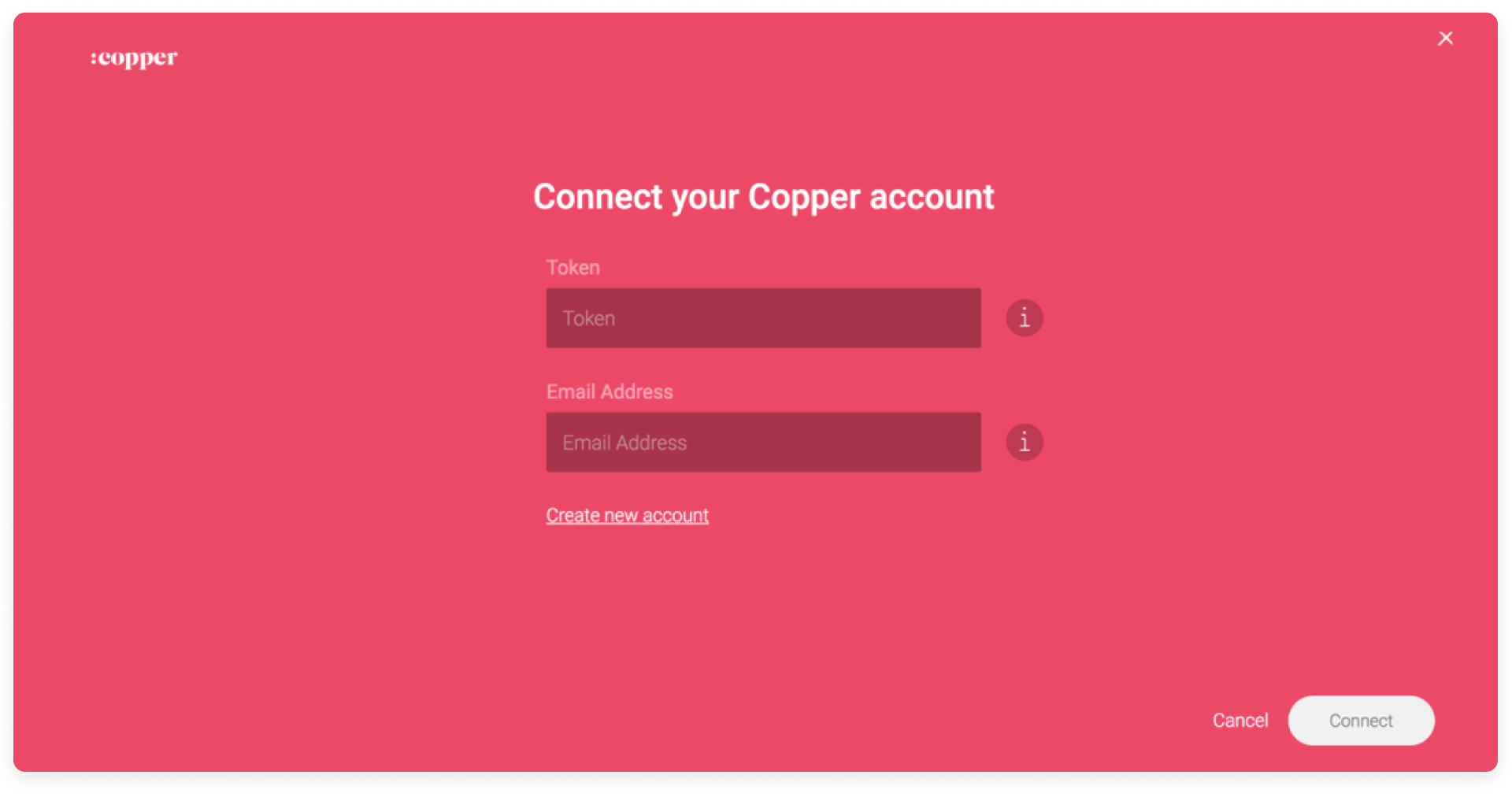
You will then be prompted to log in with your Cooper account login details. You can find your API key by going to the Settings page on the Cooper website > Integrations > API Keys > Create New API Key.
Step 4
Once you have selected your recipe and entered your mark, you will arrive at the integration window. Here you can configure your automation.
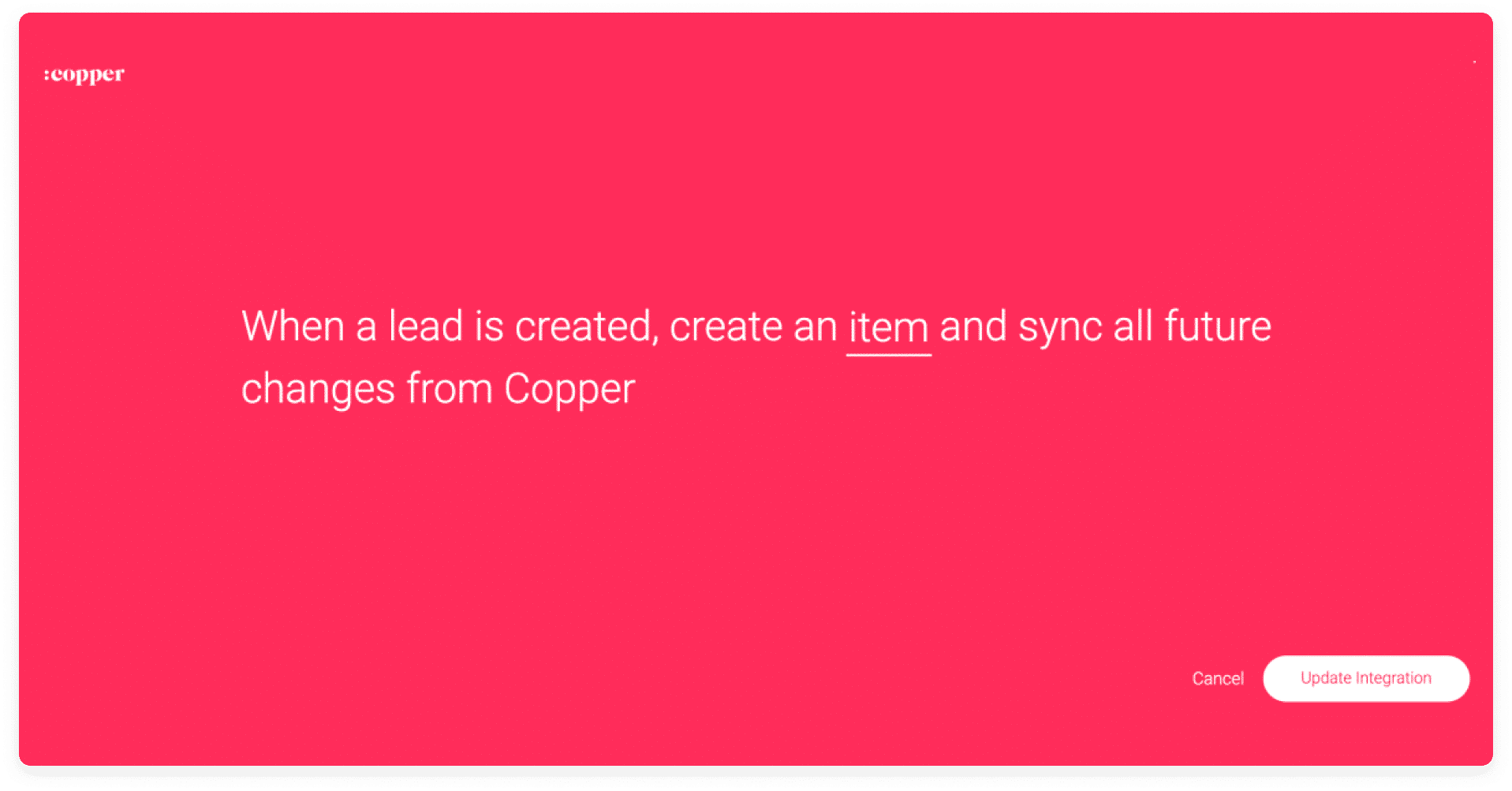
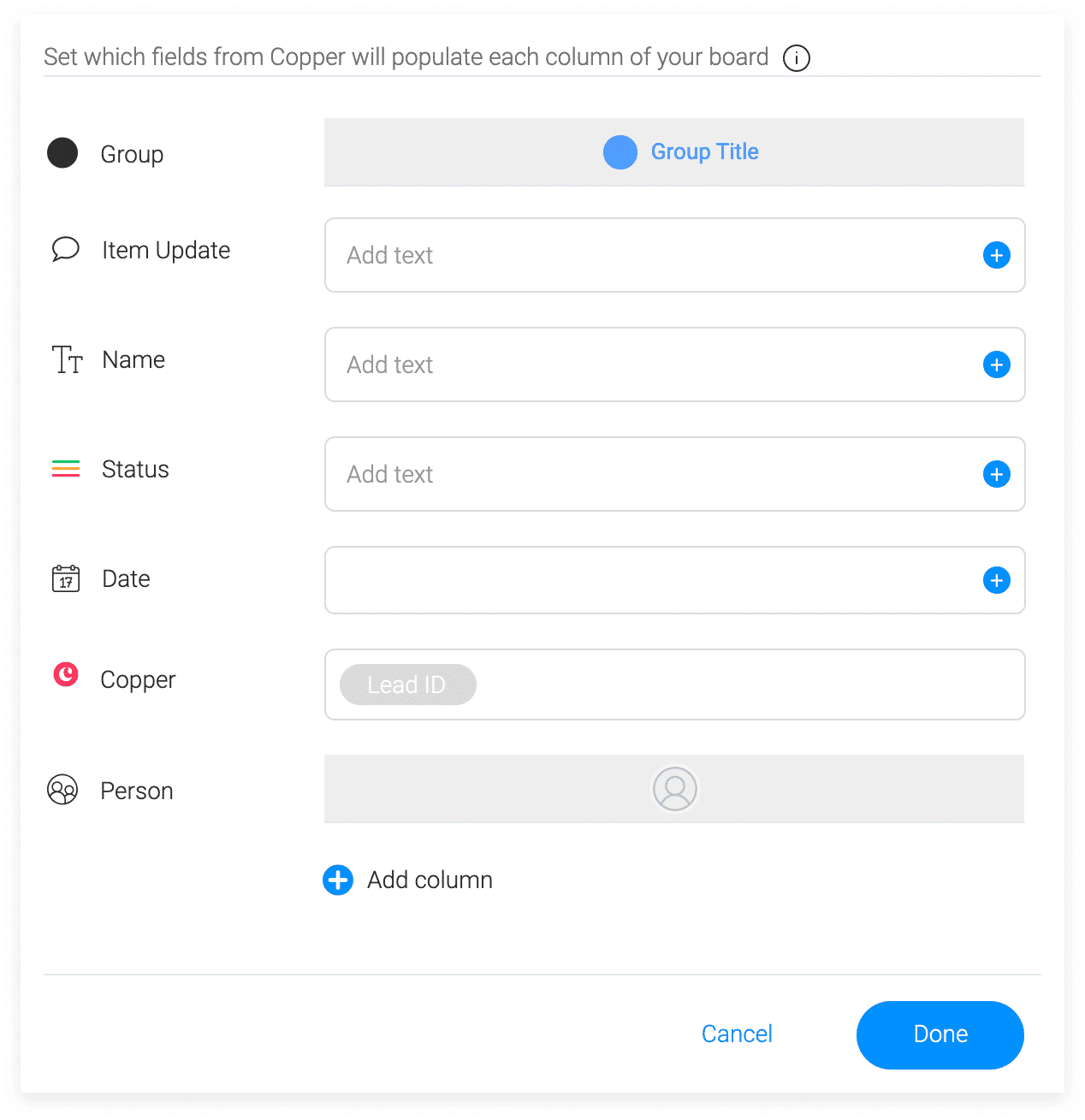
Once you have set up your integration, you can select the information for the item: