
If you’ve been looking for a way to easily review all your survey responses and requests at a glance, you’ve come to the right place! You can view all your monday.com Form responses in the context of the form itself with the Form Response Viewer. With this feature, you can easily see recurring responses and requests and draw key conclusions at a glance.

Add the Form Response Viewer
To add the Form Response Viewer to your dashboard, click the “Add a View” button and select “Apps,” which will take you to the Apps category in the Views Center. There, you’ll see the Form Response Viewer app that you can add to your dashboard with the click of a button.


How does it work?
As mentioned above, the Form Response Viewer function works in conjunction with monday.com’s Forms feature, so make sure it’s added to your dashboard so you can start collecting form responses!
Once you’ve added the Form Response Viewer to your board, responses from the form will appear in your Form Response Viewer in a form-like structure (and not just as an item on your board!), allowing you to scroll through them freely and see all the context you need. You can move to the previous and next response using the arrows.
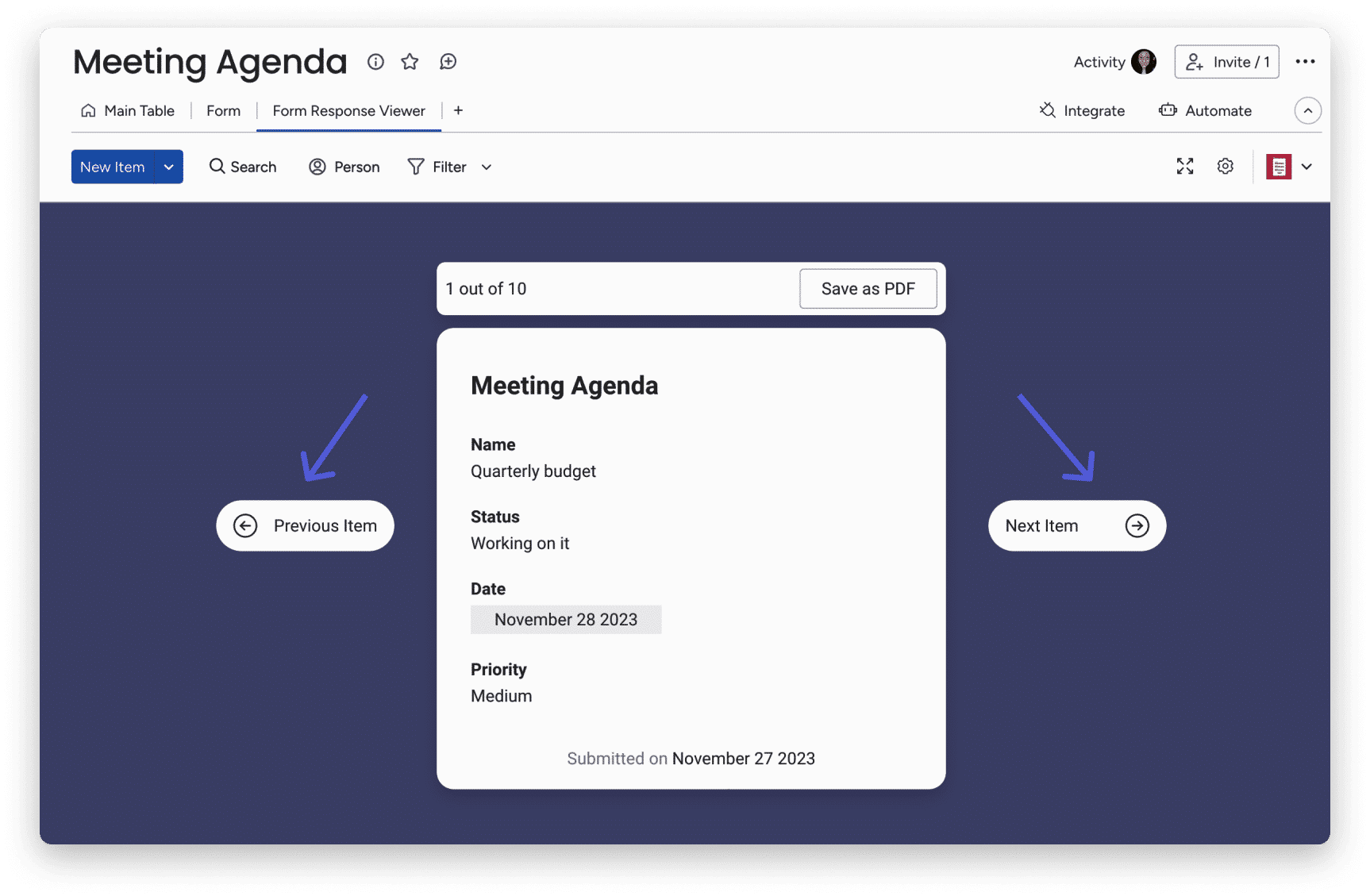
Save a form response as a PDF
Do you have a specific survey response that you would like to export and show to your team or in an important meeting? You can easily save the response to your computer as a PDF by clicking the “Save as PDF” button at the top of the display. A print window will appear with settings. Make sure that under “Destination” you have selected “Save as PDF”, as shown below:

Filtering your Form Response Viewer
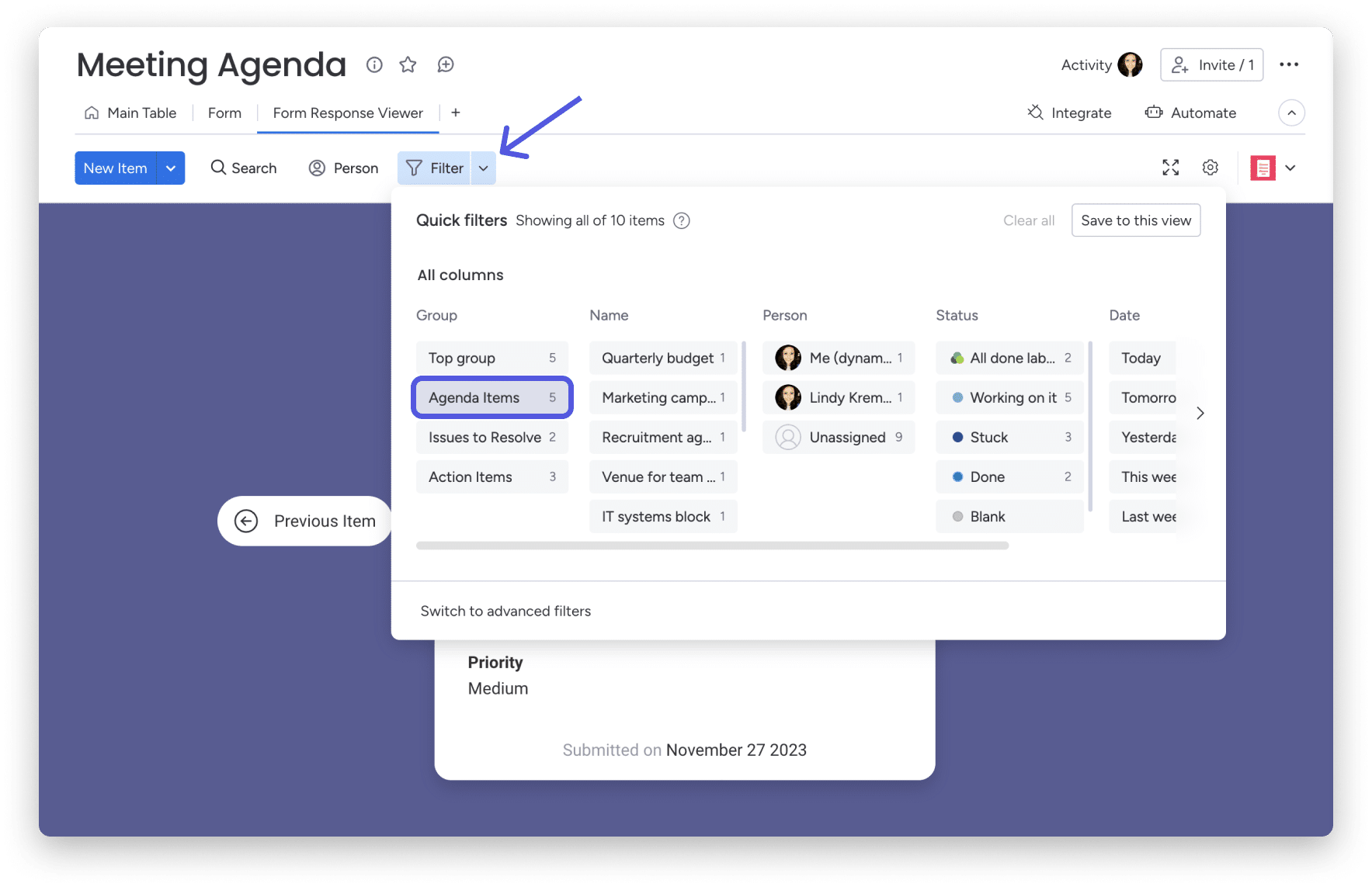
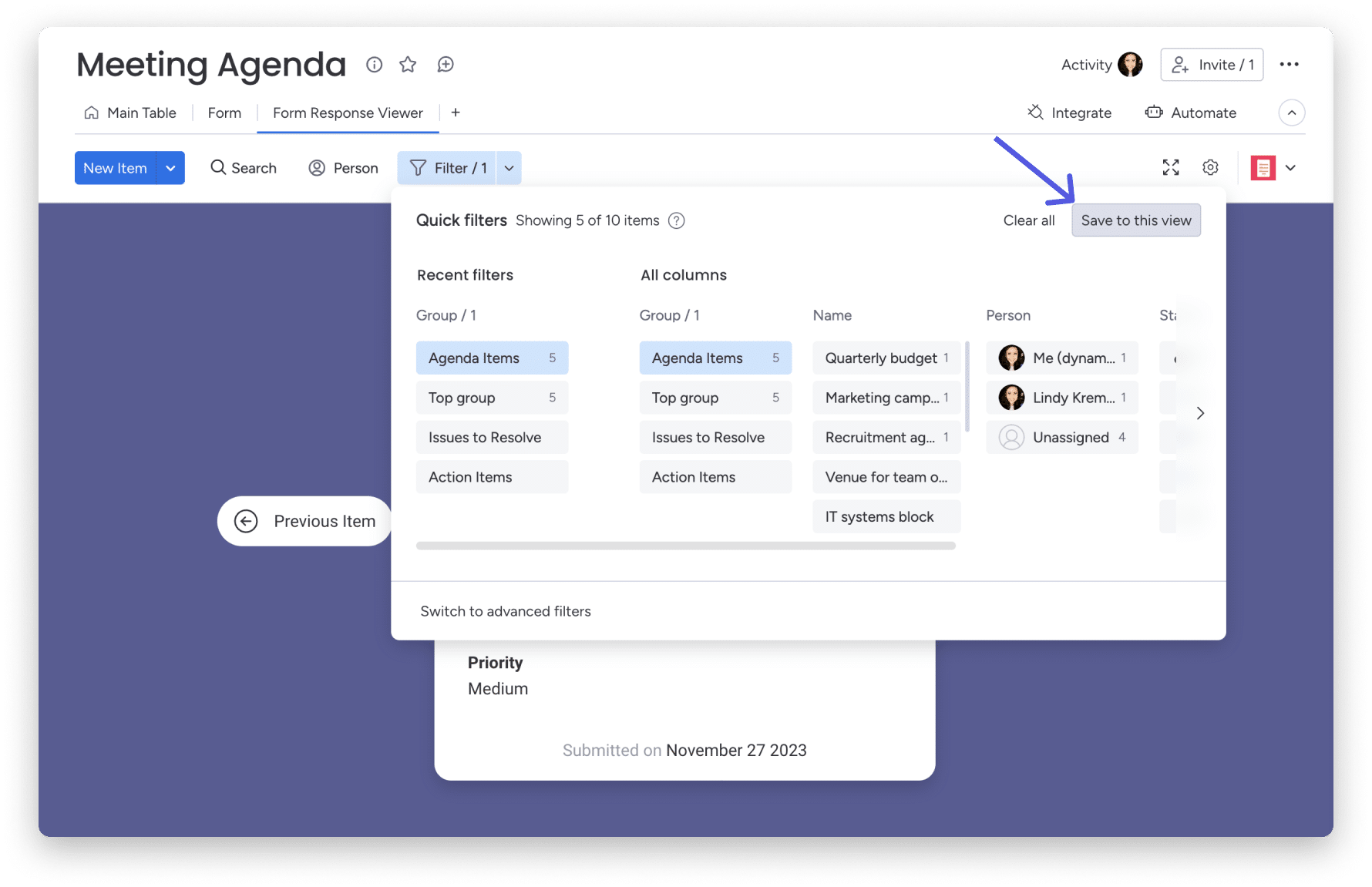
You can filter your Form Response Viewer by using the panel filters to display the exact information you need. Let’s say we want to see only the submitted agenda items. Through our form. By selecting the relevant variables, the filter will adjust all responses that appear in your Form Response Viewer as well.
Don’t forget to save the filtered view so you can easily access it at any time. Just click “Save to this view” as below:
Change your display settings
From the settings menu, you can choose whether you want the Form Response Viewer to be in full view or split view. By selecting “Split View”, you can see the Form Response Viewer and the board itself in the same view at the same time, as shown below:

And that’s it! Start reviewing all your form responses quickly and easily with the Form Response Viewer!