

Looking to connect your inbox to your monday.com account? With Gmail Integration, you can turn emails into tasks, automatically align your entire team, and stay connected with ease.
If you’re interested in Outlook Integration, check out this article. If Gmail is more your thing, keep reading!
Add this to your workflow
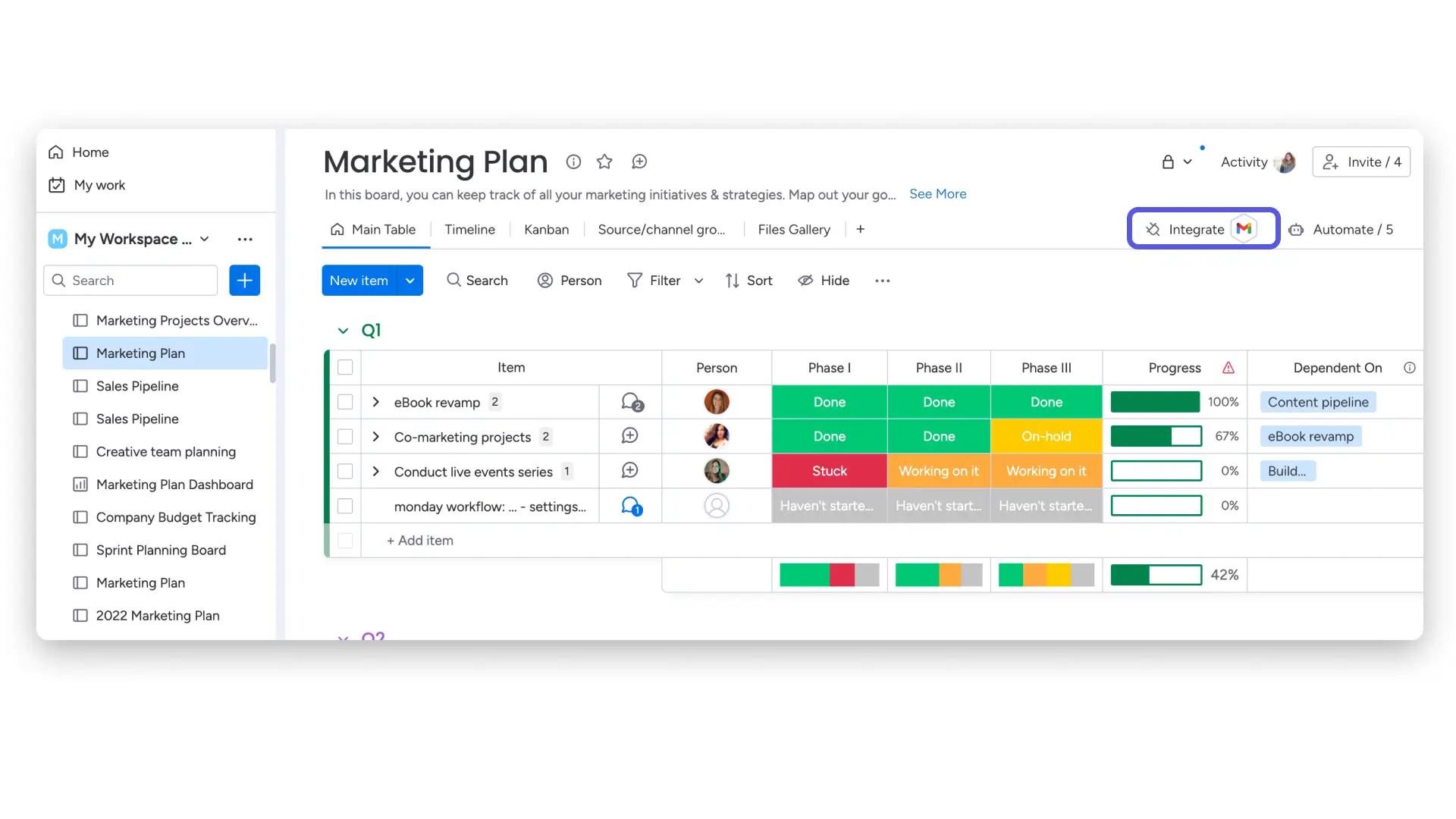
From there, select “Gmail”: 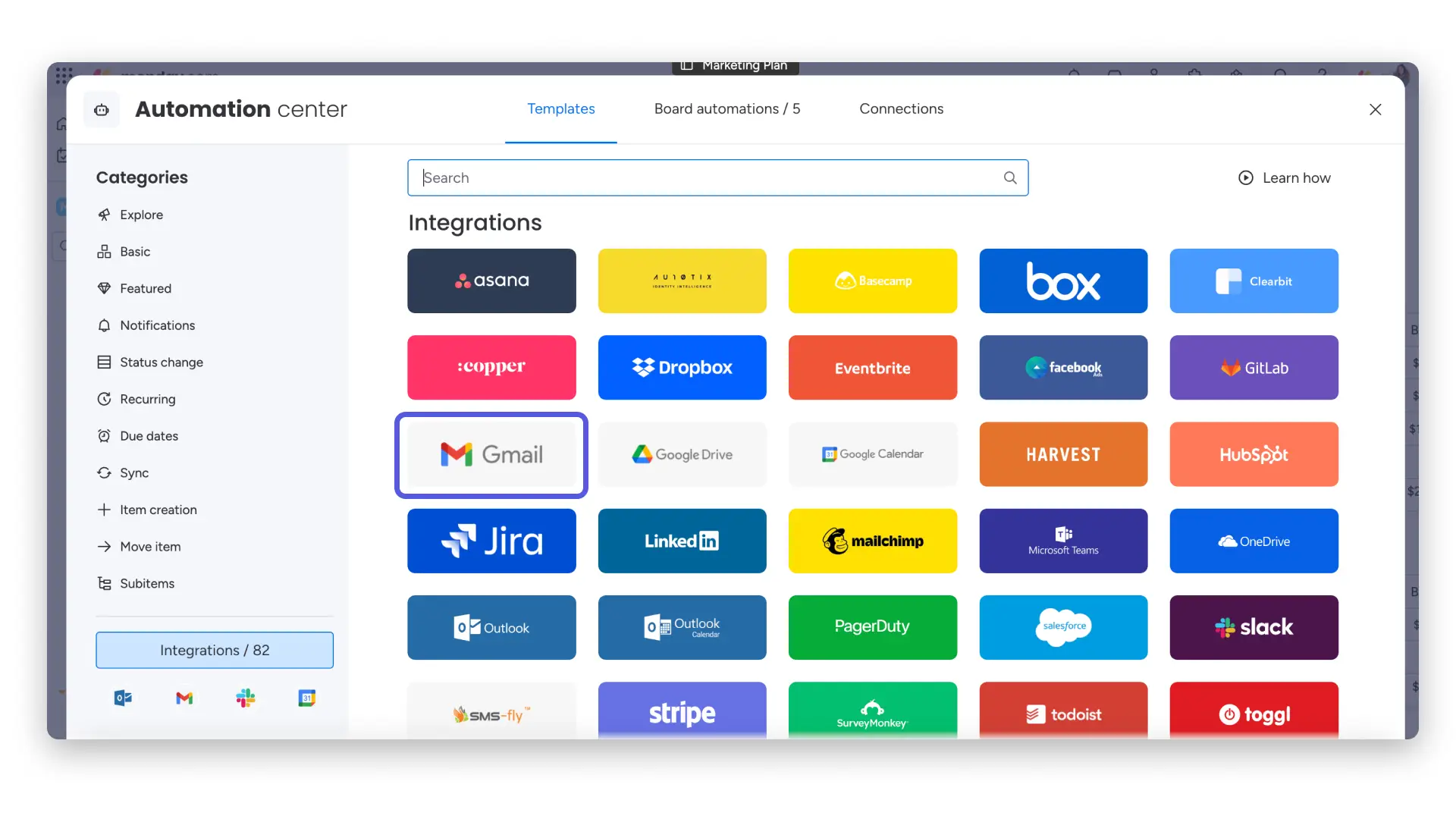
Once you click on the “Gmail” integration banner, you will find the recipes available for this integration: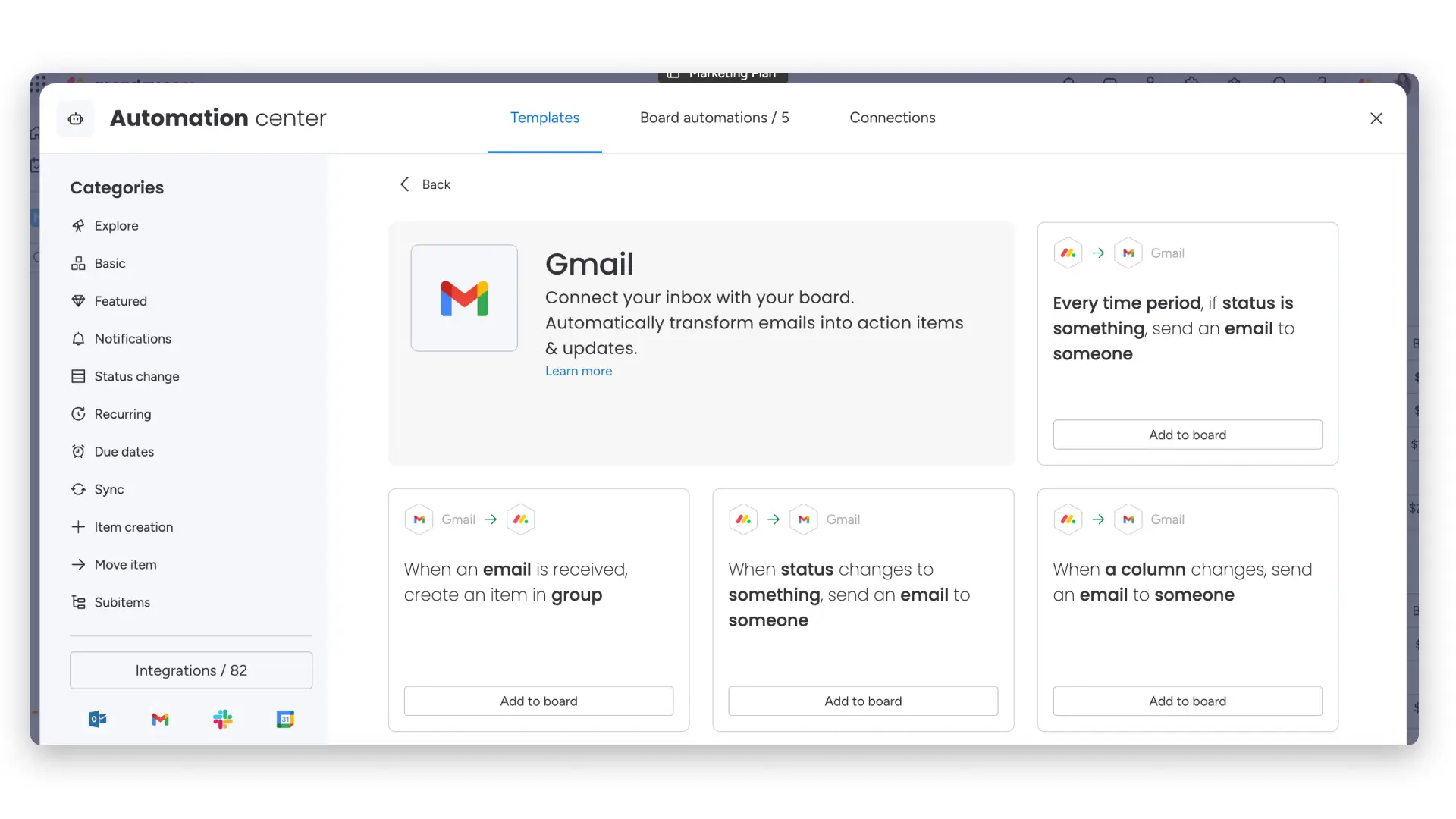
Then, you can choose the recipe you want to create! With each recipe, you can customize the email that will be sent through the integration. You can type in values or auto-fill the email with fields from your item.
Next, you will be asked to connect your Gmail account with your monday.com account.
Connect your account
Once you click on one of the recipes, you will be asked to connect your monday.com account with your Gmail account: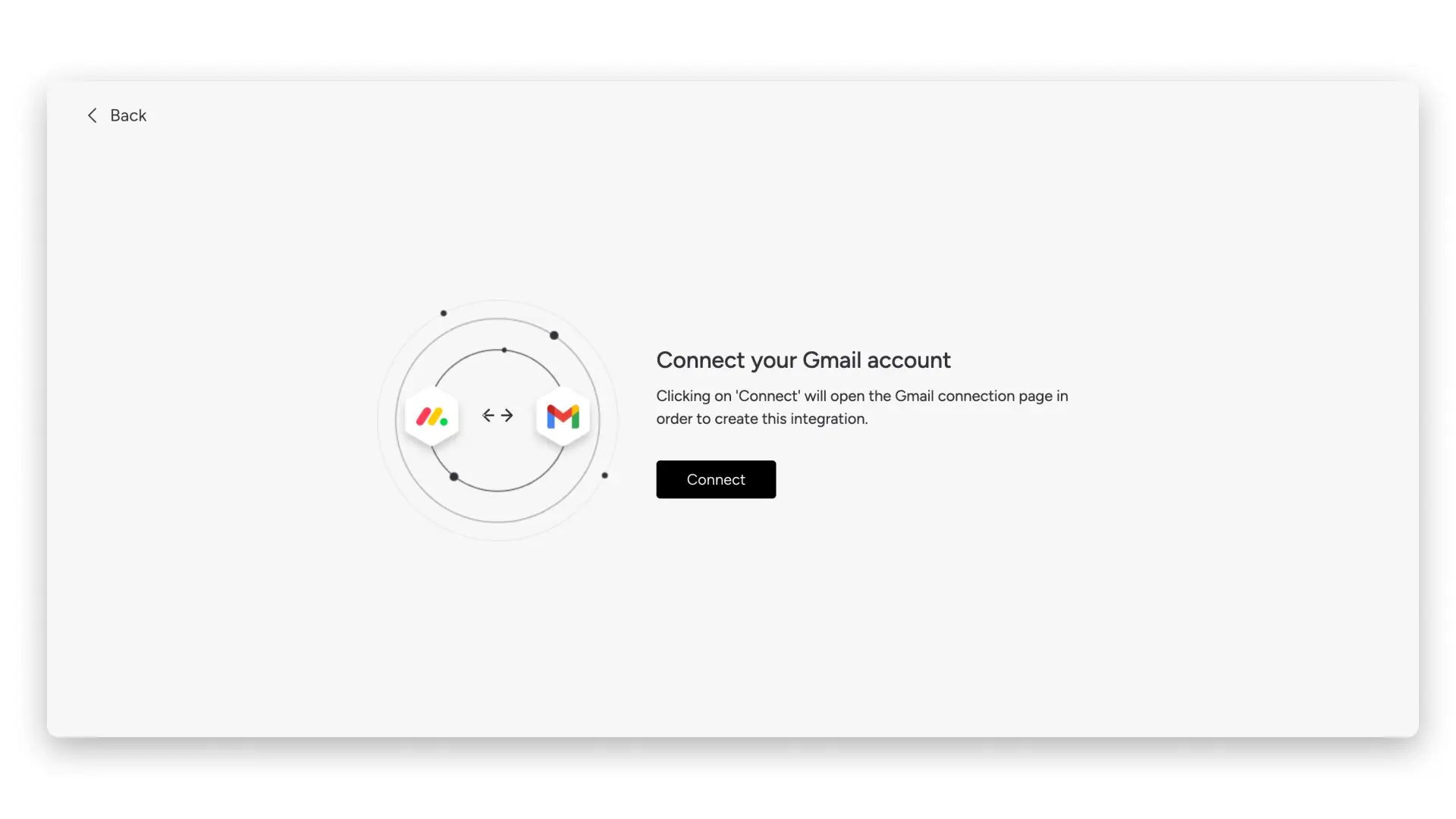
Next, select the email account you want to associate with monday.com.
Wow! It’s so easy. You’ve successfully connected your account to Gmail. Now you can start building recipes to communicate effectively with your team! 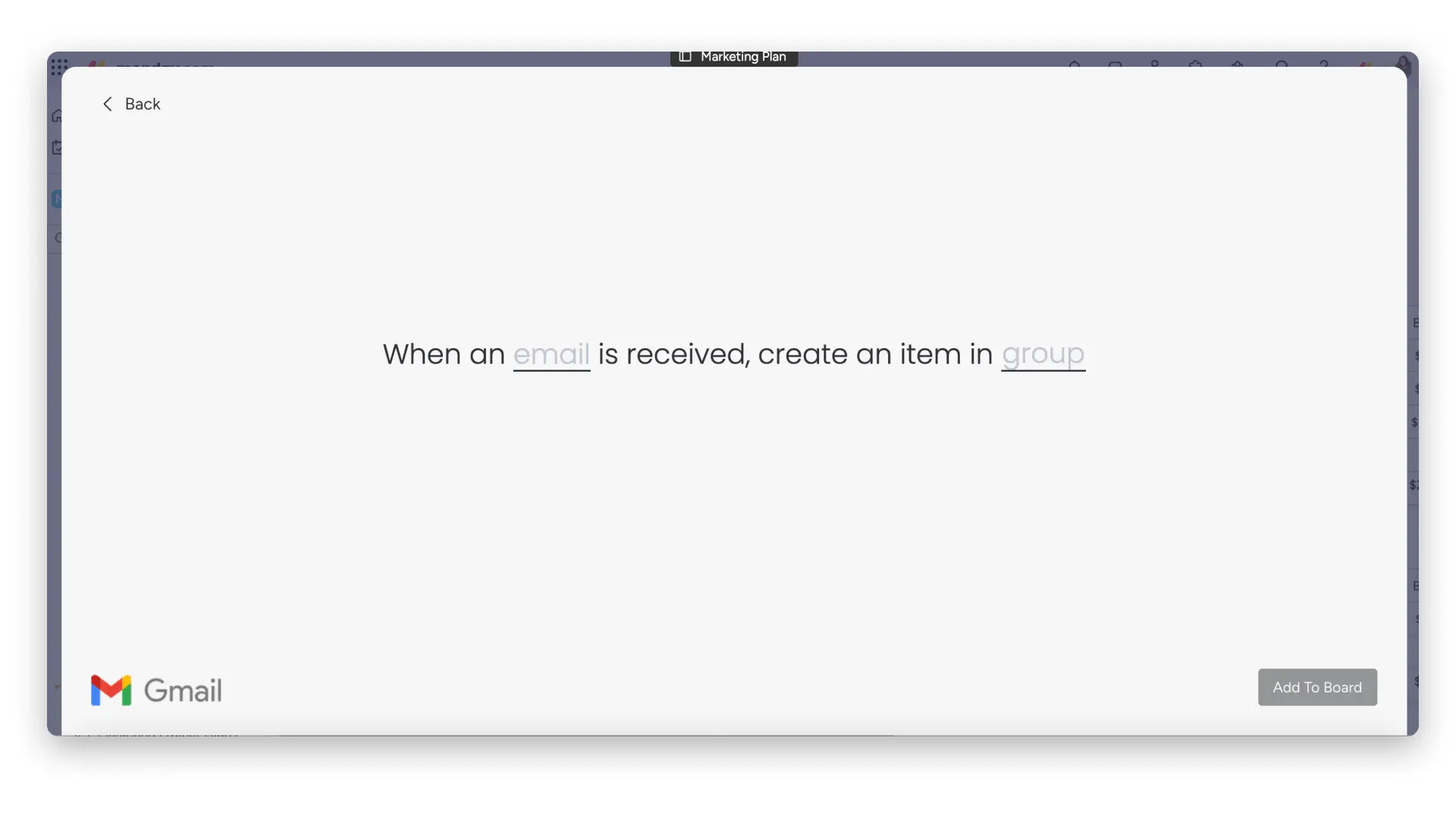

Error while connecting
If you see an error message when trying to connect your account, the connection to that Gmail account may be restricted. If you receive the following error message,

There are two options:
- You are trying to connect a Gmail account that is currently being used on a different monday.com account (i.e. a separate account from the account you are trying to set up the integration with)
- You are trying to connect a Gmail account that is currently being used by another user on the same monday.com account while using the Inbound Integration (from Gmail to monday.com) recipe .
If you would like to revoke any previous connections, follow the instructions to revoke access for other monday.com users and accounts from the desired Gmail account:
- While logged into Gmail, go to https://myaccount.google.com/permissions
- Scroll down and click on “Manage Third-Party Access”
- Click on monday.com then click the blue “Remove Access”
Once you’ve revoked access, you can follow the instructions in this article to reconnect to the Gmail integration.
If you are using the Email & Events app and would like further instructions on how to establish a connection with the app, please visit the “Error while connecting” section in the Email & Events article.
Does the integration support files?
The Gmail integration supports files! If you receive an email with a file using one of the following recipes, the file will go to the newsfeed: 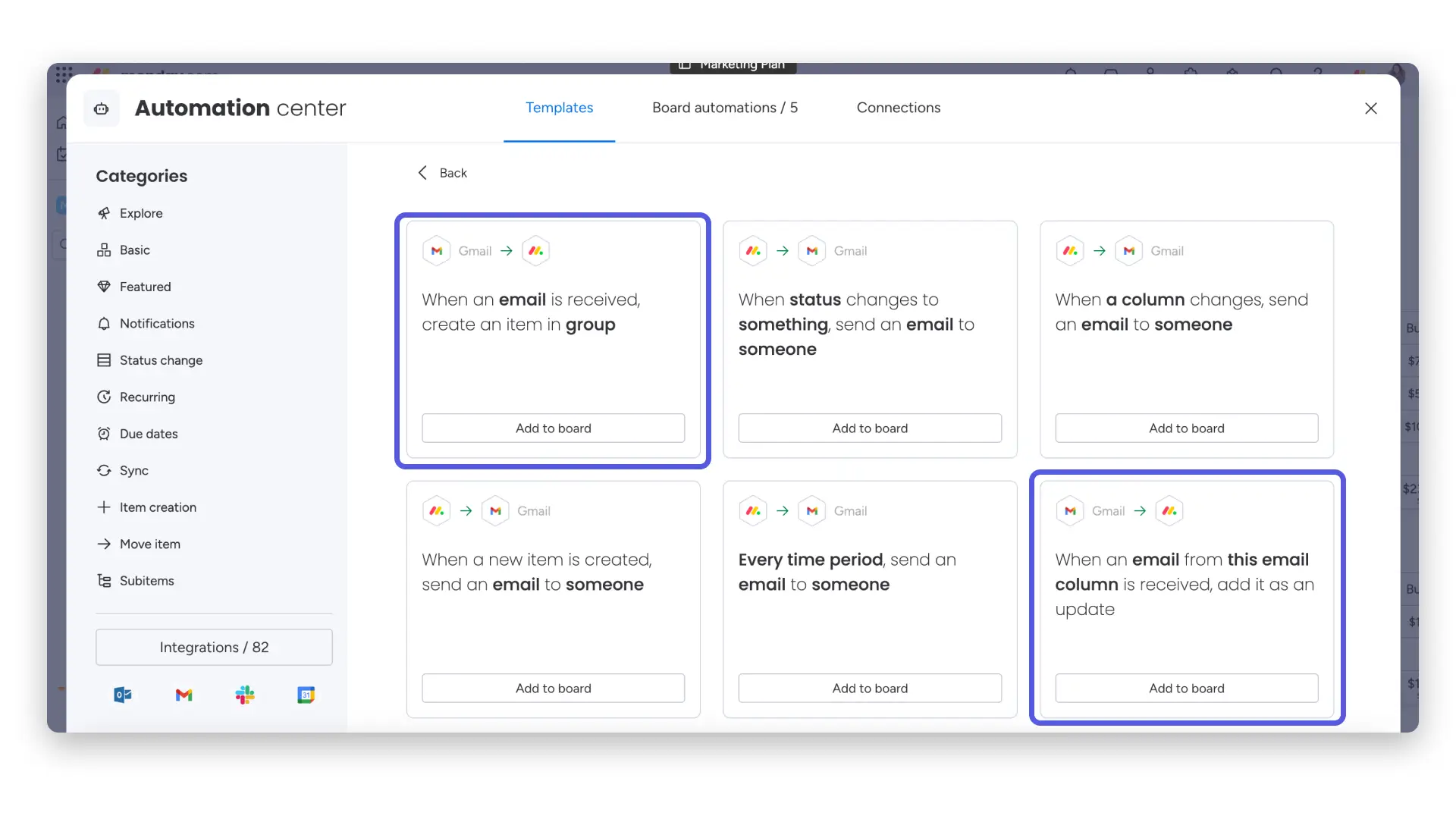
You can also send files from the Files column. If the file in the Files column is from a drive like Google Drive or OneDrive, the file will be sent as a URL to everyone. Their access to that file will be based on the settings in your drive.
If the file in the Files column was uploaded from someone’s computer, the file will also be sent as a URL to everyone. However, unless the person receiving the email is a member of your monday.com account and logged in, they will not be able to download that file.
Does the integration support multiple email addresses?
The Gmail integration supports multiple emails! You can define multiple emails in a text column separated by “;” and the email will be sent to each of these addresses separately.
For example, in this recipe: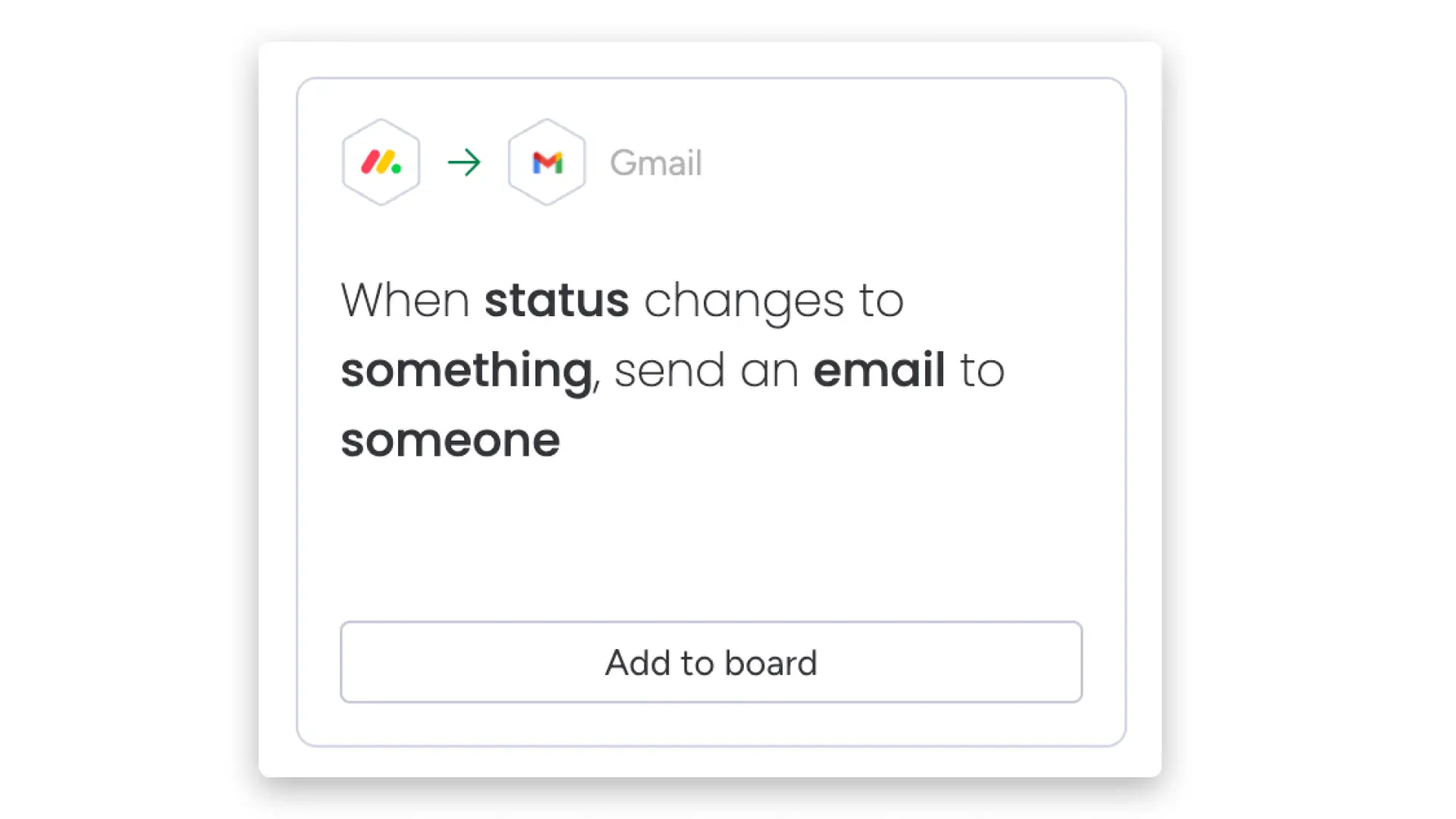
Select the Email option from the “someone” menu and then select a text column:
You can set the values (email address) of the text column like this: example@monday.com ; example.monday@gmail.com
And the integration will send an email to example@monday.com & example.monday@gmail.com!
Unsync for your account

Change the sender
If your name isn’t displayed correctly in outgoing emails sent through Gmail integration, you can quickly fix this in a few steps:
- Log in to your Gmail account.
- Click “See all settings” on the right side of your screen:
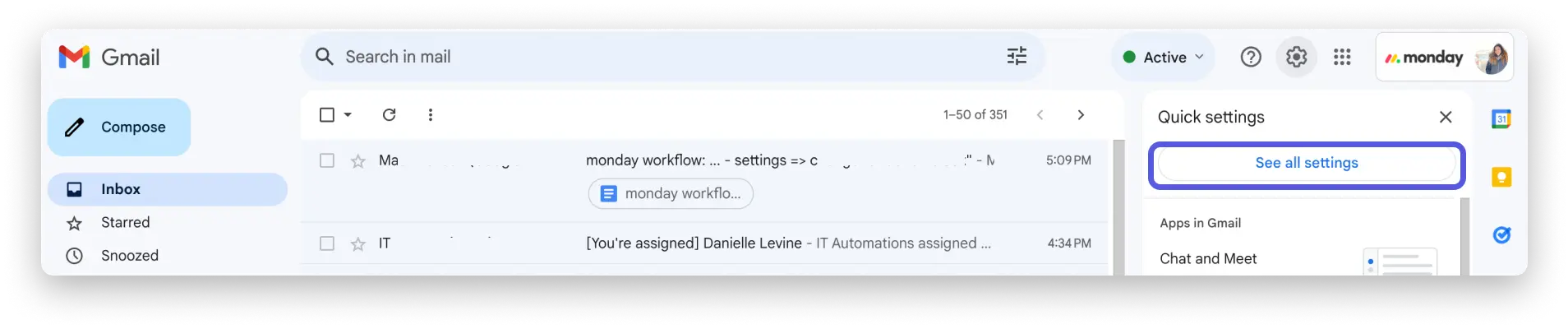
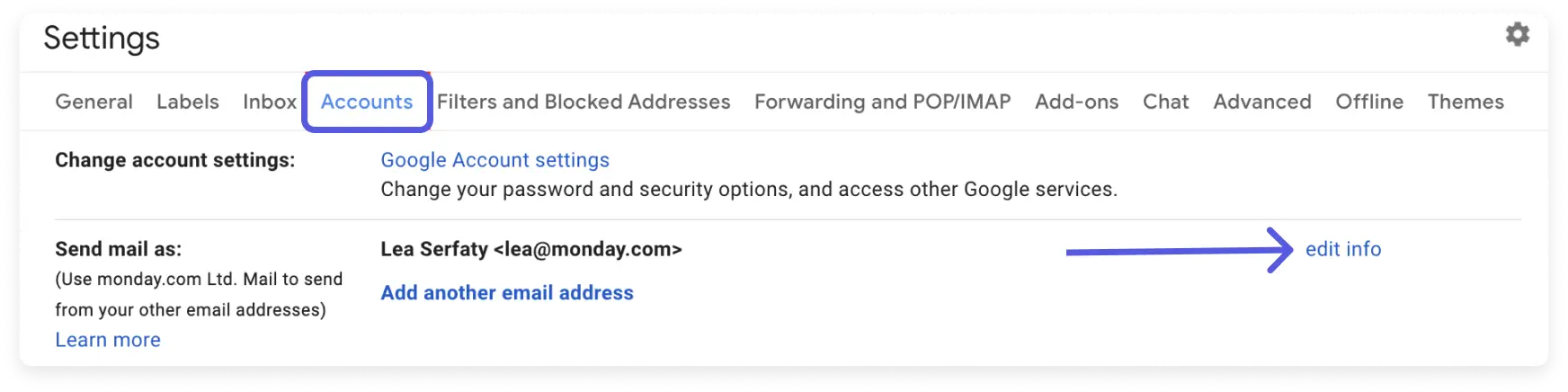
- Next, click on “Accounts” and then “Edit Info”:
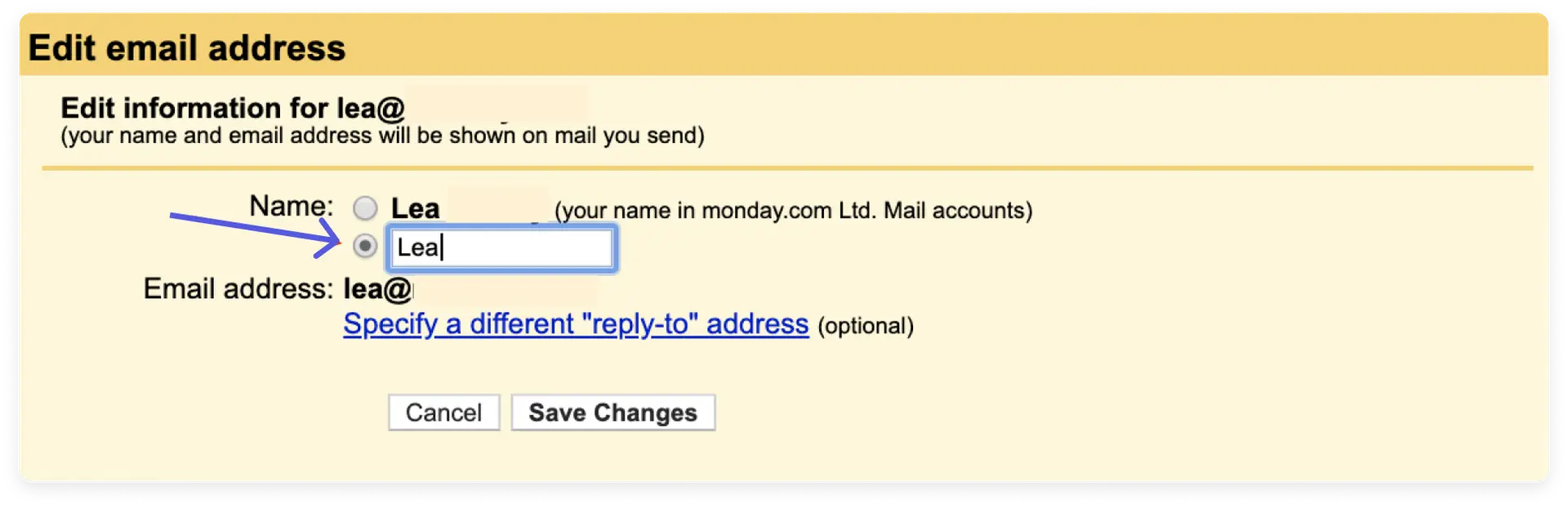
- Add your preferred name in the empty box. Then, make sure you check the box and click “Save Changes.”
Add your signature
You can add your signature to all emails sent from monday.com through the Gmail integration. To do this, click “See all settings” in your Gmail account.
Then, select “General” and add your signature as below:
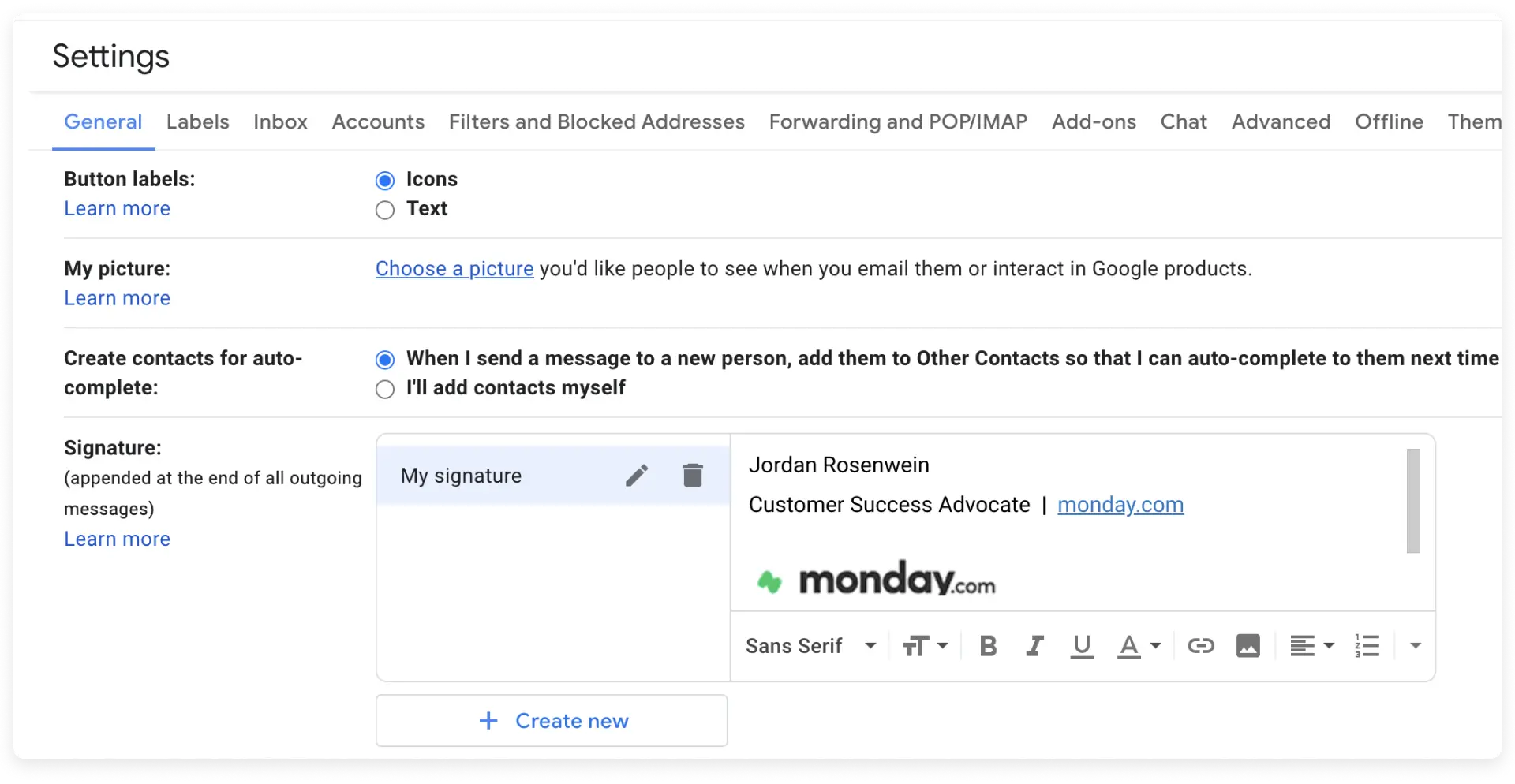
And here it is!
Help – it’s not working!
Option 1 – Sending mass emails
If you are trying to send a mass email and your integration is not working, you may have exceeded the limits set by Google. For more information about these limits, please see our article on Gmail integration limits.
Option 2 – Refresh your connection
If you are not sending a mass email and your integration is not working, try restoring the connection. To do this, click the “Integration” button located in the upper right corner of your dashboard. Once in the Automations Center, select “Connections”: 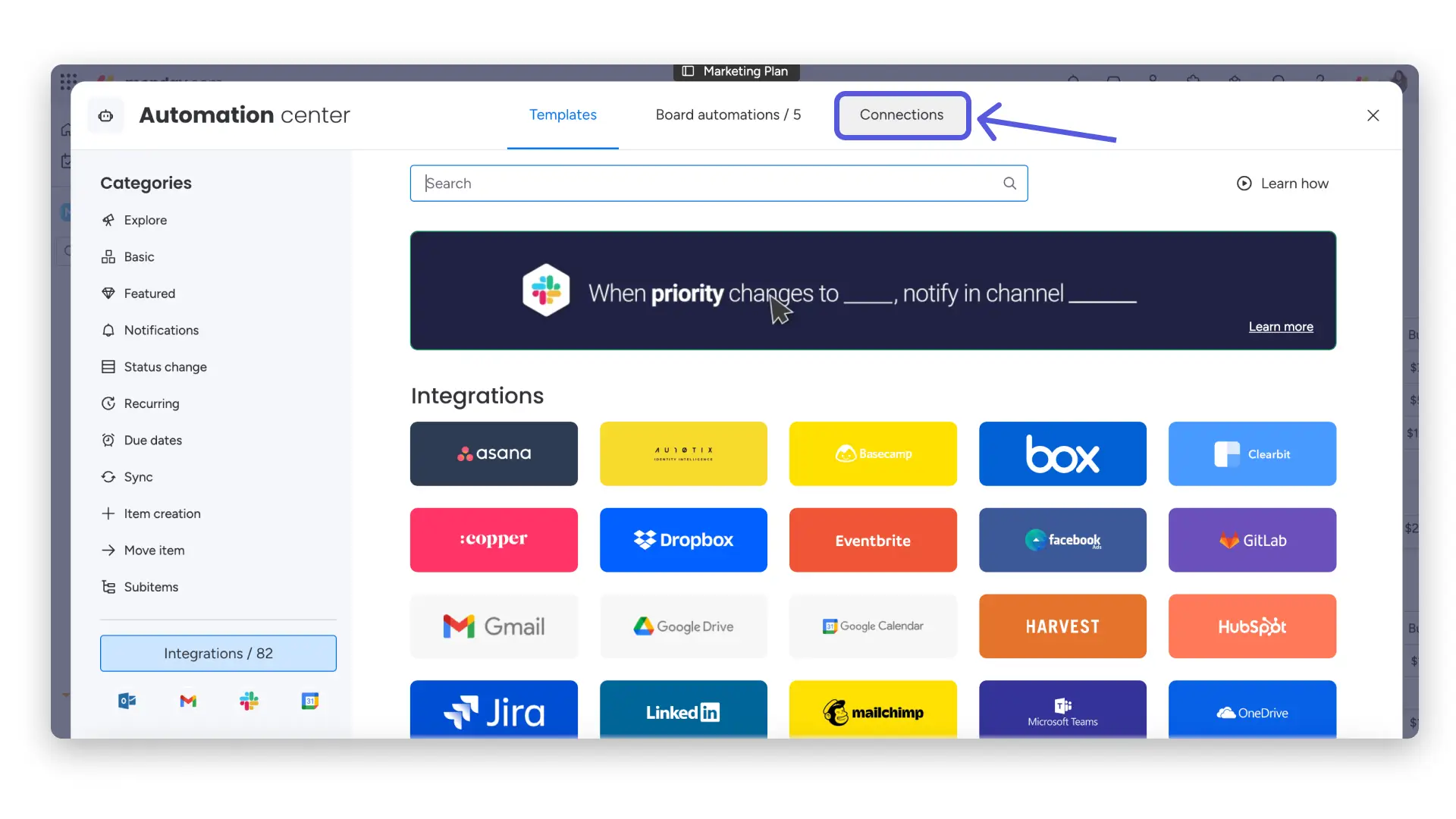
Then, click the three-dot menu on the account you want to manage and select “Restore Connection” from the drop-down menu: 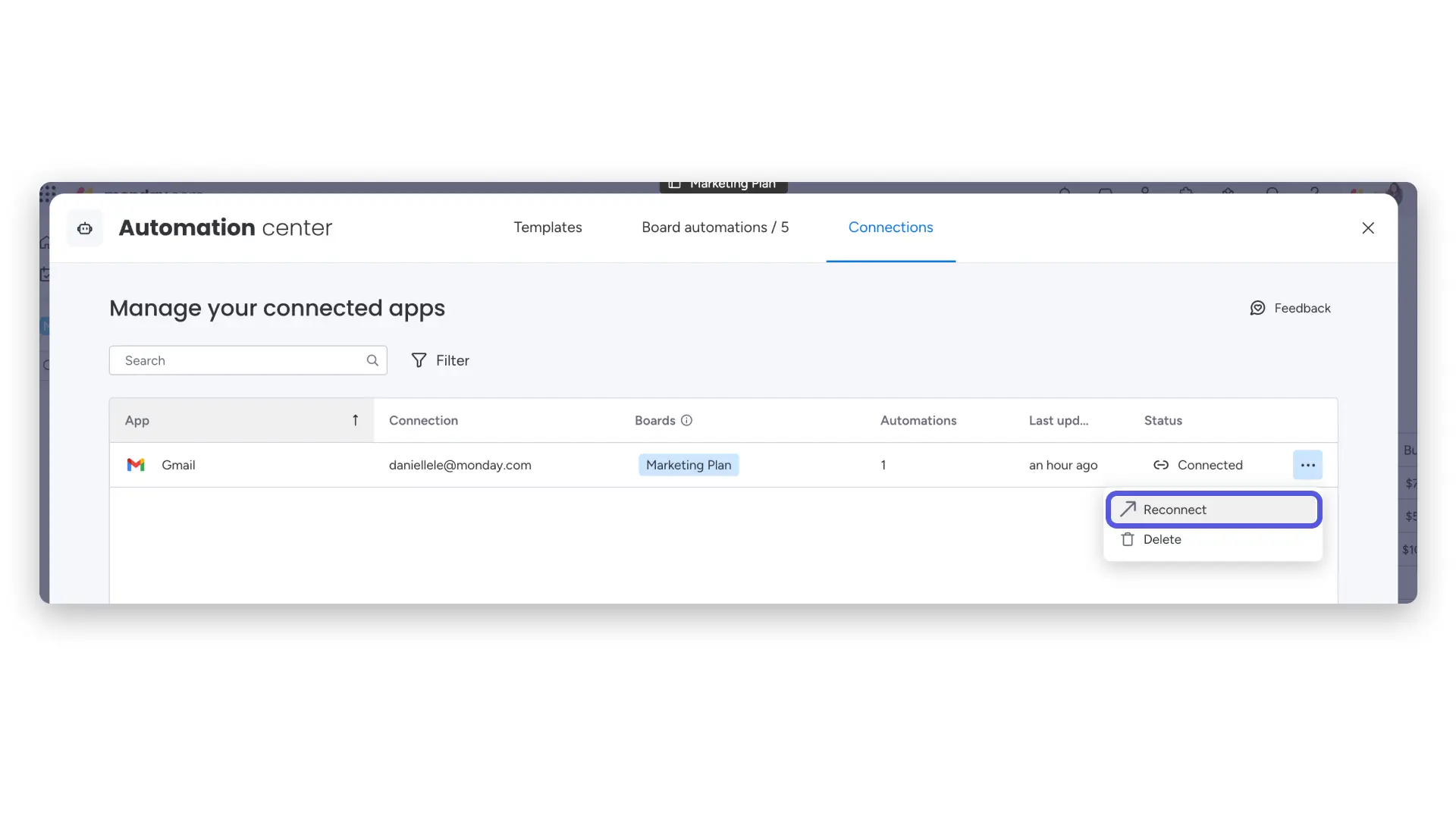
Then, click “Use a different account”: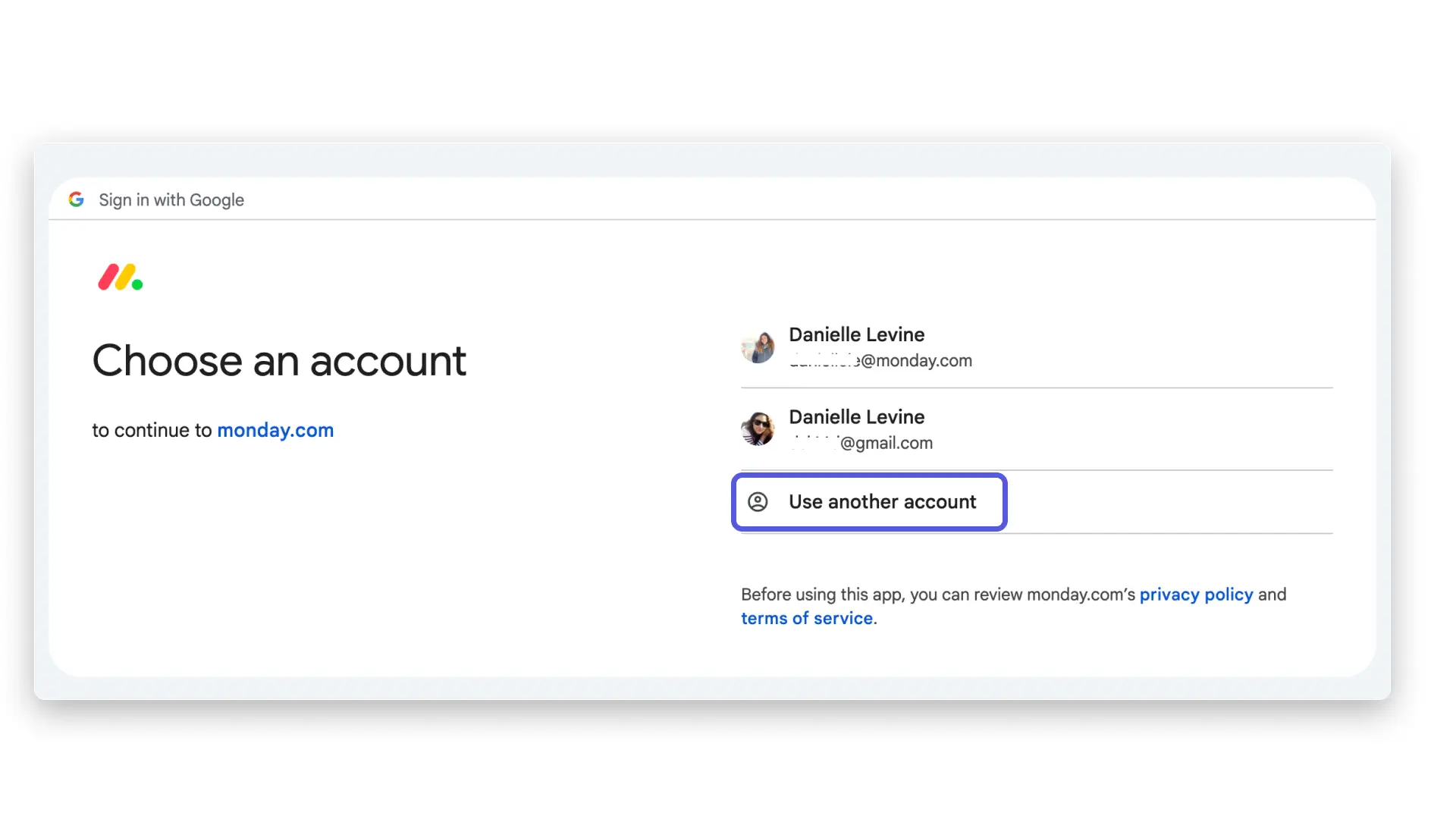
From there, you can restore the connection. This should resolve the issue. If not, see option 3 below.
Option 3 – Unsync for the integration
Option 4 – Check if you have an automatic forwarding or filter in your mailbox
If you’re still having problems, check if you have automatic forwarding or a filter in your mailbox that automatically sorts incoming emails into folders. If so, try turning off those settings and see if the integration works for you.
Email automation loop
When you send an email from monday, an update in your board will be automatically created. So, if you have an automation set up like “When an update is created, email someone,” an automation loop will occur. The email sent will automatically create an update in your board item, which will trigger the automation recipe.

To end the automation loop, disable the automation recipe from within the Automation Hub. Select “Board automations” from the top of the Automation Hub, find the automation recipe that is causing the loop, and toggle it to “Off.”

If you have any questions, feel free to contact our team here . We are available 24/7 and will be happy to help.