
It’s easy to integrate any Twitter feed into your monday.com account with the Twitter widget. This awesome feature lets you stay up to date with all the latest news and posts right on your monday.com dashboard! Read on to learn how to set it up.
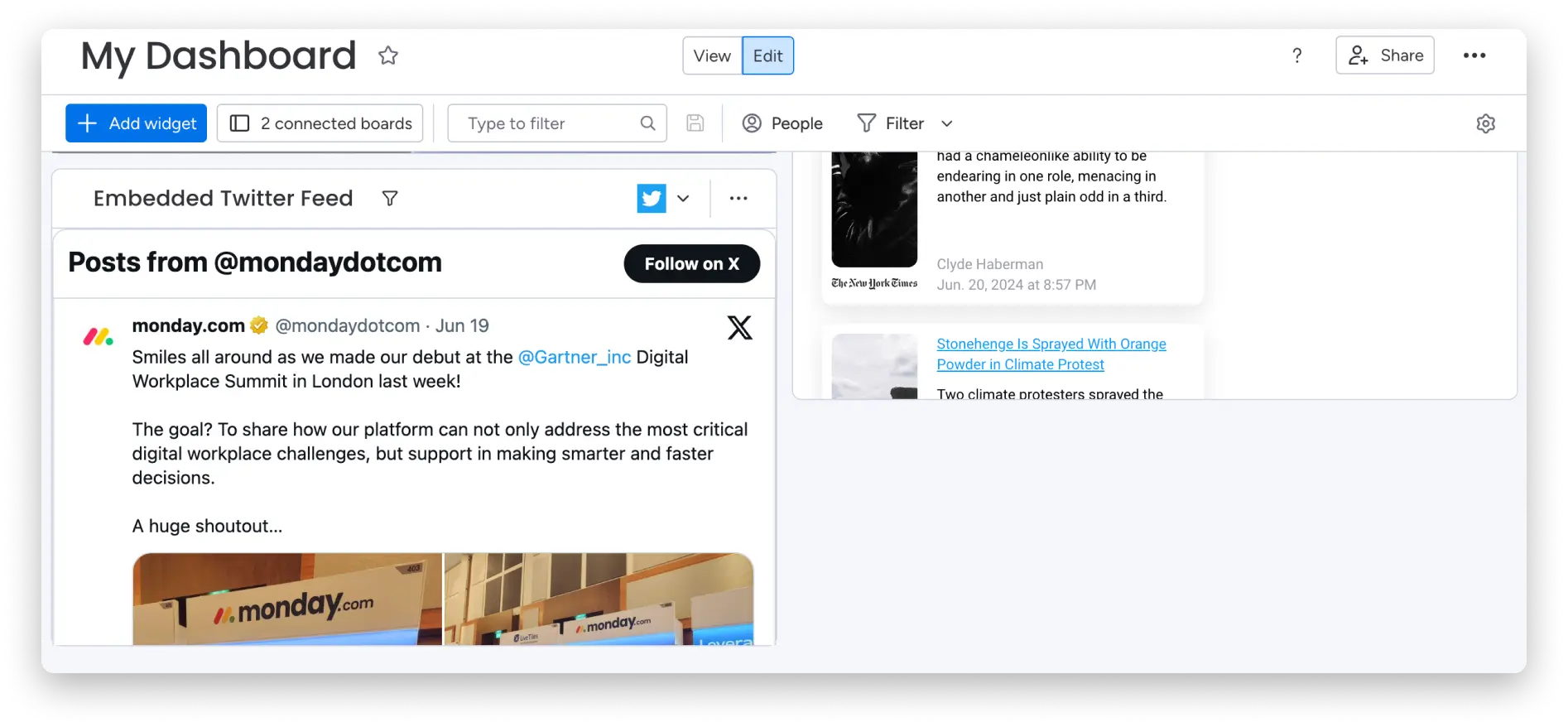
How to add this?
To add the Twitter widget to your dashboard, click the Add Widget button on the top left of your dashboard. Click More Widgets and this will take you to the Widget Center. 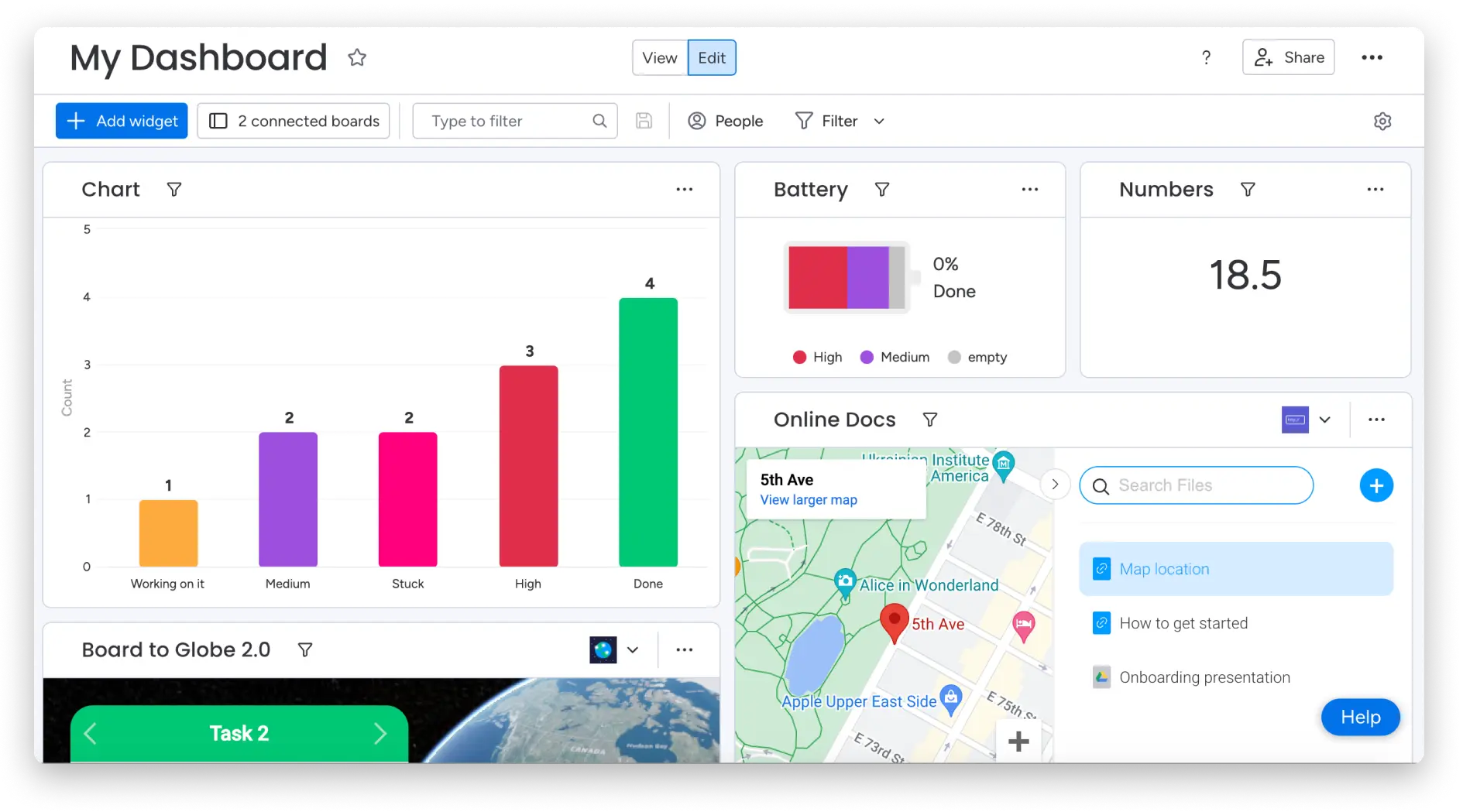
Now, search for “Twitter” and add it to your dashboard.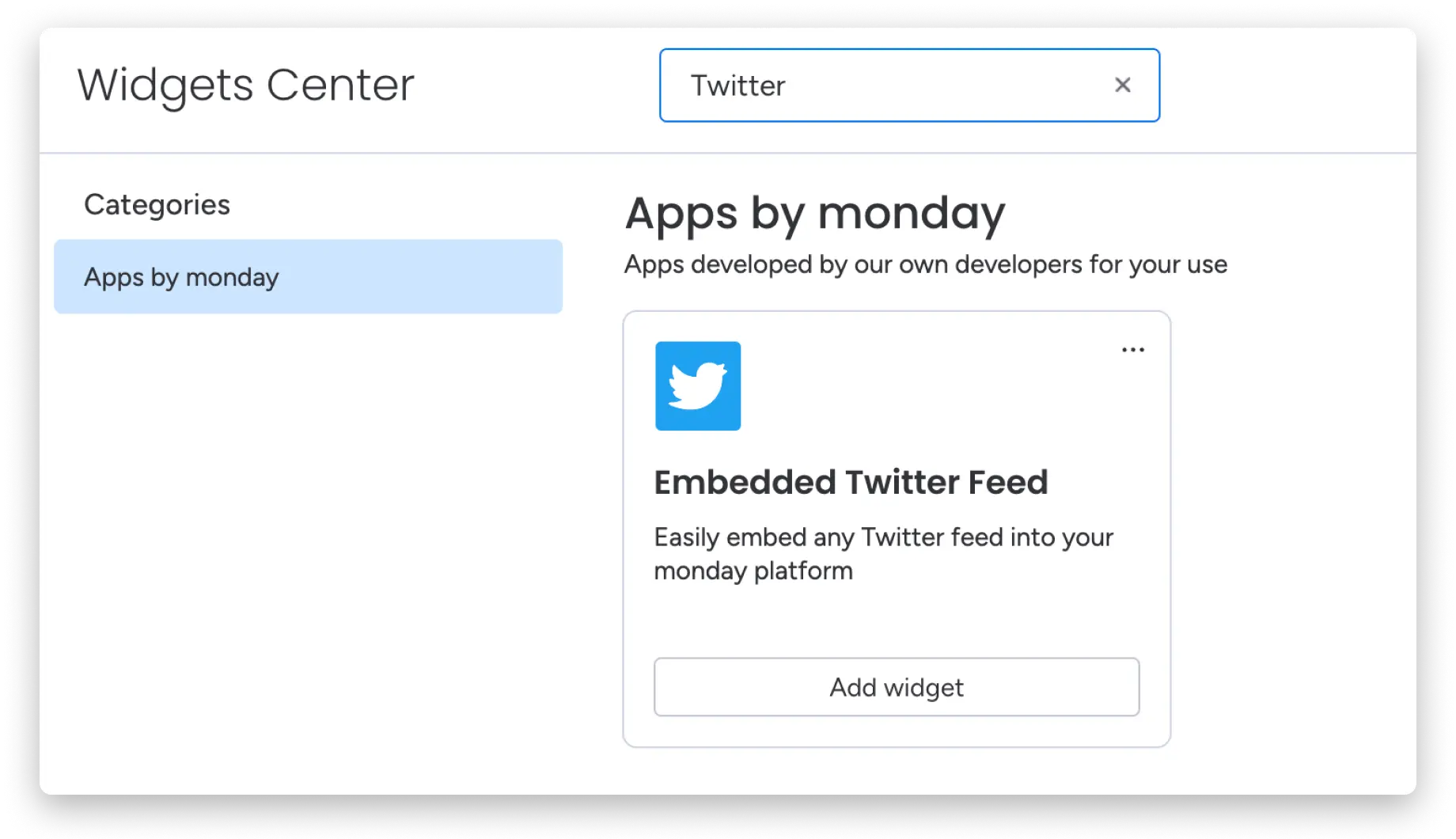
And you’re all set! Now let’s dive into some settings.
Choose your username
At this point, simply add the username of the Twitter profile you want to communicate with. In this example, we chose “mondaydotcom”.
Select the feature
- Timeline
At this point, you can choose to view the timeline from that specific user. In our case, mondaydotcom. 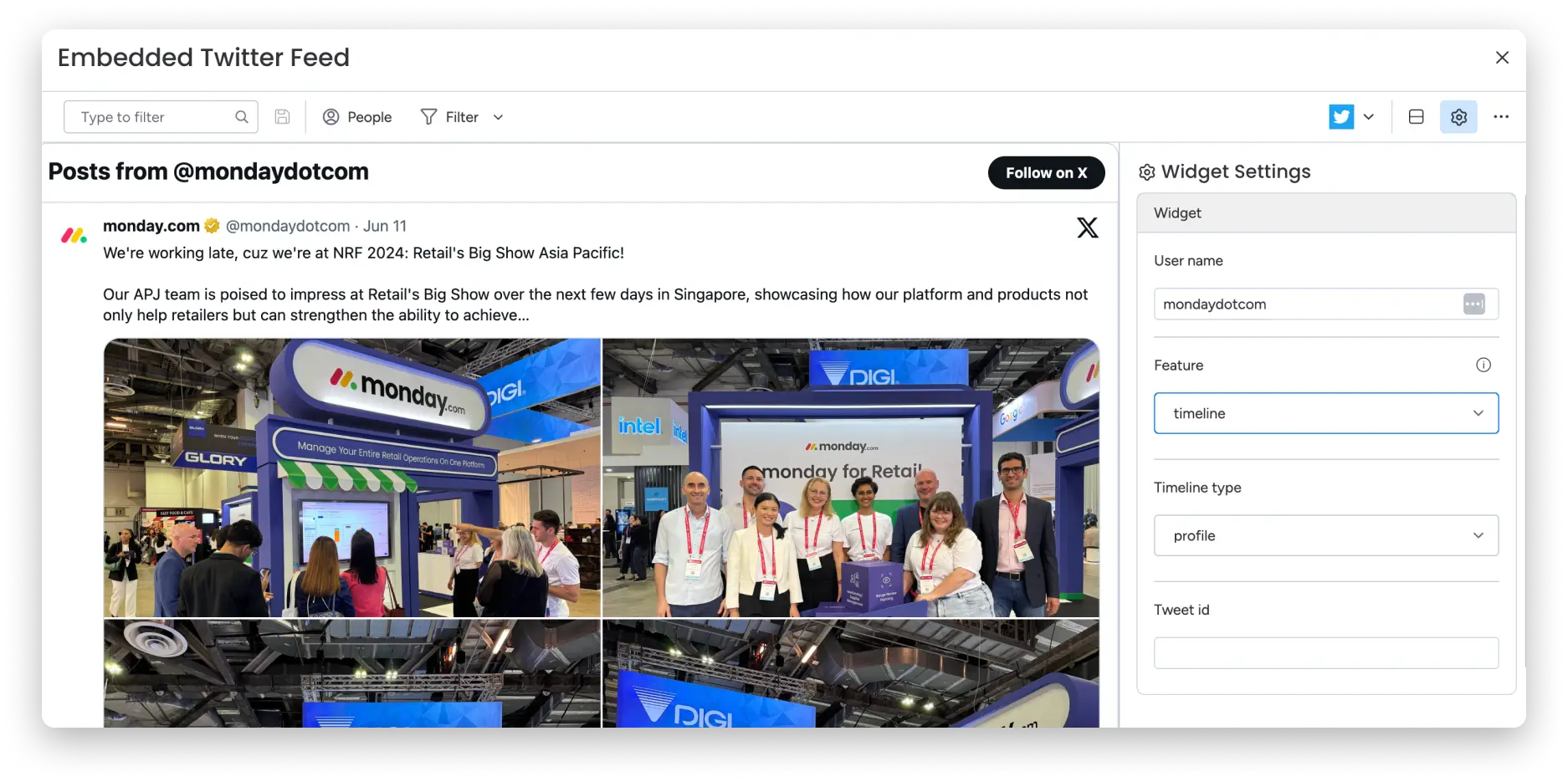
- tweet
If I select “Tweets”, it will show all the latest tweets from mondaydotcom: 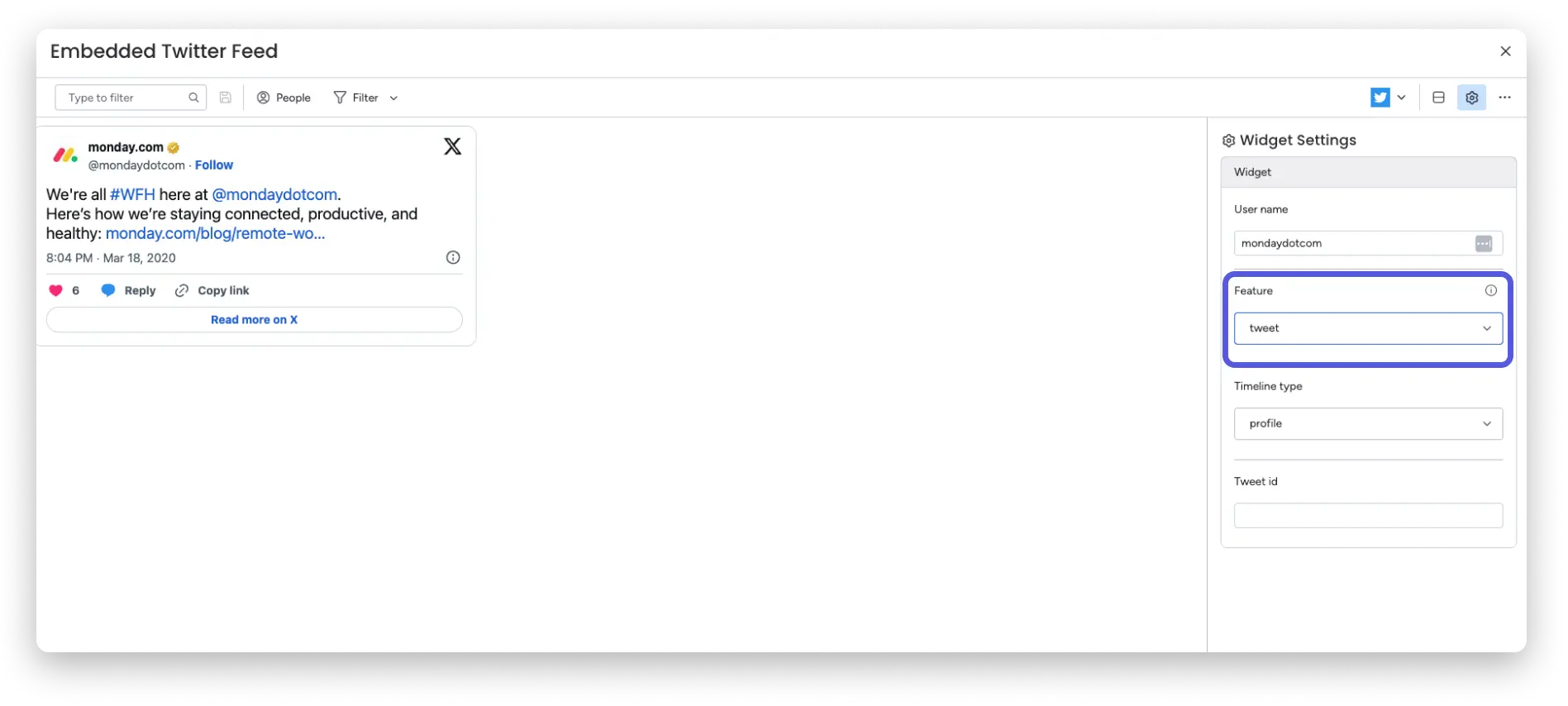
- mention
Additionally, you have the option to mention, follow, and click a button. Click any of these buttons and you’ll be connected directly without leaving your monday.com account. In this example, we’ve selected the “mention” button. Next, we’ll click the small icon located on the top left side of the widget as shown in the image above: 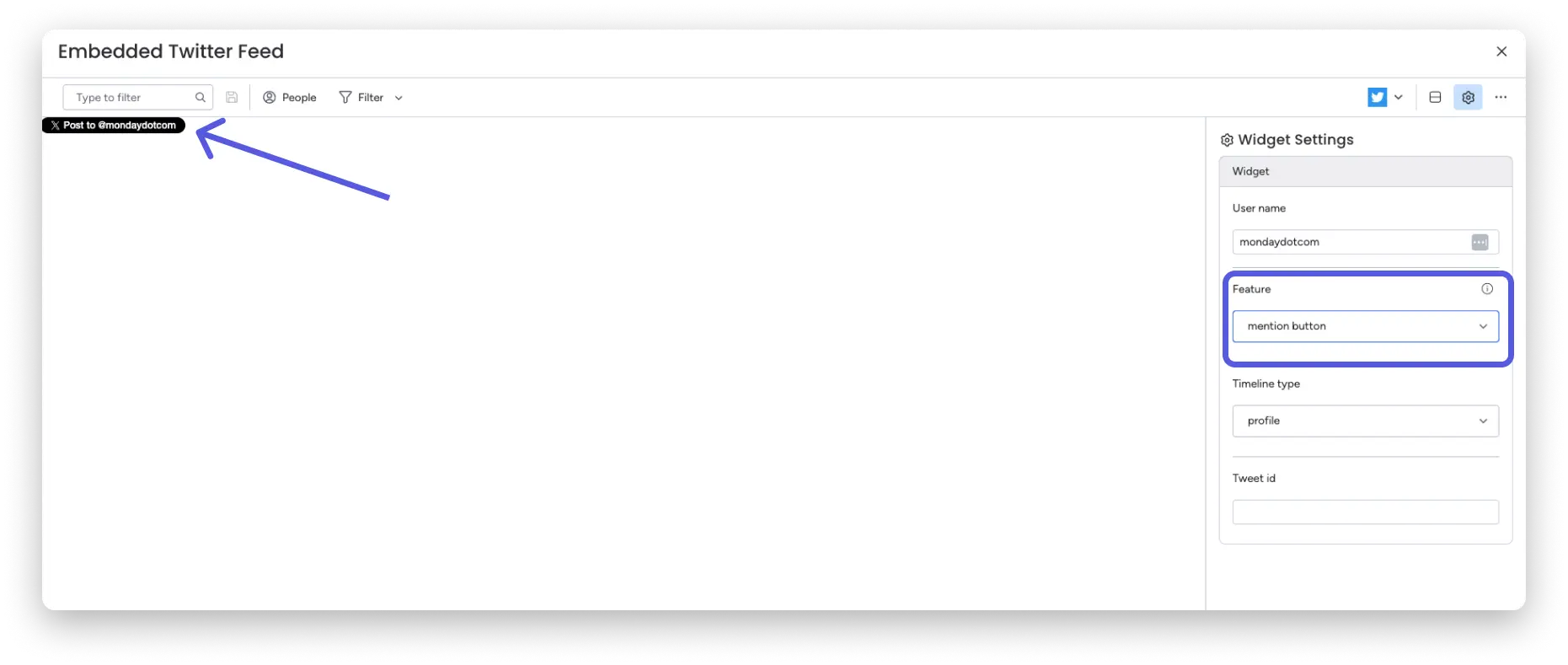
A pop-up window will open asking you to log in to your Twitter account. Once you’re done, you can post your tweet with the mention already included. 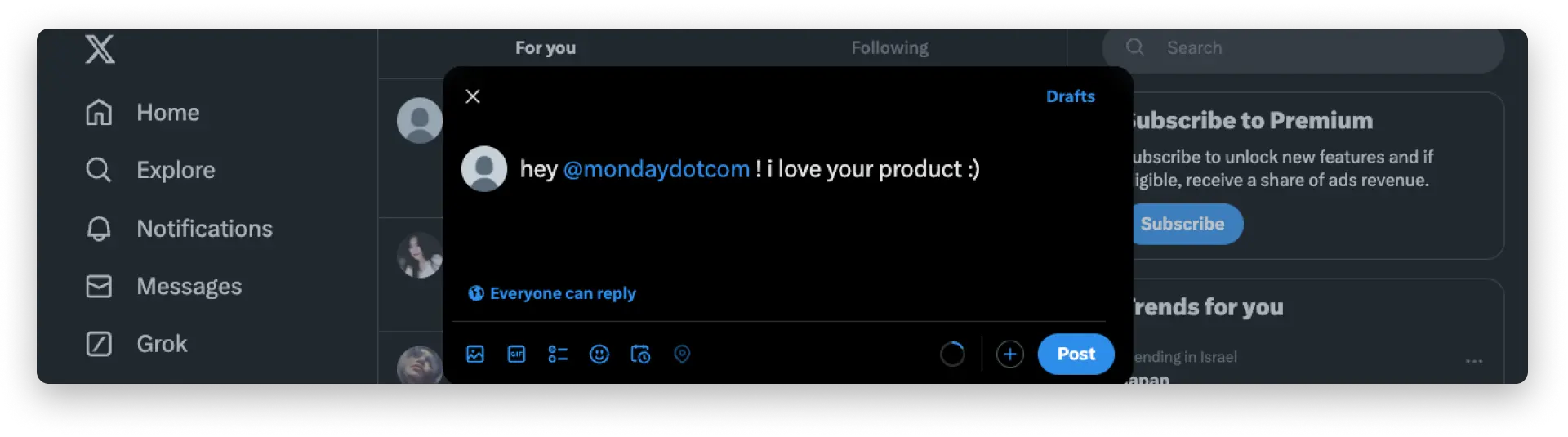
- Hashtag
With this button, you can write a tweet with the mondaydotcom hashtag already included: 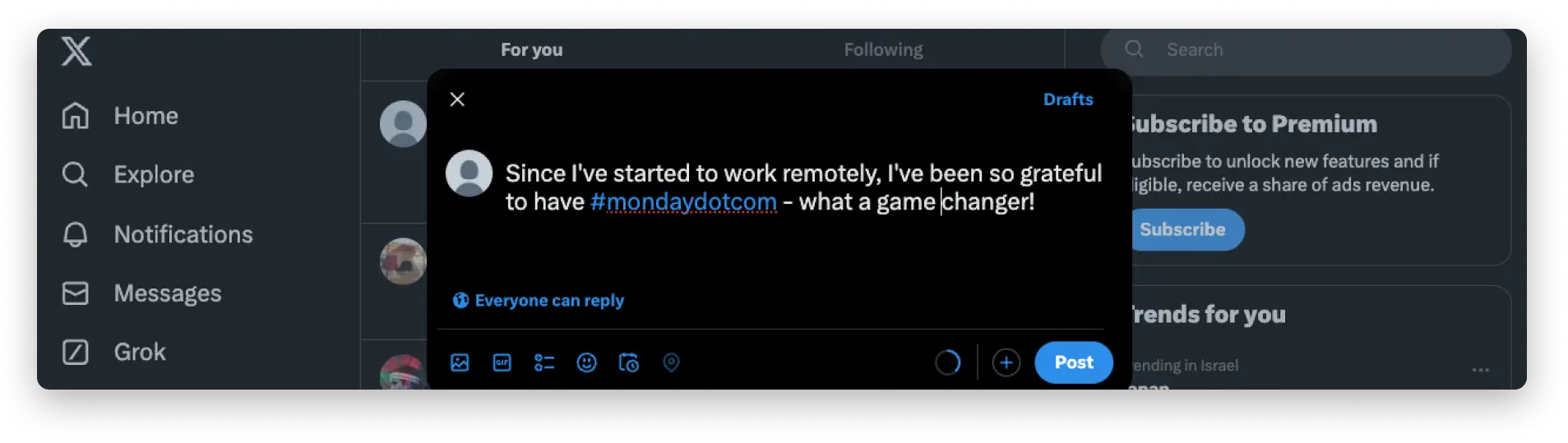
- Follow
With this button, you can access the followers of the account we entered in the username field. 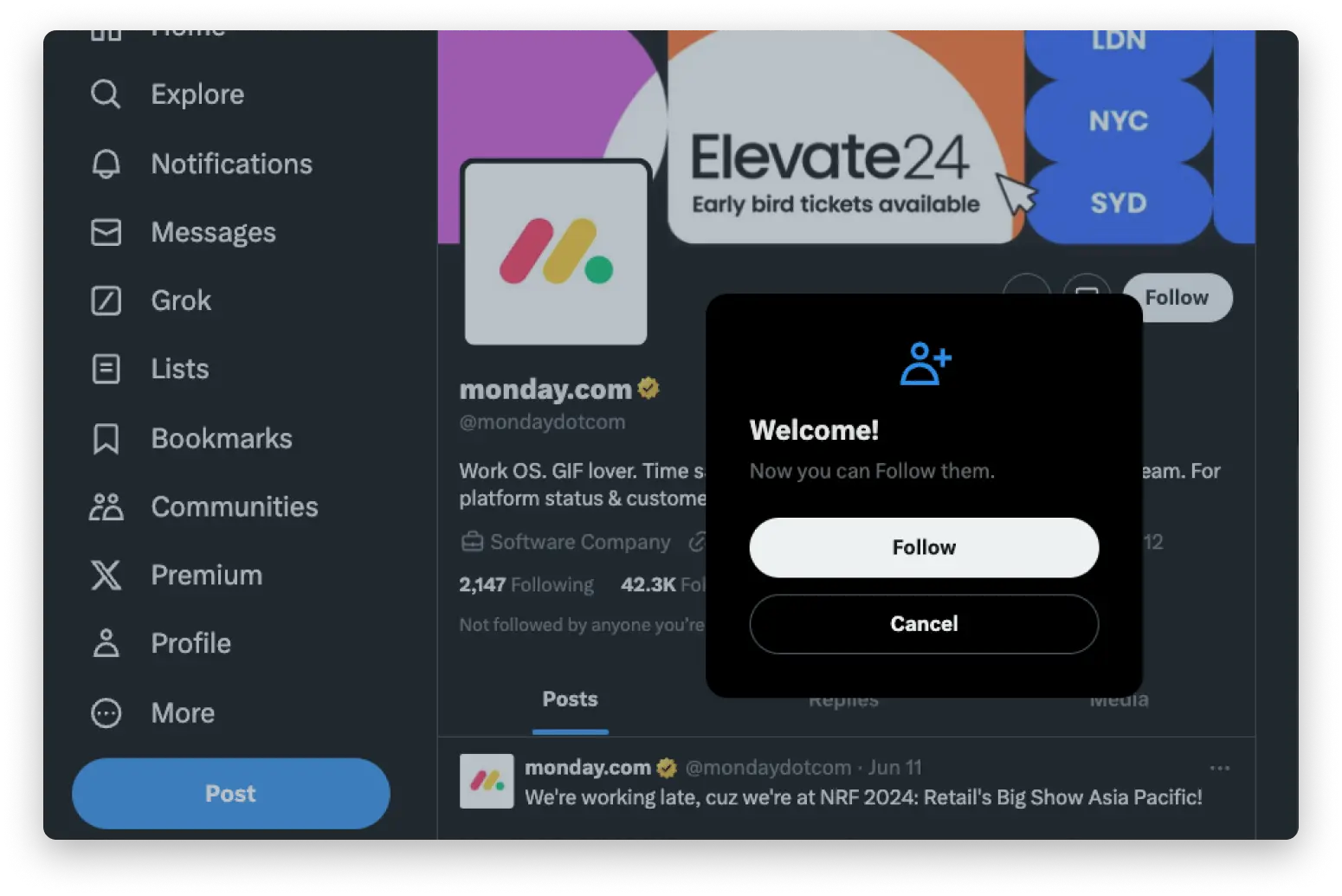
Choose your timeline type

If you selected the “Timeline” feature in the previous step, you will have the option to choose whether you want to display your profile or your likes. Here, for example, we selected “Profile” and the widget will show all recent posts: 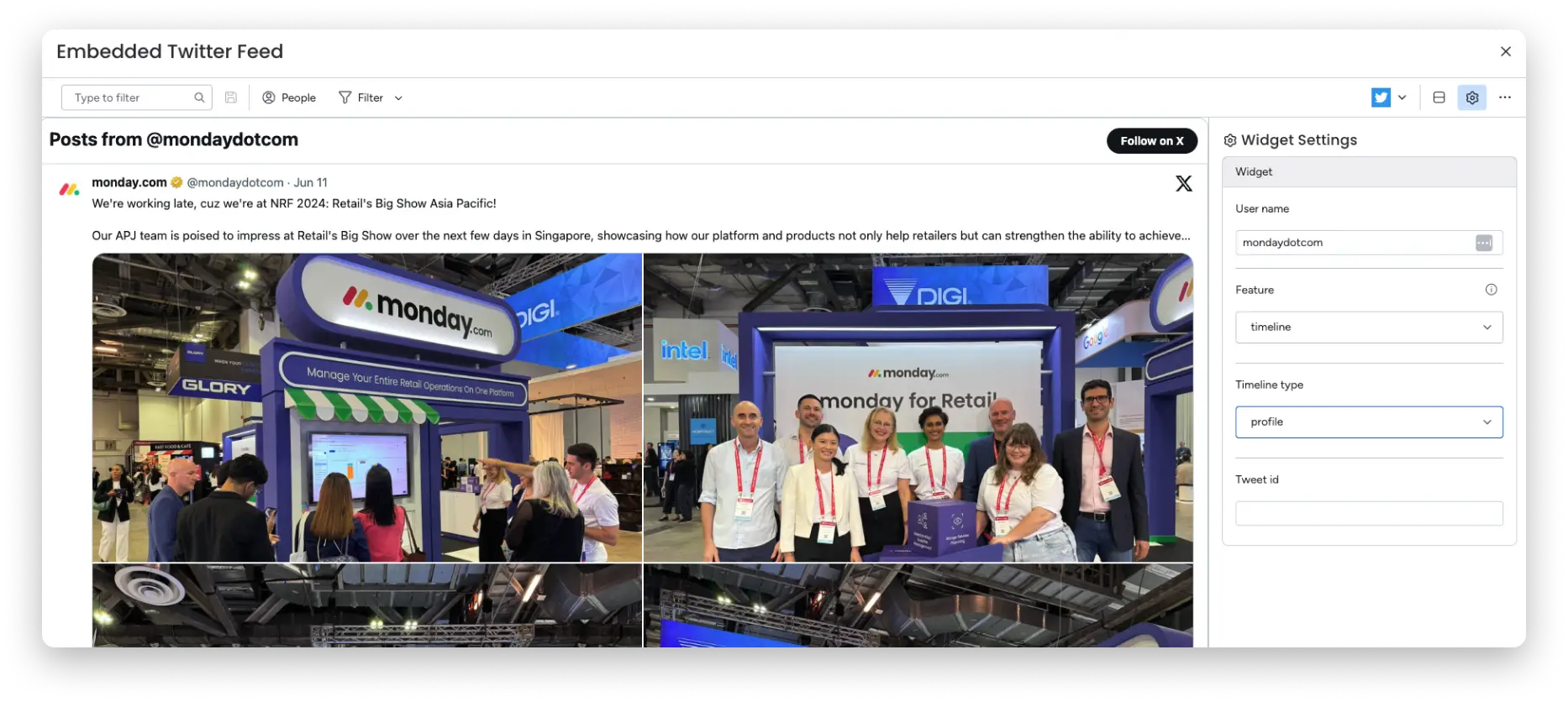
Show a specific tweet
With the Twitter widget, you can also display a specific tweet by entering the tweet ID. This is great if you want to display great feedback you received or a tweet that inspired you.

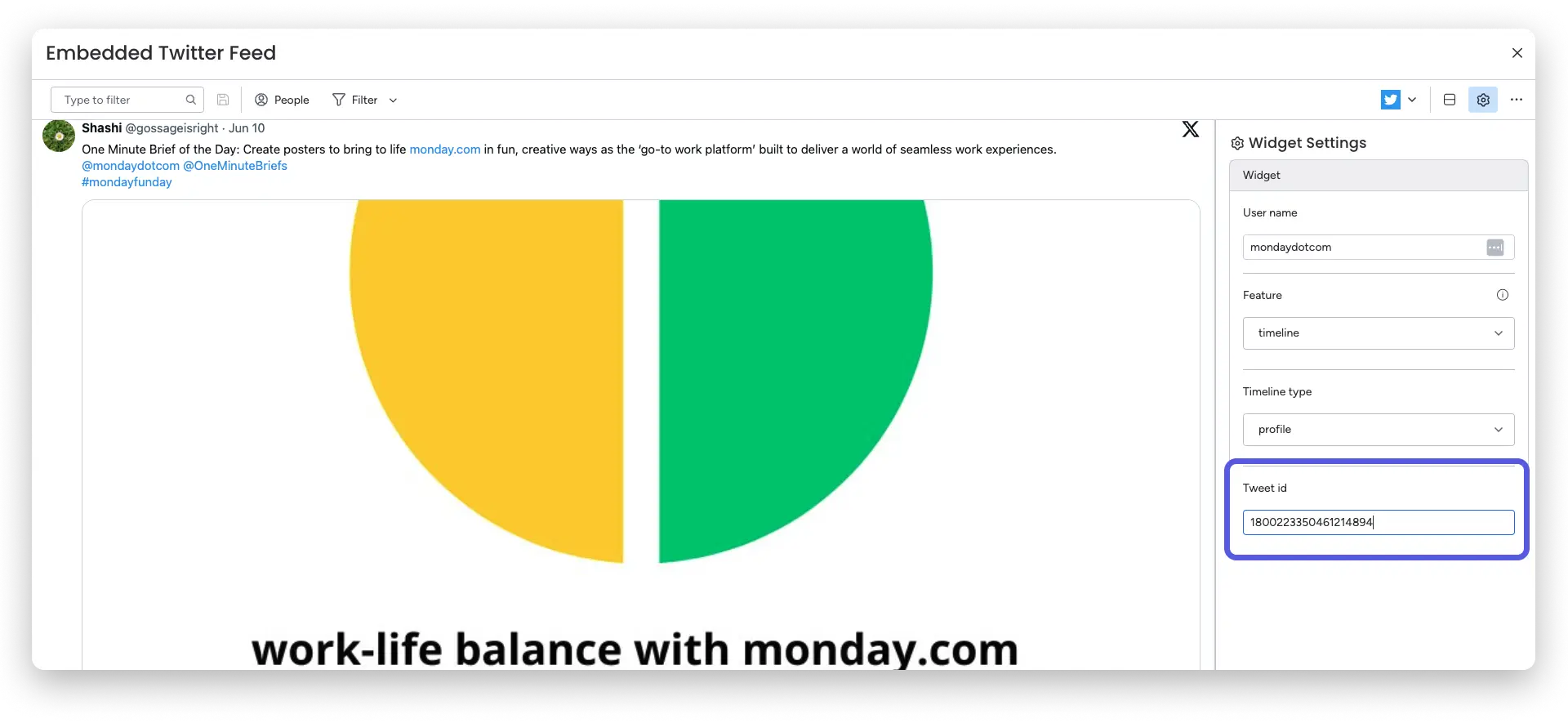
And that’s it! No more switching between tabs! You can keep up with all your favorite tweets right on your dashboard on monday.com.