
Collaborate on a Collaborative Whiteboard on Monday
Have you ever needed to draw a flowchart to explain things in online meetings, or build a product mockup? What about brainstorming ideas while collaborating in real time with your team on a single document? The collaborative whiteboard is here and ready for you to start getting creative!
With this view, you and your team have a free space to visualize and share ideas together, online and in real time, so you can manage all your processes in one place.
In this article, we’ll talk about how to set up and create powerful collaborative whiteboards that can be used for brainstorming and ideation, interviews, research and planning, teaching, and more. 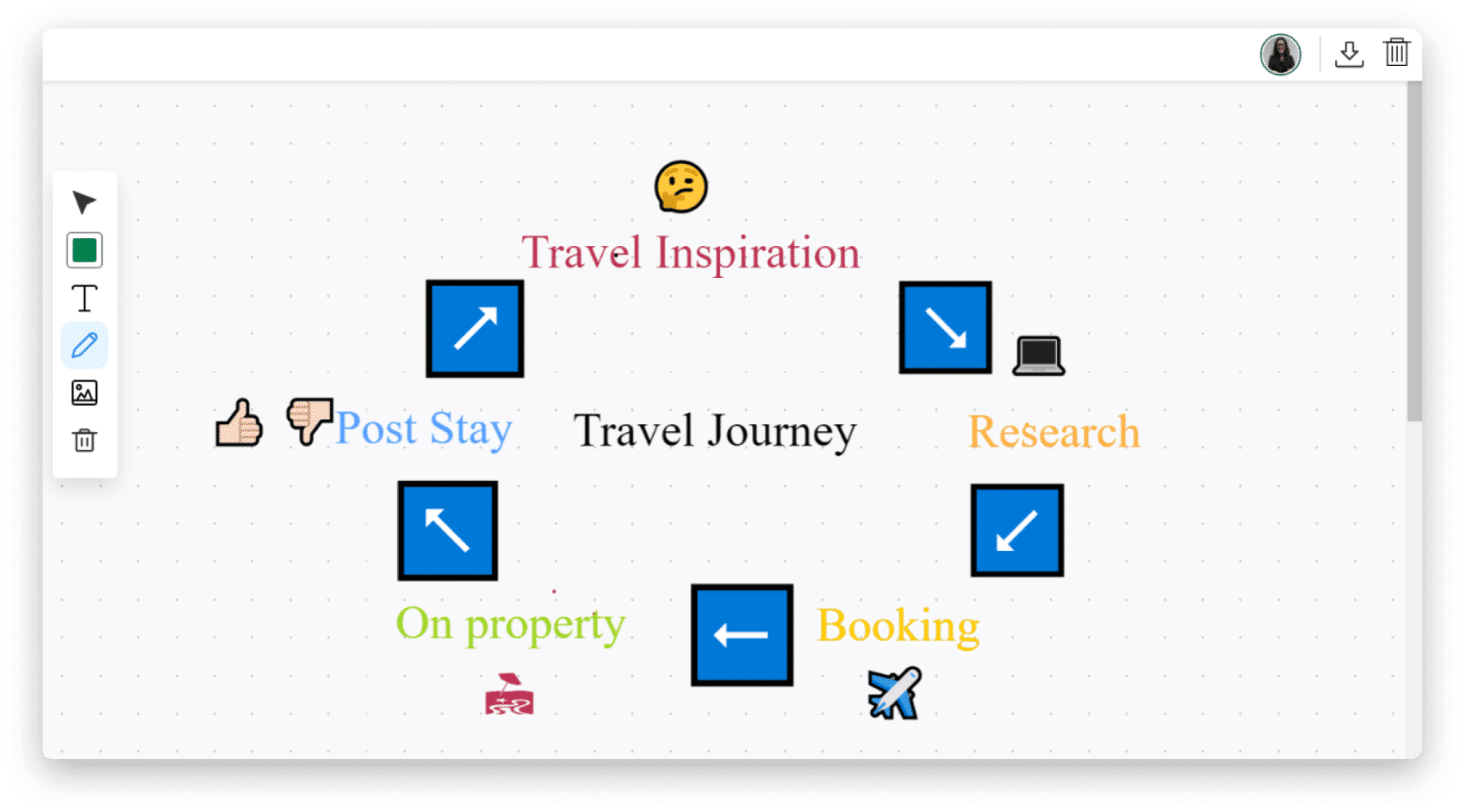
How to add this to your board and dashboard
- Board view
To add a collaborative whiteboard to your board, click the arrow next to the “Homeboard” button located at the top left of your board. Click “Discover More Views” which will take you to the Views Center. 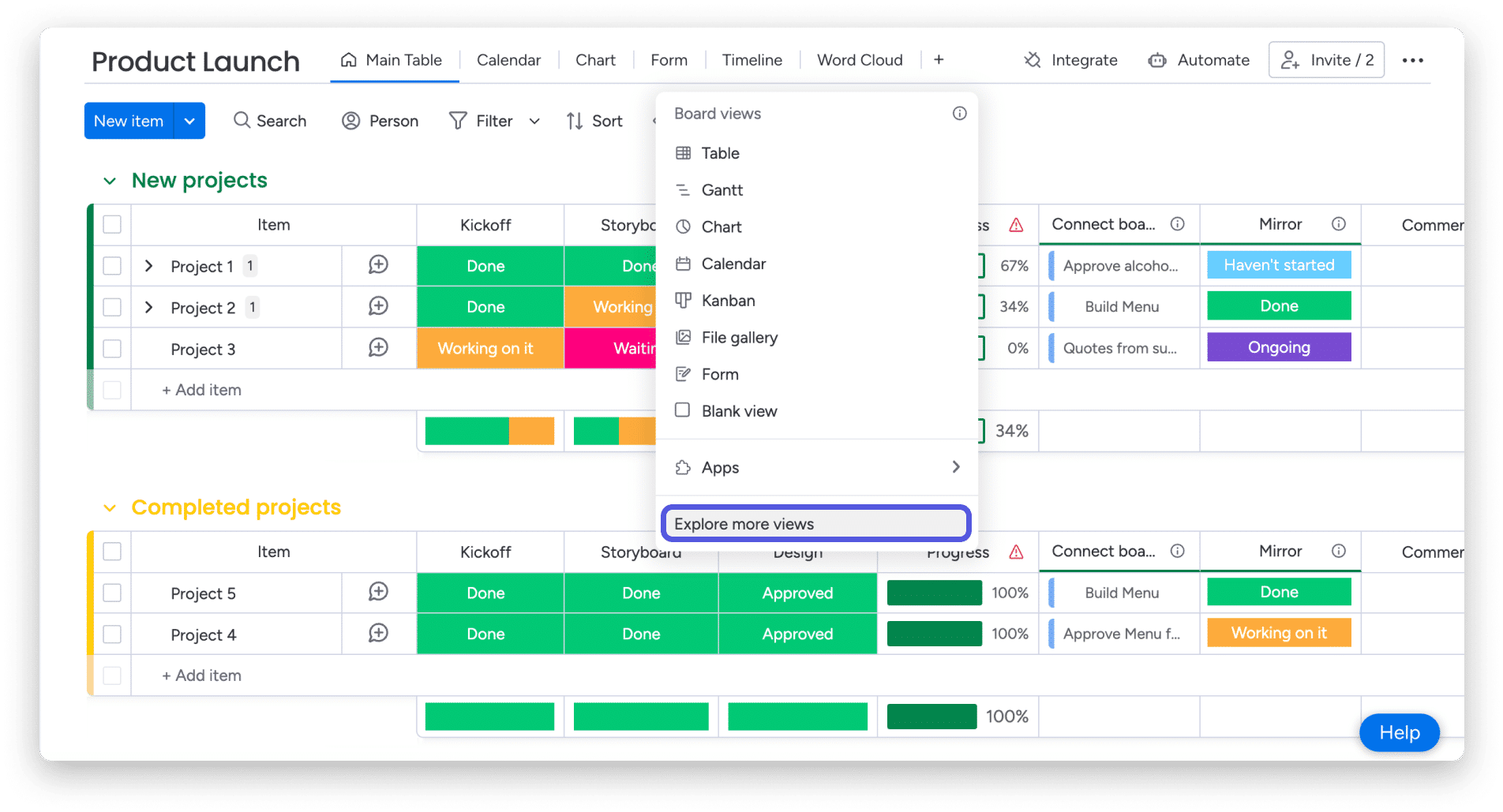
In the Views Center, search for “Collaborative Whiteboard” and add it to your board. 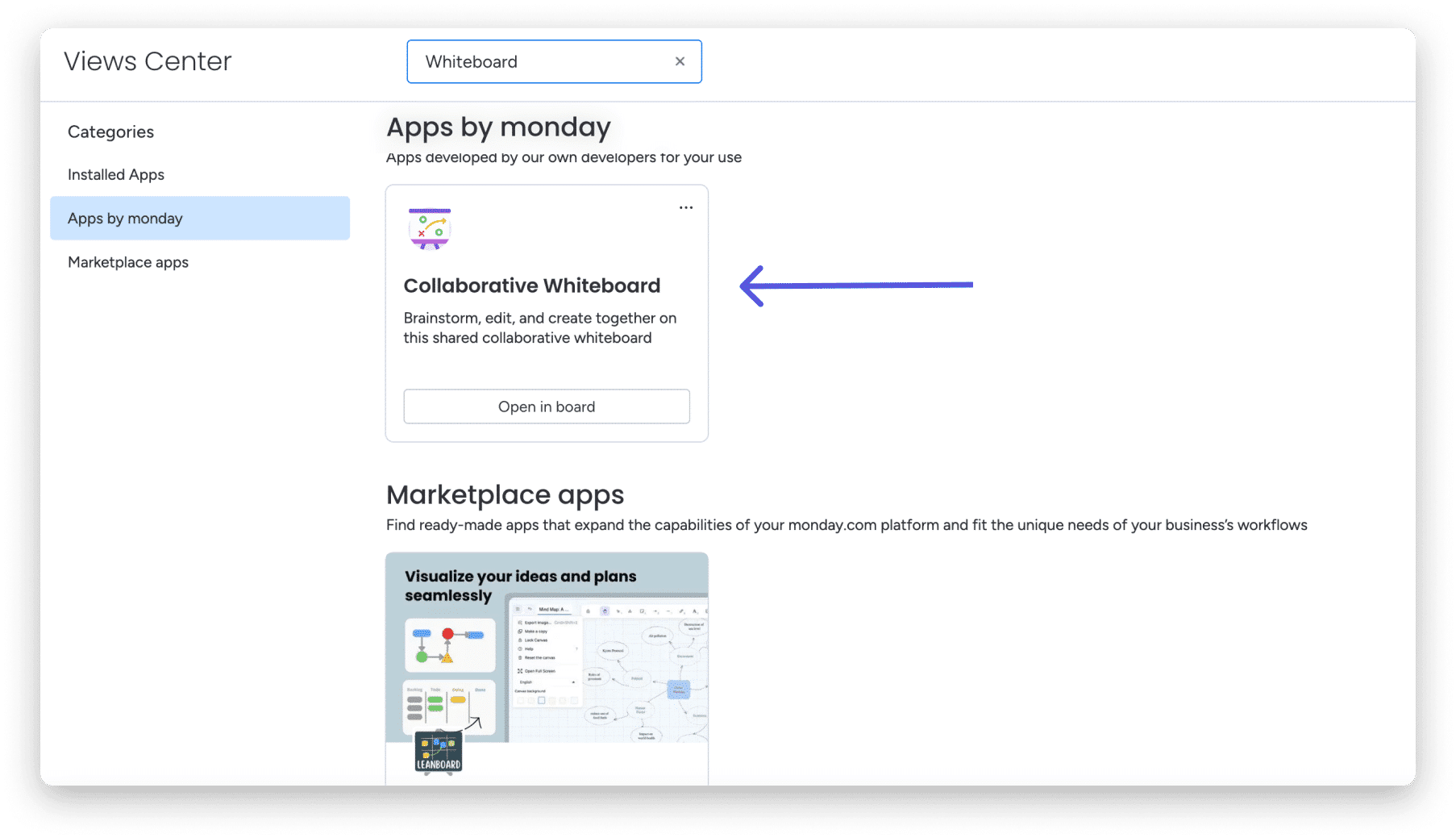
- Dashboard widget
To add the whiteboard widget to your dashboard, click the “Add Widget” button on the top left of your dashboard. Click “More Widgets” which will take you to the widget center. 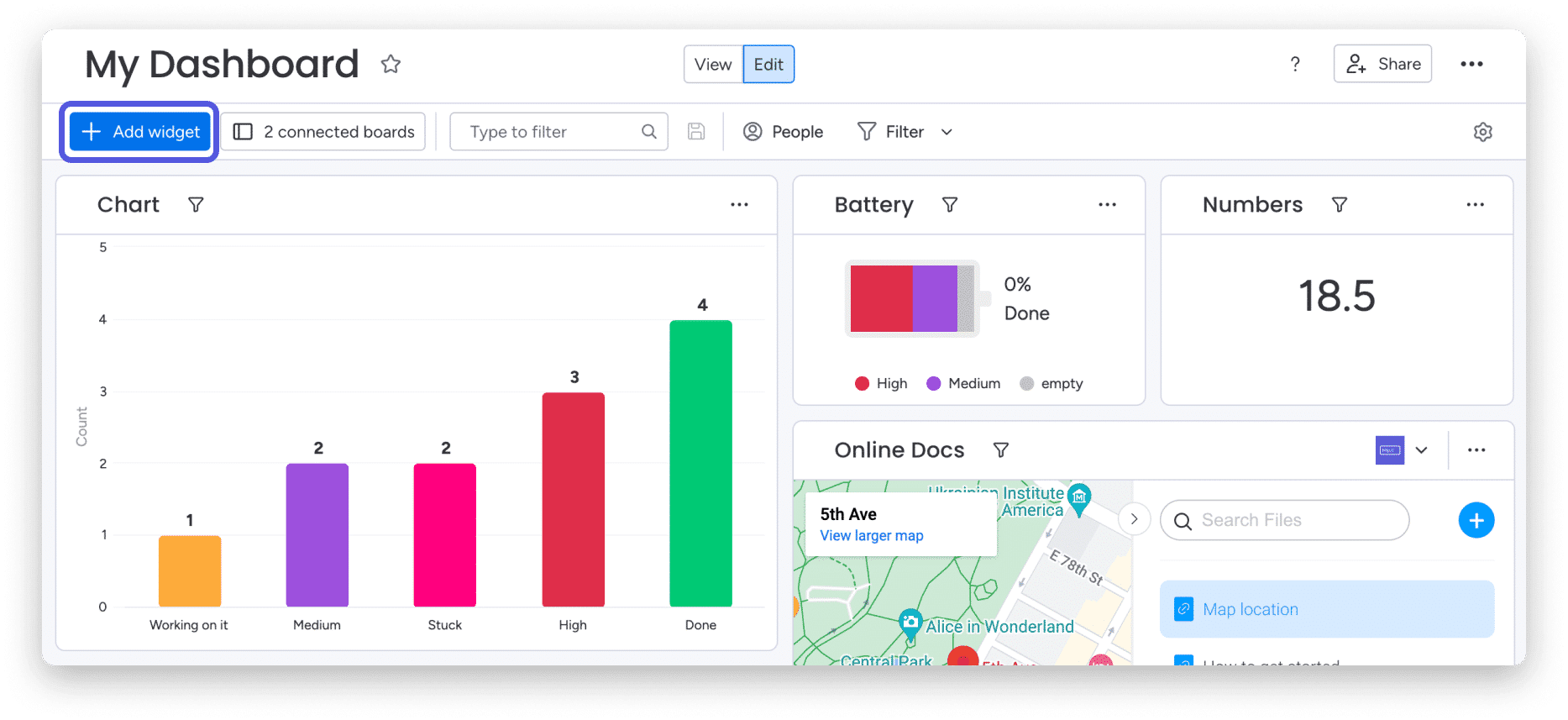
In the widget center, search for “Whiteboard” and add it to your dashboard. 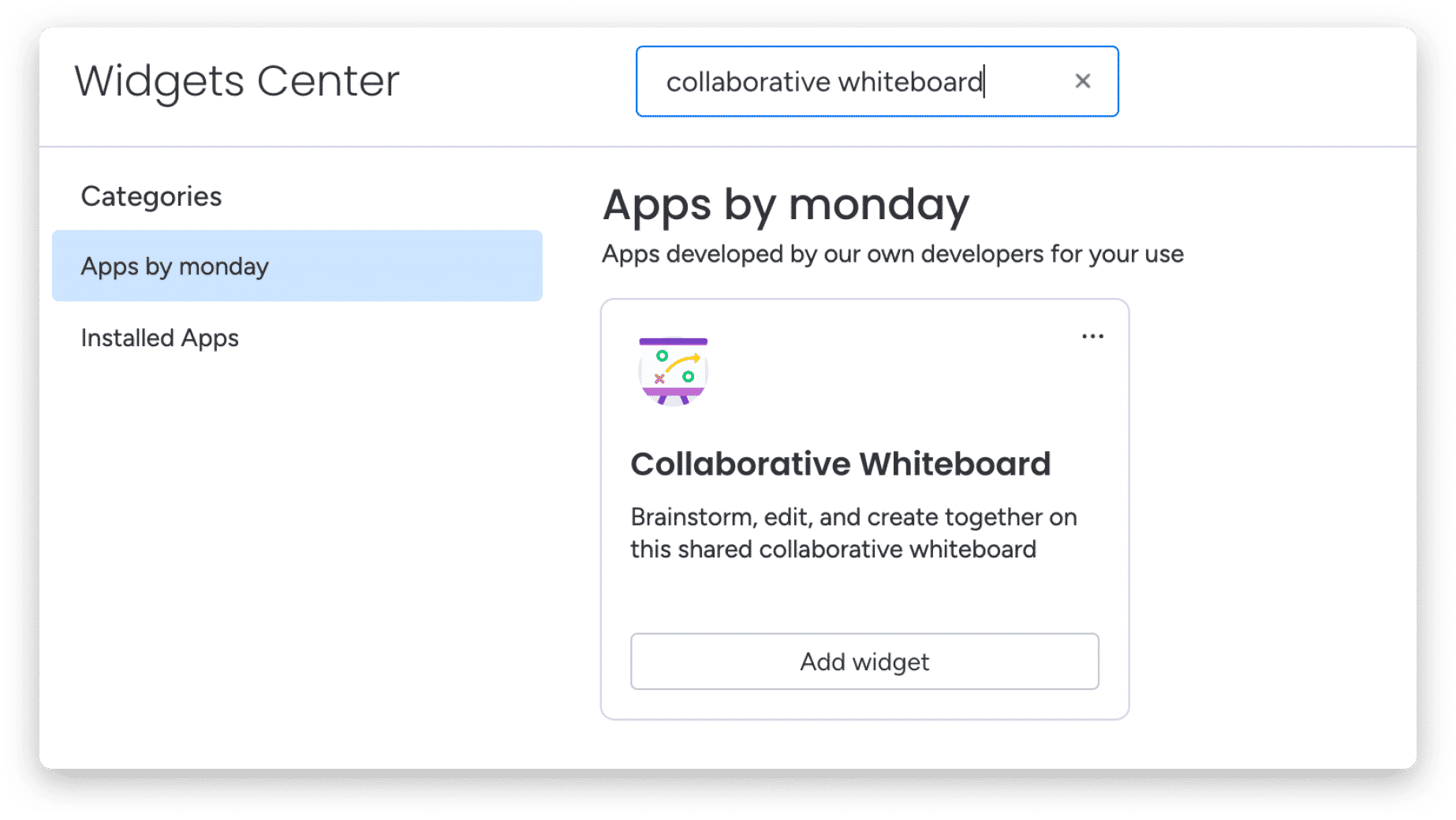
When you’re done, you’ll see a clear whiteboard appear on your screen, which you can start playing with.
How to collaborate on your whiteboard
Any team member with access to the board and dashboard can simply jump into the whiteboard by accessing it from the main board menu or on the dashboard itself. You can see exactly who is on the whiteboard with you at that moment from the people icon that appears in the top left corner of the whiteboard. You can also see all the additions happening live in real time! 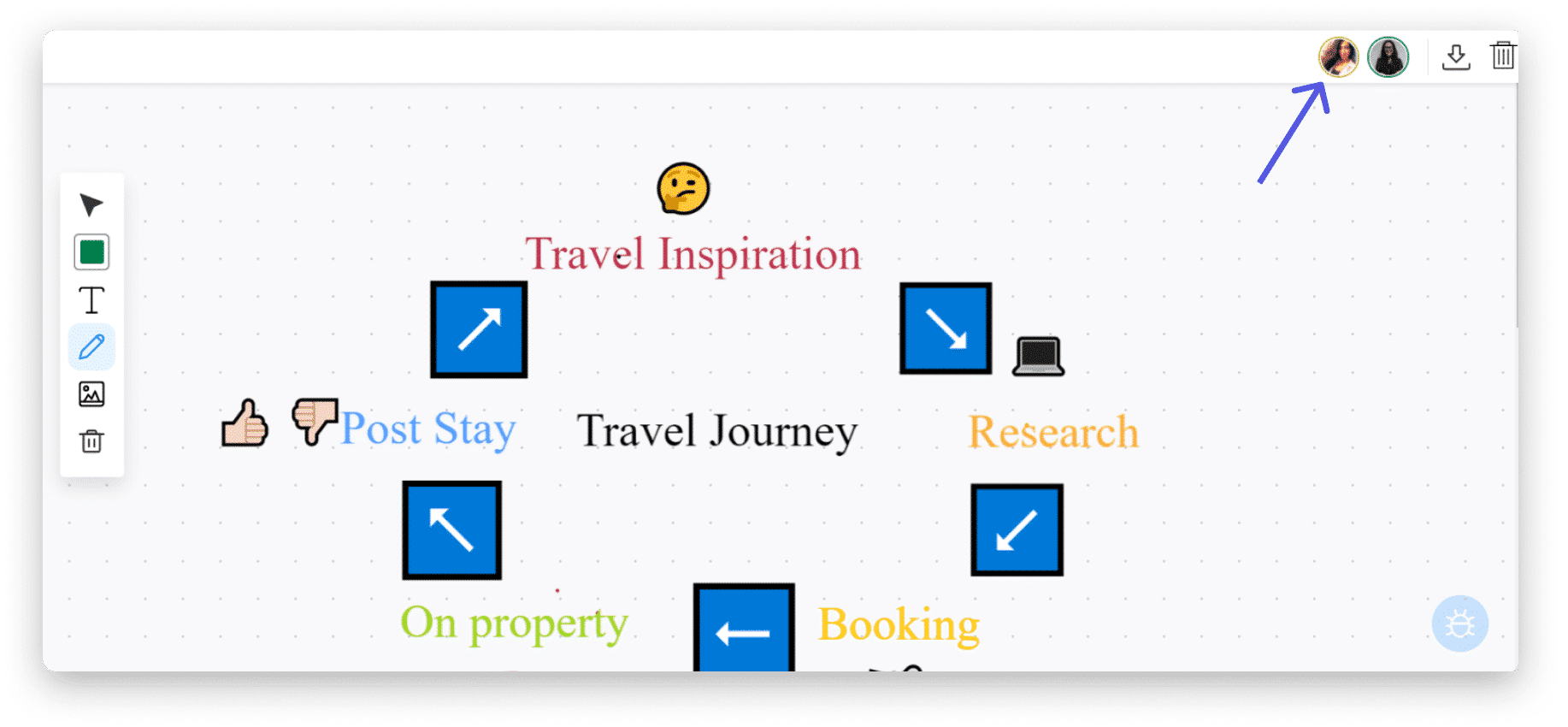
How to start adding information to your whiteboard
On the whiteboard, you will see a tools panel on the left side, where several options will appear. Each option will allow you to add a different element to the board, to build it into a creative masterpiece!
Meaning of the icons :
 This icon will allow you to select any element that has already been added to the whiteboard.
 Here you can choose the color you want to paint in.
 This will allow you to draw and write anything you want.
 This icon will allow you to attach images to your whiteboard – see the section below.
 This will allow you to add text to your board by creating a text box.
 Once you have selected the element you want to delete from the whiteboard, click the trash can icon.
How to attach images to your whiteboard
Adding images to your whiteboard can be done by clicking on the image icon from the toolbar. Once you click on it, a screen will open where you will need to add the URL of the image to add it to your whiteboard. 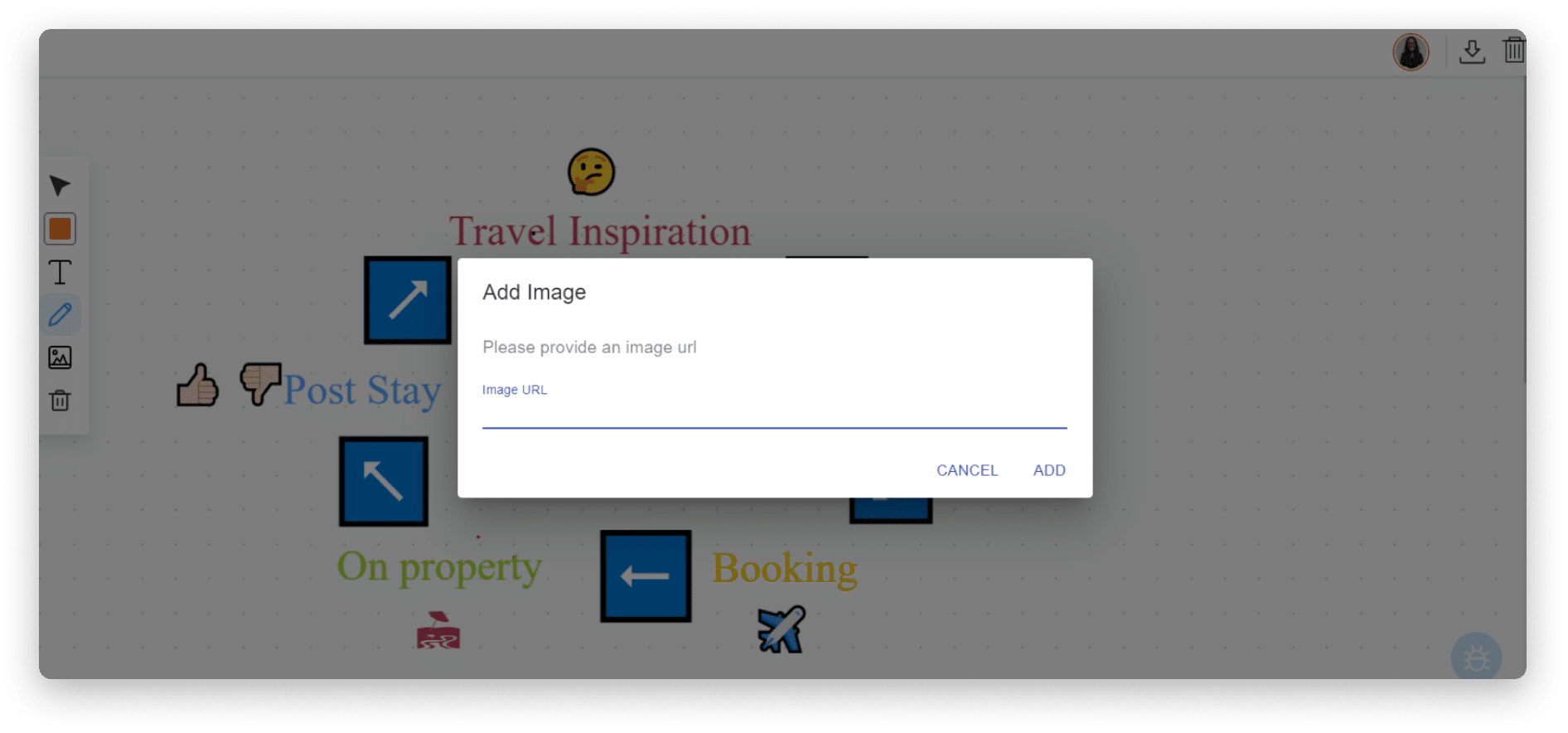
To add the image URL, it must be a direct link to the image. That is, with a direct path to the image file with the file extension . If you cannot add the link from the file hosting server, you can upload the file to the news area on monday.com and then copy and paste the link as shown below. 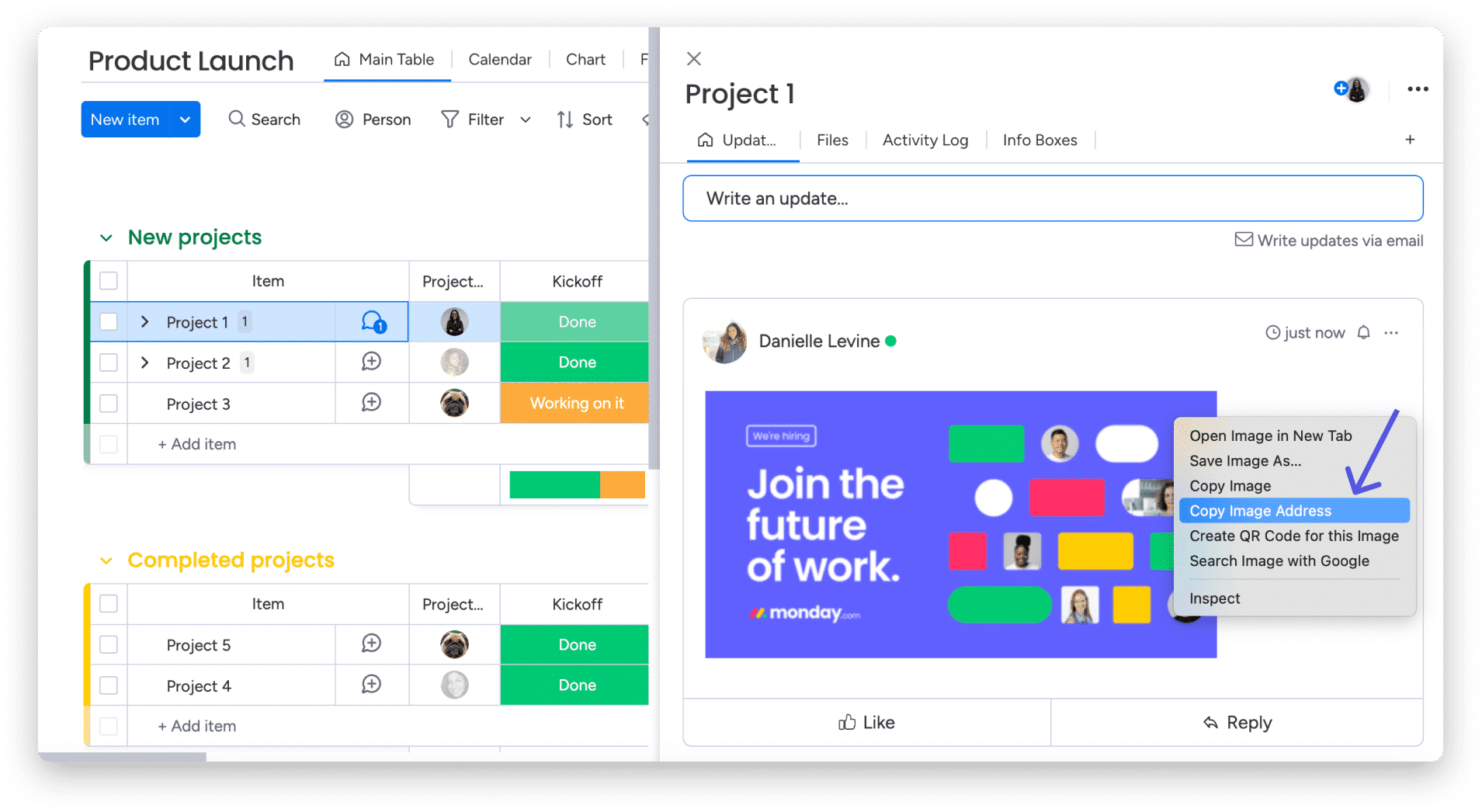
Once you’ve copied the link to the whiteboard, be sure to click “Add” so the image is added.
How to save your whiteboard
When you start adding to a whiteboard, it will automatically save as a new view or widget. To download and save it to your computer, click the export icon in the top right corner of the whiteboard. 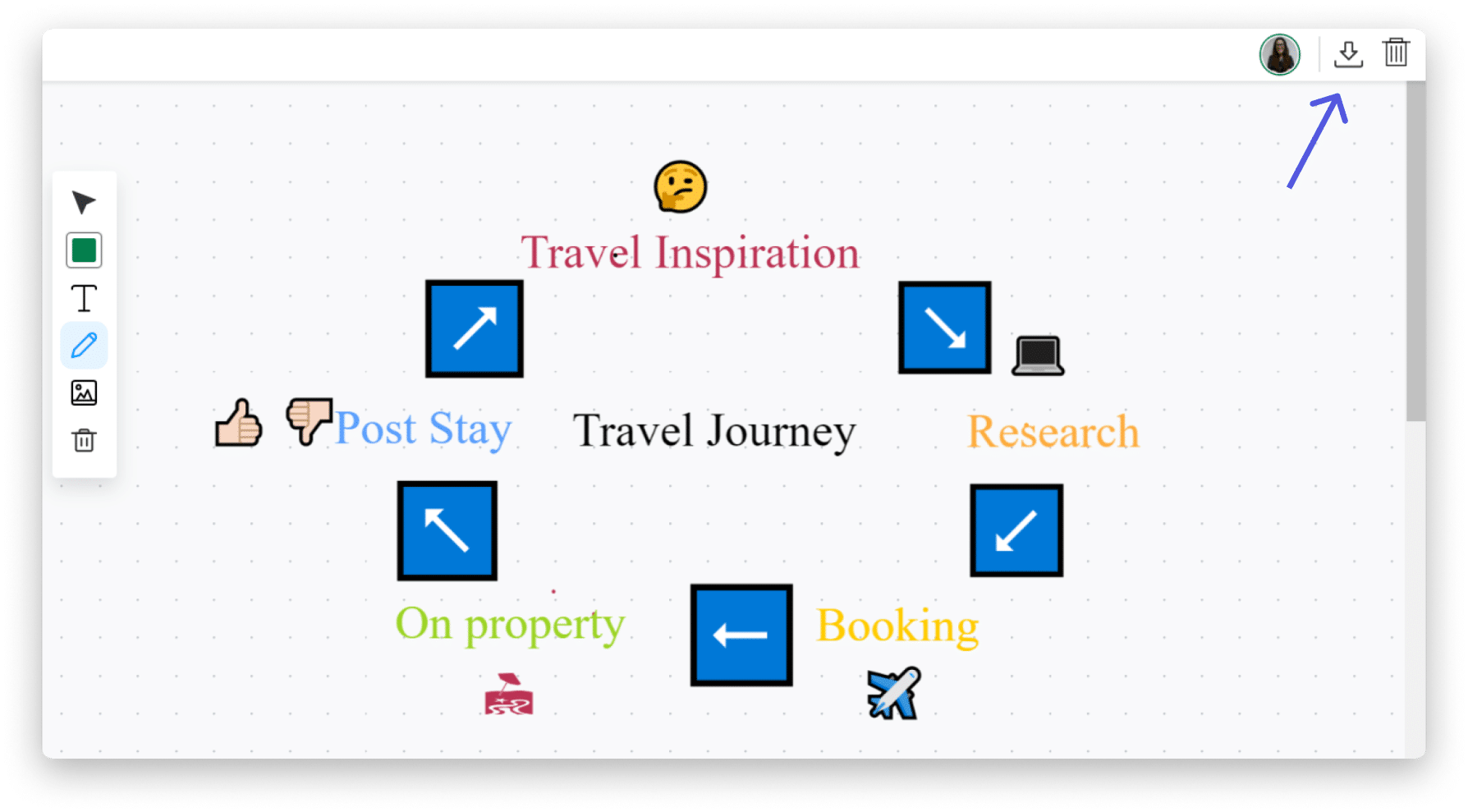
You can always change the name of your whiteboard view by simply clicking inside the whiteboard name and changing it to whatever name you want. 
How to clean your whiteboard
To clear the entire whiteboard and start over, click the trash can icon in the upper right corner of the screen, next to the download icon. 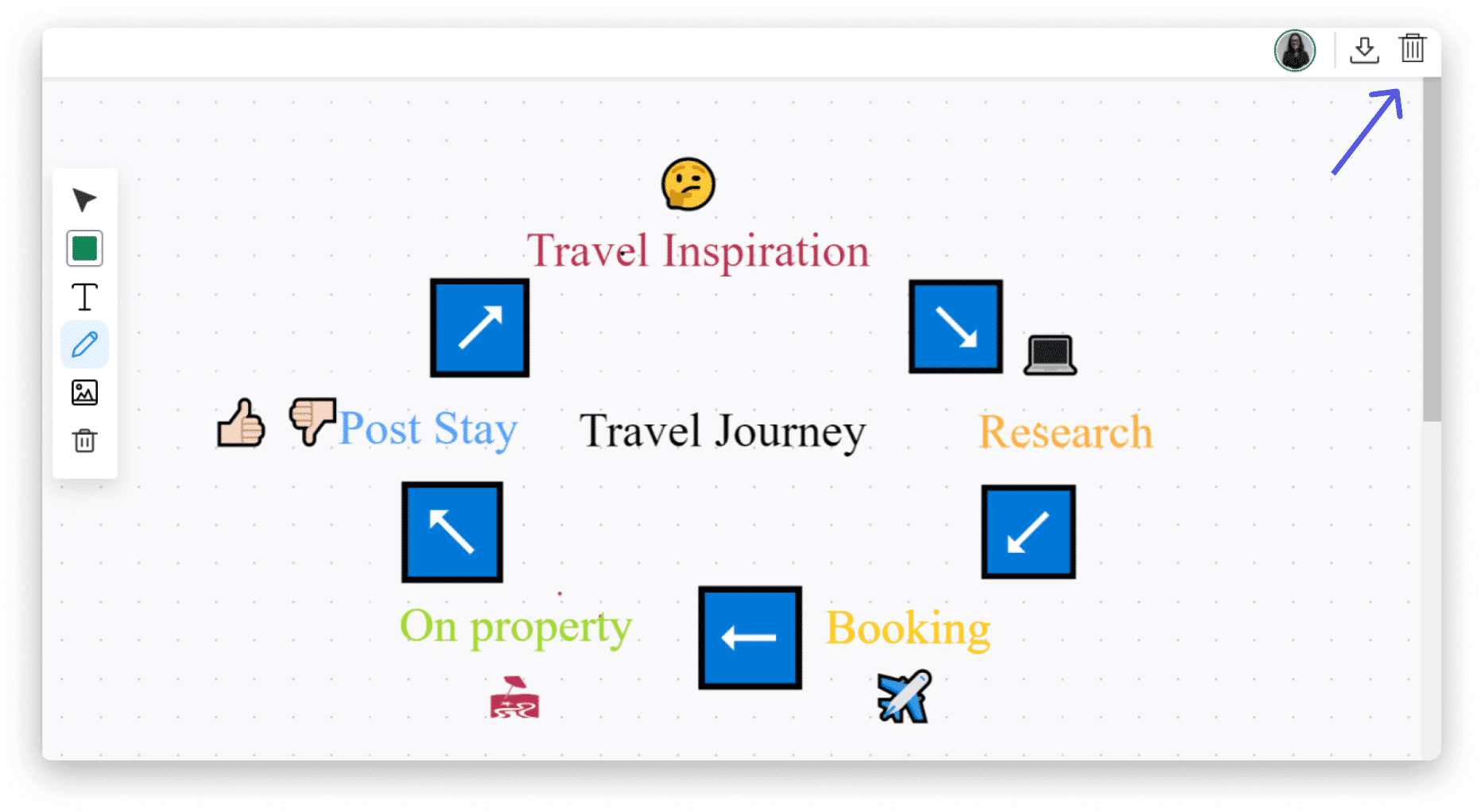
How to change display settings
Change your whiteboard to dark or light according to your preferences by selecting dark/light mode in the display settings.
In the board view, you can also choose whether you want your whiteboard to be in full view or split view. By choosing split view, you can see your diagram and the board itself in the same view as below: 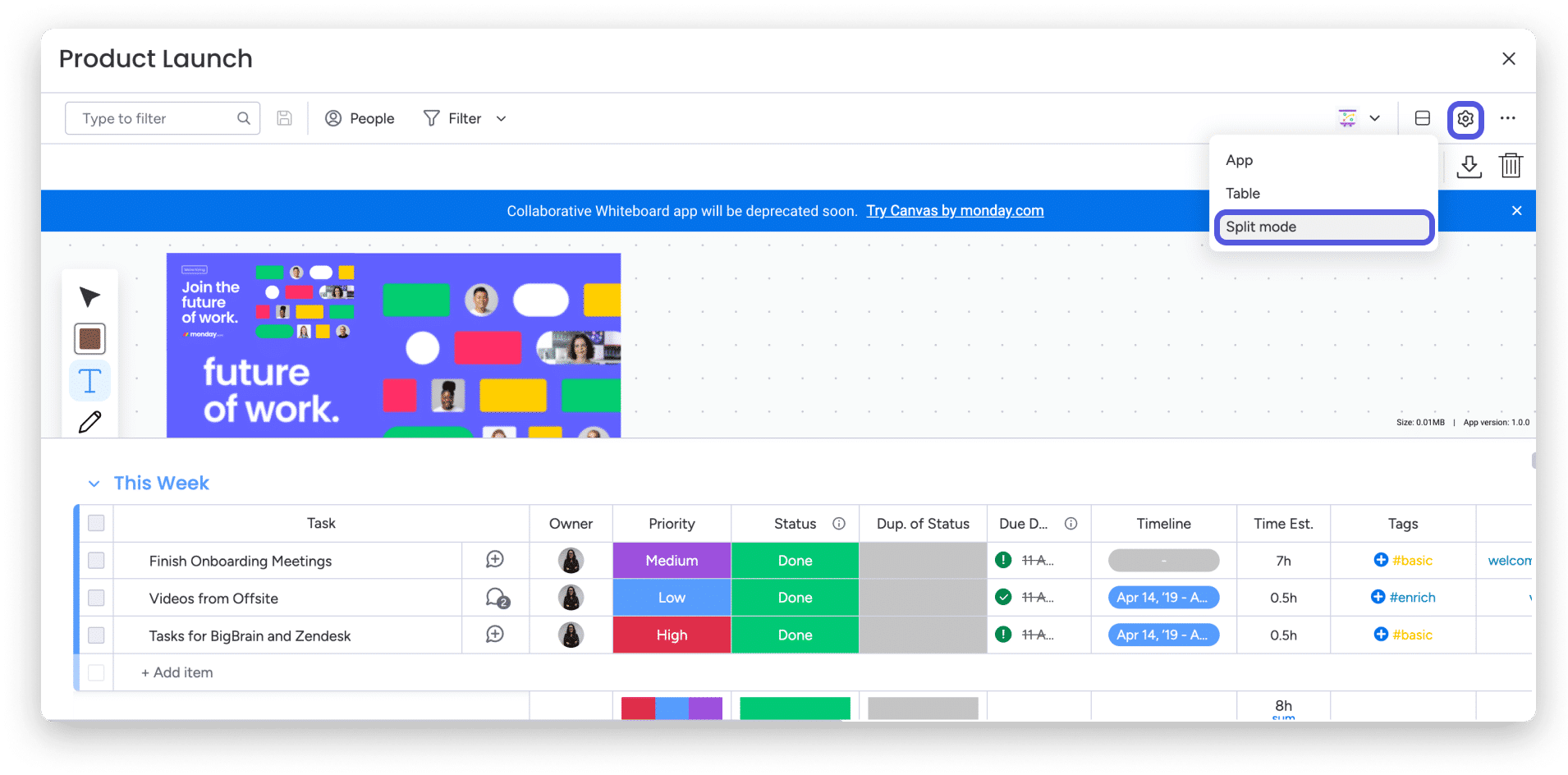

If you have any questions, please contact our team right here . We are available 24/7 and happy to help.