
What is the timeline in CapCut and how do you arrange videos on it?
Hey kids!
If you love editing and creating videos, you’ve probably heard of the cool app called CapCut. It’s very popular among teenagers, and the reason for that is the great tools it offers for editing videos in a simple and fun way. Today we’ll explain to you about one of the most important tools in the app – the timeline, and how to use it to edit videos like a real pro!
What is the timeline?
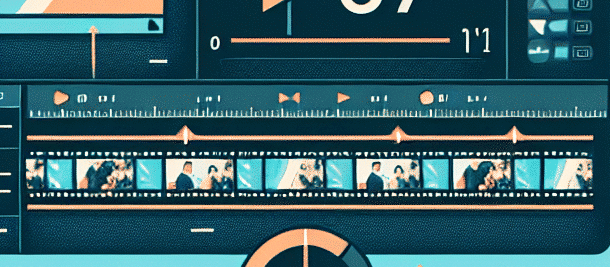
So let’s start from the beginning – what is the timeline? The timeline is a place within the editing software where we can see all the different parts of our video such as video clips, sounds, music and effects. With it, we can play with everything in the video and arrange it in the order we want.
How do I get to the timeline in CapCut?
Opening the timeline in CapCut is really easy. After you’ve downloaded and installed the app on your mobile device, go into it and click “New Edit.” You can select photos or videos from your device that you want to edit. Once you’ve selected the media you want to use, you’ll automatically be taken to the editing screen, which includes the timeline.
What does the timeline look like?
The timeline is organized into lines and sections that span the width of the screen. Each section of the timeline represents a video, sound, or music clip, and guess what? You can click and drag any of them to change their order! It’s fun and creative, just like building a puzzle, only in video.
Screenshot ideas:
[note_box] A little tip: When arranging the clips on the timeline, try to put the most important clips at the beginning to grab the viewers’ attention right away! [/note_box]
How to arrange videos on the timeline?
To rearrange the video clips in the timeline, all you have to do is click and hold the clip you want to rearrange and drag it to where you want it. You can change the order, shorten or lengthen clips as needed. If you clicked on a video clip, it will turn green, so you know you’re on the right clip.
Add another segment to the timeline
If you want to add more clips to the timeline, simply click on the appropriate category (video, sound, music) and add from your catalog or personal gallery. Once added, you can drag them onto the timeline and adjust their position as desired.
Screenshot ideas:
How to work with sounds and music on the timeline?
Adding sounds and music to your videos can really enhance them! To add sounds, go to the timeline and select “Sound Channel.” This will allow you to add sound from your library or record a new sound. You can drag the sound just like a video clip and adjust its length.
Screenshot ideas:
[note_box] Cool idea: Try adding music that fits the mood of your video. This can change the whole feel of the video! [/note_box]
Tips for successful editing in CapCut
- Start with a good idea and topic for the video.
- Play with transitions and effects to add interest.
- Preview the video before saving it to make sure everything is in place.
- Share your video with friends and family or on social media.
So go ahead kids, let your imagination run wild and create amazing videos with CapCut. With the timeline and tools at your disposal, you can create anything you want. Enjoy and have fun!
[fact_box] Interesting use of CapCut: Some users use CapCut to create short animated videos. They draw characters on pages, take each image individually, and then edit the images on the timeline to create a flowing animation. It’s a creative and challenging process that allows you to create unique and original videos! [/fact_box]
Understanding the basics of editing
To be a good editor, it’s important to understand the basics of video editing. Video editing is not just about putting together video clips, but also about creating a story, conveying a message, and expressing emotions. Every video you create is an opportunity to tell a story, so it’s worth thinking about what you want to convey.
What is a good story?
A good story has a beginning, middle, and end. It should be interesting, exciting, and sometimes funny. When editing your video, think about how you can structure your story in a way that keeps viewers engaged.
start
At the beginning, it’s a good idea to introduce the characters or the theme of the video. This is the time to grab the attention of the viewers. Use short, engaging snippets to introduce what’s coming next.
middle
In the middle of the video, you can go into detail, introducing the conflict or problem that needs to be solved. This is the part where you develop the story and add tension.
end
Finally, it’s a good idea to end the story in a satisfying way. This could be a solution to a problem, an important message, or simply a happy ending. It’s important for viewers to feel like they got something out of your story.
Using special effects
CapCut offers a wide range of special effects that can enhance your video. Effects like blurring, changing colors, and adding text can add a lot to your video. Don’t be afraid to play around with the different effects and see what works best for you.
How to choose effects?
When choosing effects, it’s important to think about the mood you want to create. Is your video funny? Dramatic? Romantic? Choose effects that fit that mood. For example, if you’re editing a funny video, colorful and exaggerated effects can be appropriate.
Sharing your video
Once you’re done editing your video, it’s time to share it! CapCut lets you share your video directly to social media platforms like Instagram, TikTok, and Facebook. This is an important step because after all your hard work, you want the world to see your creation!
How to share the video?
- Click the share button in the app.
- Choose the platform where you want to share the video.
- Add a description or tags if you want.
- Click “Share” and your video will be available for viewing!
summary
CapCut is a great video editing app, with simple and easy-to-use tools. With the help of the timeline, you can edit your videos easily and creatively. Always remember to think about the story you want to tell, use appropriate effects, and share your creation with others. Enjoy editing, and don’t forget to be creative!