
How to connect Kraken to Crypto Hopper

To enable your bot to communicate with Kraken , you need to create API keys. These keys act as a link between Cryptohopper and the exchange, allowing your bot to perform tasks such as opening automated orders and accessing your balance for calculations. Essentially, API keys serve as a means of communication between your bot and the exchange to perform the actions required for automated trading.
Important: There are two types of accounts on Kraken. If you are on Kraken and not Kraken Pro, you must select Kraken Pro first. To determine which account type you have, log in and check the top left corner. If you see “Kraken Pro,” you have the correct account. If not, check the top right corner and select Kraken Pro:
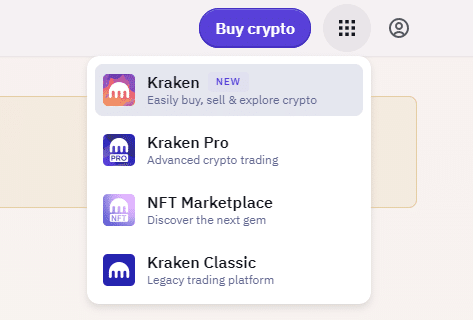
You may encounter an error during the Cryptohopper installation process when connecting to Kraken, even if your API keys are correct. Common reasons for this include insufficient funds in your exchange account, insufficient funds in your trading account (as some crypto exchanges differentiate between funding and trading accounts), or if you are not a verified user on the exchange (KYC). In this case, click ‘Continue without testing’. You can always test your API keys later in your basic configuration.
Tips for trading on Kraken:
- Always make sure your trade amounts are above the minimum trade threshold to prevent Kraken from temporarily blocking your API keys. The minimum trade amounts can be found at the bottom of this guide.
- If you are experiencing API rate limit issues, contact Kraken, they can manually increase it for you.
First step
If you haven’t already, go to the Kraken website and create an account.
Step two
Click the profile button in the top right corner. Click “Settings”.
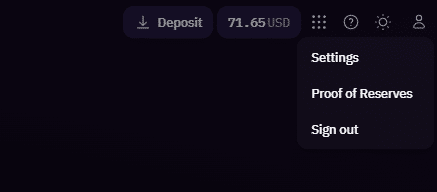
Click on “API” and select “Create API key”.

Third stage
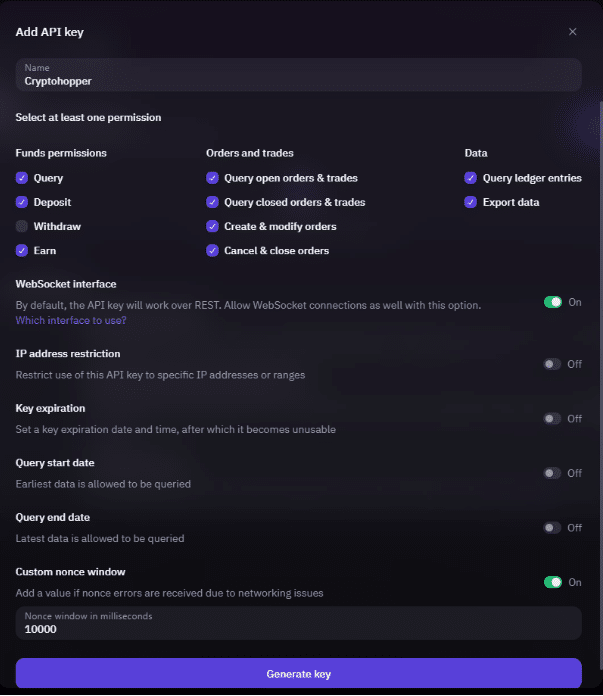
In permissions, select all options except “Withdraw”.
It is advisable to enable the WebSocket interface.
The last setting is “Custom nonce window”. It should be enabled and set to 10000. Click “Generate key”. If necessary, authenticate yourself with 2FA.
Step four
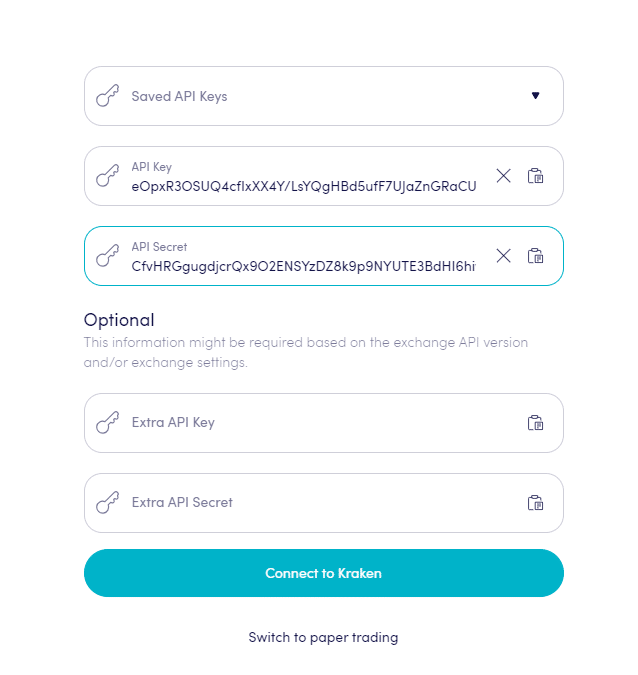
Copy the API keys displayed in Kraken and paste them into Cryptohopper. Do not save the API key in Cryptohopper yet, but save the API key in Kraken.
Fifth stage
Create a second API key by following the steps mentioned in step 2, 3 and 4 and click Save in your Kraken and Cryptohopper accounts. Wait a few moments for the bot to link everything, then your balance should be visible.
Unable to see the stock market balance
If you are unable to see your exchange balance, there may be some issues preventing your bot from syncing with the exchange. A common cause is that the “auto-fill” option is enabled in your browser. To fix this, you can try disabling this option, using incognito mode, using a different browser, or disabling your password manager. For more information, you can watch the Cryptohopper Academy video on this topic or check out the troubleshooting article.
Minimum trading amounts on Kraken
Click here to check the minimum trading amounts on Kraken.
Kraken Status
Having problems when trading on Kraken? Click here to check Kraken exchange status.
Geographical restrictions
Not all trading pairs may be available for trading depending on your geographic region. Click here to learn more about Kraken’s restricted markets.