
How to use TradingView to submit trades as a Signaler on Crypto Hopper
Sending trading signals through Tradingview may seem complicated, but in fact, it is very easy to implement. There are 2 ways to send signals using Tradingview.
Using buy and sell signals
The first way is to use buy and sell signals separately.
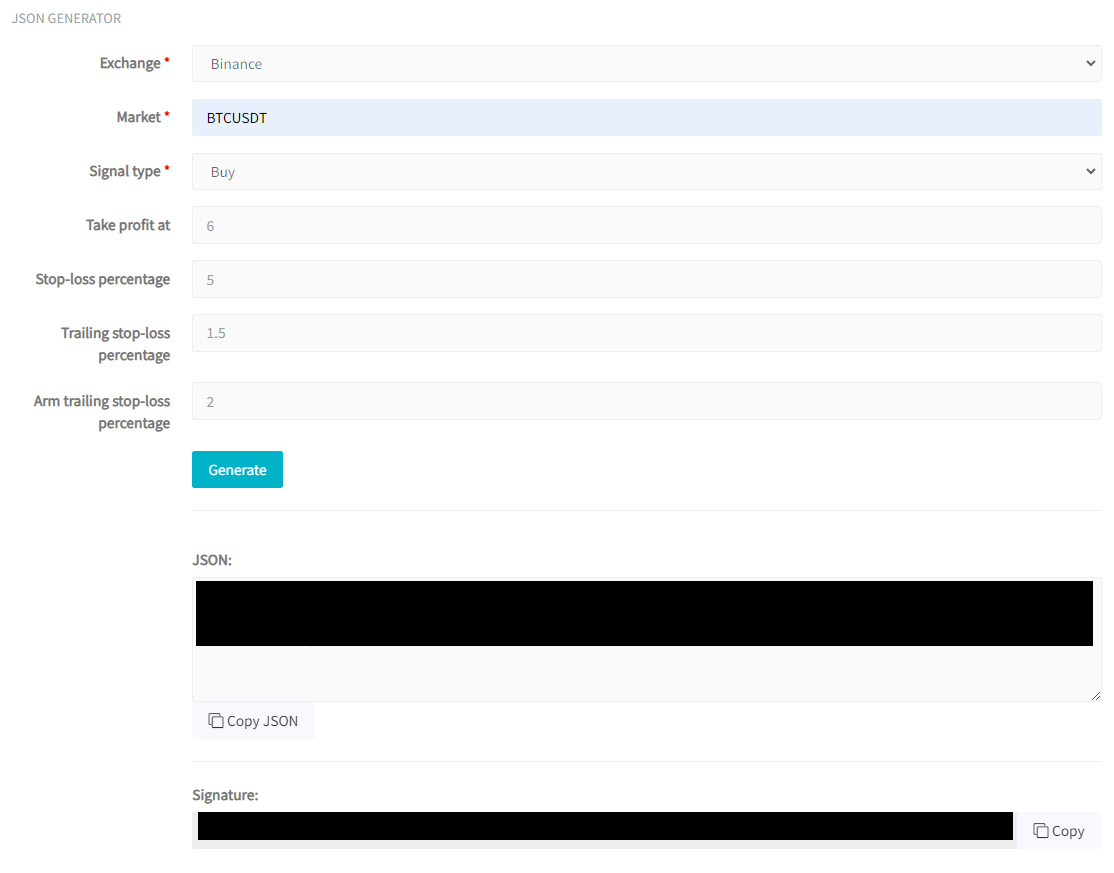
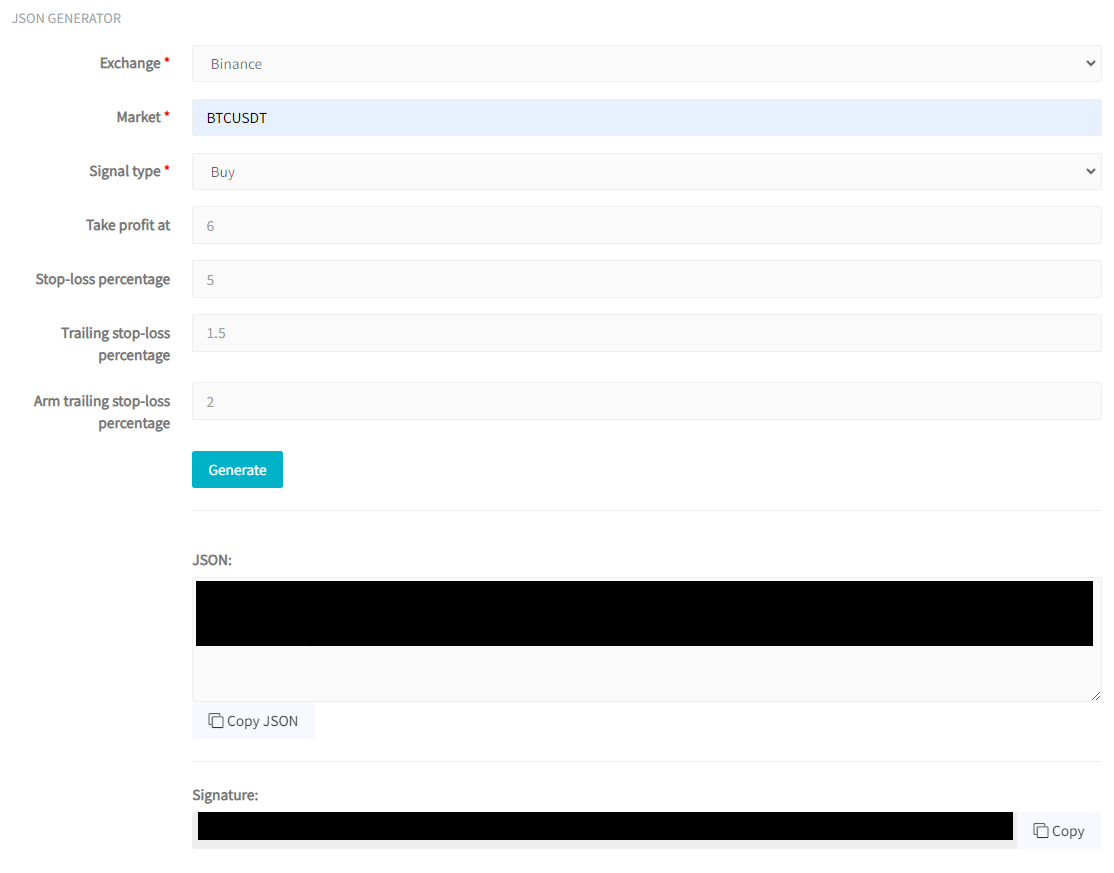
- First, you need to choose the exchange, in this example we chose Binance .
- Next, you need to select the market, which in our example is BTCUSDT.
- Then the signal type, which in our case is buy.
- There are some optional settings, such as “Take Profit at”, “Stop Loss Percentage”, etc., that you can set.
- Once you have finished selecting the appropriate settings, click Generate.

Now, go to your TradingView account. In our example, we have selected 2 simple moving averages. We want to send a buy signal when the short moving average crosses above the long moving average.
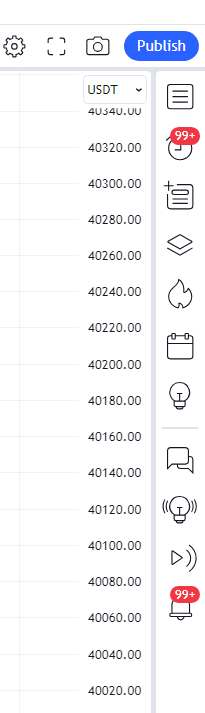
To do this, click on the clock icon in TradingView. This is the icon that shows 99 alerts.
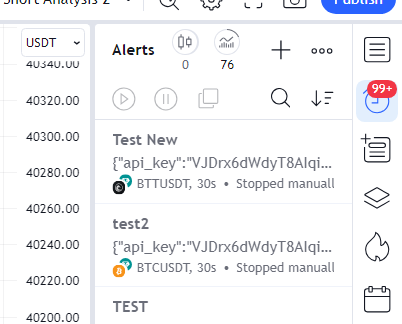
Then, to create a new alert, click the + icon.
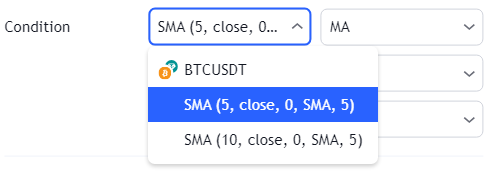
Now you can choose the shorter moving average.
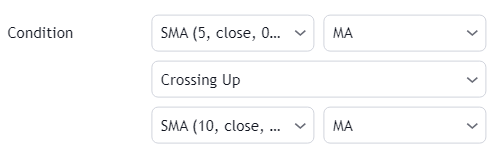
For example, for the buy signal, you can choose a crossover above the longer SMA.

Then, go back to Cryptohopper and copy the webhook address. Then paste it under Notifications/Webhook URL.
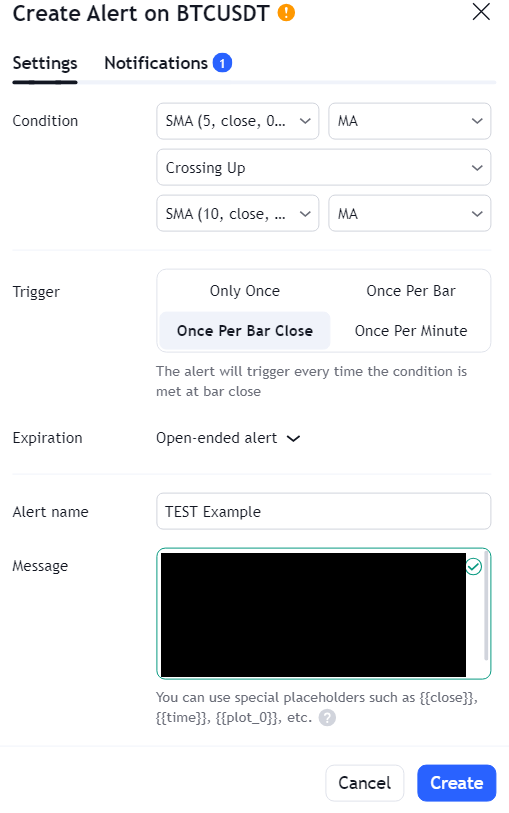
Then, go back to Cryptohopper and click Copy JSON. Finally, paste the JSON generated in Cryptohopper into the TradingView notification section. Also give the alert a name and then click Create.
Using a strategy action
The second way is to use Strategy.order.action. Let’s use the same example as before, and say you want to enter a long position when the short 5-period simple moving average (SMA) crosses above the long 10-period moving average, and then close the long position when the short SMA crosses below the long 10-period SMA.
This is an example of such a strategy that can be added in Pinescript:
//@version=5
strategy(‘(a) SMA crossover Mihai’, overlay=true, initial_capital=3000, default_qty_type=strategy.percent_of_equity, default_qty_value=100, commission_type=strategy.commission.percent, commission_value=0.1)
//Step 2: Setting parameters
fst = input(title=’MA_Fast’, defval=5)
slw = input(title=’MA_Slow’, defval=10)
ma_fast = ta.sma(close, fst)
ma_slow = ta.sma(close, slw)
// Calculate start/end date and time
startDate = input.time(timestamp(‘1970-01-01T00:00:00’))
finishDate = input.time(timestamp(‘2032-01-01T00:00:00’))
time_cond = time> = startDate and time< = finishDate
//Step 3: Graphs
plot(ma_fast, color=color.new(color.blue, 0))
plot(ma_slow, color=color.new(color.green, 0))
//Step 4: Strategy Implementation
if ma_fast> ma_slow and time_cond
strategy.entry(id=’ma_long’, direction=strategy.long)
if ma_slow> ma_fast and time_cond
strategy.close(id=’ma_long’)

To add this, click on the Pine editor, and paste. After pasting the strategy, click Save and save it as a strategy.
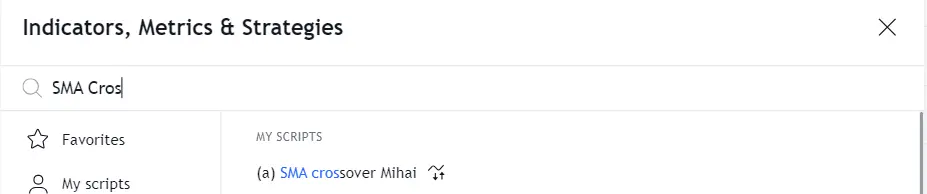
Now you can simply add it from the properties.
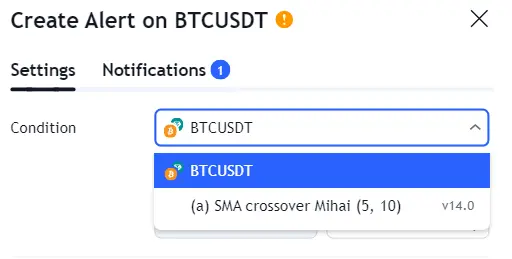
Now create a new alert again, by clicking on the clock shape, the one with the 99 notifications.
Then, to create a new alert, click the + icon.
Then, return to Cryptohopper and copy the webhook address. Then paste it under Notifications/Webhook URL.
Now go back to Cryptohopper, and select Binance for example with the market BTCUSDT. Then for the signal type, select strategy.order.action. Of course, you can select optional take profit, stop loss percentage, trailing stop loss percentage and armed trailing stop loss percentage. Then click Generate, and finally, copy the JSON.
Then paste it into the message. And let it show up there.