
How to use TradingView notifications in your Crypto Hopper strategy

This tutorial shows an example of using TradingView alerts in your AI strategy.
Example of TradingView alerts in AI strategy
Did you know that TradingView alerts can be used as a source for your AI strategy? Alerts can be used as signal and/or trend strategies.
After explaining how to set up the AI, it will be explained how to use TradingView alerts in the AI strategy. It is recommended to use Cryptohopper strategies alongside TradingView alerts as this provides the bot with data to test for resistance. This will result in trades being opened more quickly. In the example below, you can see that we have added one trend strategy, three signal strategies, and TradingView.
How to get TradingView alerts in your AI strategy
With TradingView ‘s alert system, you can send signals to your Hopper via a webhook. With the TradingView app, you can start setting up your webhook. Instead of sending buy/sell orders, you can send only signal and trend data.
In all examples, lowercase letters are used at the beginning of each parameter.
Example 1
Send a buy signal for DOGE on your chosen bot’s market and exchange. Parameters:
hopper_id: XXXXXX
coin:DOGE
action:signal
set:buy
All parameters that can be used for “set” are buy, sell, and neutral.
Example 2
Determine an uptrend for DOGE in the market and exchange of your chosen bot.
hopper_id:XXXXXX
coin:DOGE
action:trend set:up
All parameters that can be used for “set” are up, down, and neutral.
Example 3
Determine an uptrend and a signal at the same time. Parameters:
hopper_id:XXXXXX
coin:DOGE
action:trend,signal (no spaces needed)
set:up,buy
How to use a webhook link
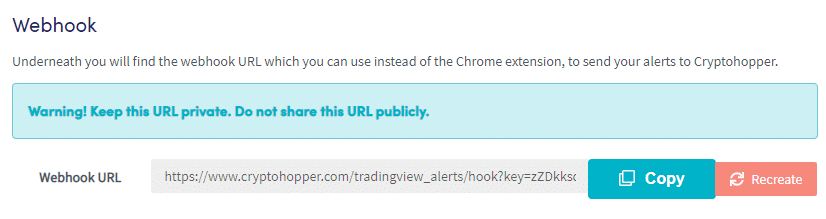
In the same column where the alerts are created, you will see a webhook link. You will need this link for the TradingView notification later. You will also see an example of the alert that will be used for the AI.
How to create alerts in TradingView
Step 1
A TradingView account is required to set up alerts in TradingView. The free version allows you to create a limited number of alerts, but with a TradingView subscription you can create more alerts.
Step 2
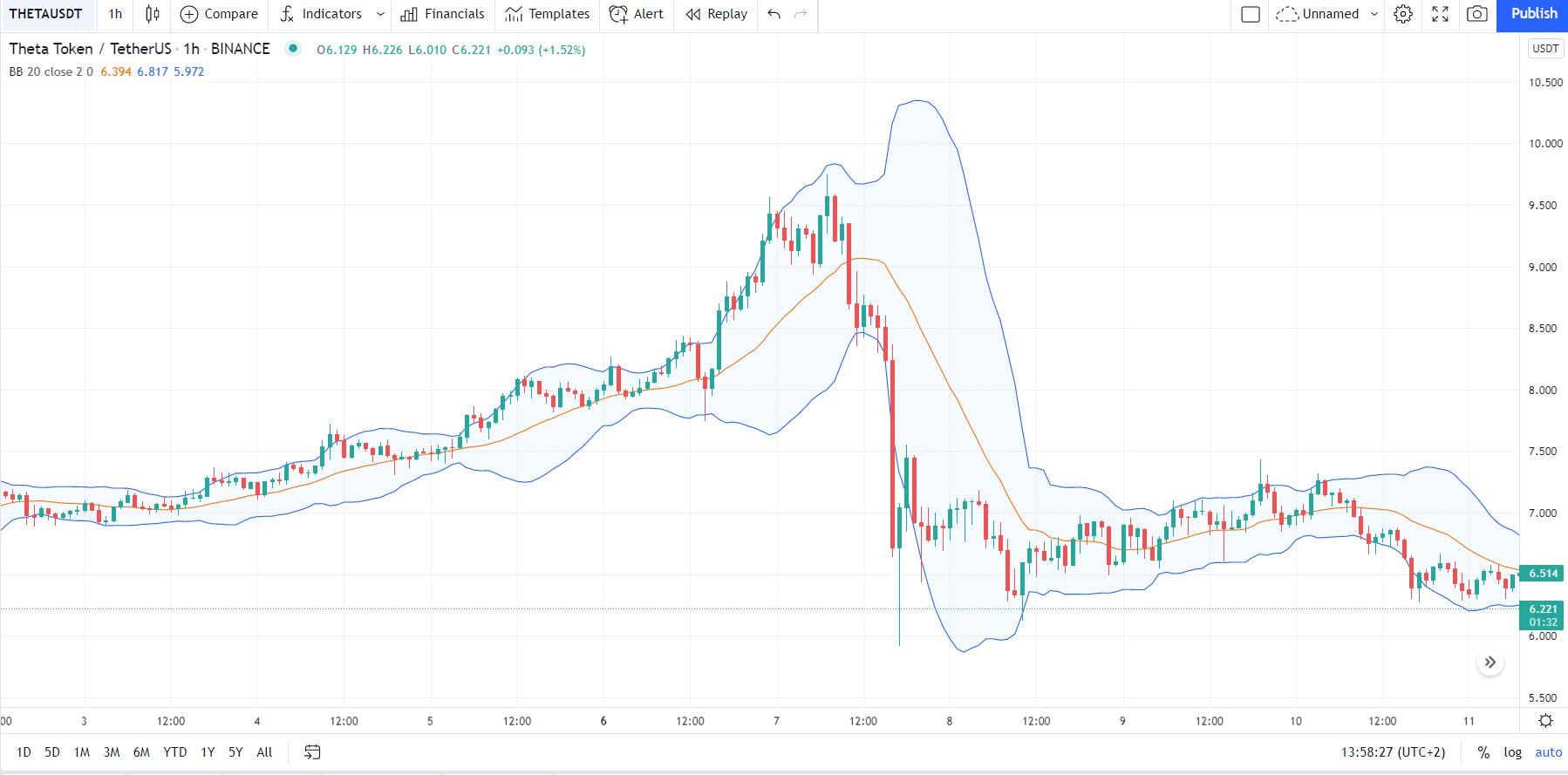
Find the trading pair and exchange you are using. You will now see the correct chart. Make sure you are using the correct candle height at which you would like to trigger your alerts. This option is located in the upper left corner of the chart. Then, select the indicator you would like to use. Indicators can be found next to the candle height settings. In this example, the Bollinger Bands indicator is used.
Step 3
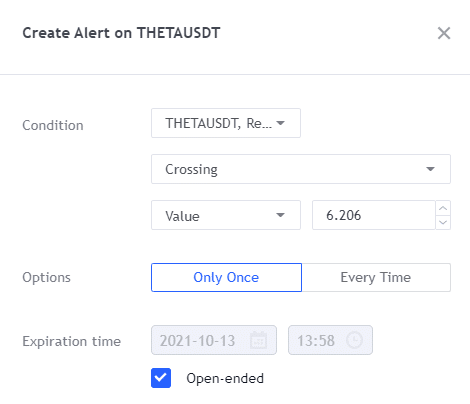
Now you are ready to create an alert in TradingView! Select “Alert” at the top of the chart. As you can see, there are many options to configure your alert. Each indicator will display different conditions. You can check the full list of conditions here .
In our example, we will create an alert for a sell signal and trigger the trend for the THETA/USDT trading pair. Since the Bollinger Bands indicator identifies a sell when it crosses the upper boundary, we will select “crossing”, the BB indicator, and “upper”. Since we want to continue using the same alert for signal validation, we will build it as “Once Per Bar”.
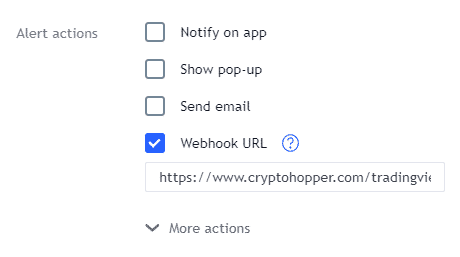
The next thing is to add the Webook link mentioned earlier.
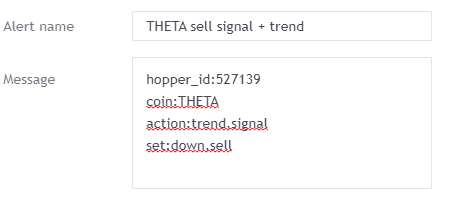
Another example of a TradingView alert for a trend only:
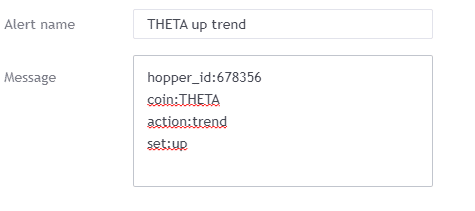
Create the alert and manually add the “Action” parameters in the message part of the alert. Click “Create” and your TradingView alert is set! Note that a similar alert for Buy should be created as well. The information for a Sell alert can easily be copied.
Step 4
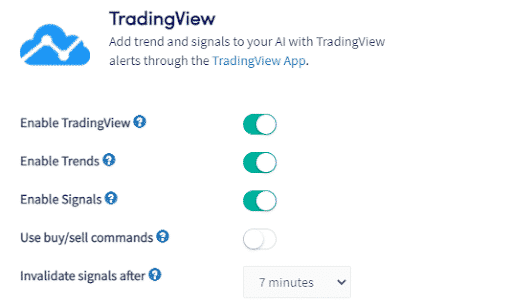
Go to your AI, click on “Sources” and select TradingView.
Launch TradingView
When enabled, your AI will use signals and trends set via the TradingView webhook.
Turn on trends
When this is enabled, your AI will follow trend signals.
Turn on signals
When enabled, your AI will follow buy/sell signals.
Using buy/sell orders
This feature allows the same buy/sell signals to be used in other bots. This feature does not have to be enabled when using only AI.
Cancel signals after
The bot checks TradingView alerts every 2 minutes. Since the total time to check the AI may take about 6 minutes, a low number should be used when scalping. An example value for scalping is 4 minutes. Since the AI validates signals in different trends, you can choose up to 1 day maximum.