
How to understand the Crypto Hopper dashboard on the mobile app

This guide shows what can be found on the dashboard for the trading bot on iPhone or Android .
What can be found on the trading bot dashboard?
Orders
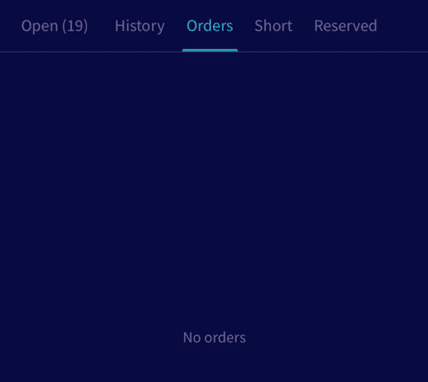
Here you can see all active orders managed by the bot.
activity
Here you can see what the bot did. When the bot is active, it waits to check the next action.
output
Click on the activity to see your output. Here the bot “talks” to you and will let you know if it encounters any errors or problems.
Open positions
Here you can find all current open trades. Click on an open position to get more information about the position.
Short positions
Here you can find all current open short positions. Short positions only exist on Cryptohopper, not on the exchange.
Reserved funds
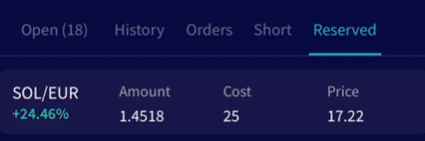
Here you can find all your current reserved funds. Reserved funds can be used like a savings account. Open positions or quote currencies can be moved to the Reserved Funds tab. This will prevent the bot from working with them until they are released or transferred to open positions.
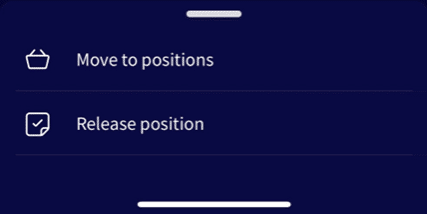
You can move a position directly to the Saved Funds tab by clicking on the position in the “Open” tab. Click on the three dots in the upper right corner. There you can click on “Save Funds”.
You can release the positions from “Reserved Funds”. There are 2 options. You can choose “Move to Positions”, which will move the reserved position back to an open position. You can release the positions in the reserved account. This will move the reserved funds to the assets area. The bot will not sell these funds. Keep in mind that when “Auto Sync” is enabled on the dashboard, the funds will appear as a new open position.
synchronization

Click the button below to sync.
In the synchronization menu, you can synchronize positions that you have open on the exchange and not in the bot. When you synchronize the assets, the bot will convert your holding into a position. The bot will use the current price as the purchase price. It will convert the holding into an open position at 0%. If you purchased the asset at a different price and want an accurate profit calculation, you must fill in the correct purchase price in the “Rate” section.
To sync a currency, click “Sync” for that position. A notification will appear asking if you want to sync the position. Click “Sync”.