
How to start a new editing project in CapCut: selecting video clips and getting organized
If you love creating videos and are looking for a way to improve your editing skills, CapCut is the perfect app for you!
Today we’ll learn how to start a new editing project in CapCut, how to choose the right video clips, and how to organize yourself in the right way to produce an amazing video. This article is especially suitable for 10-14 year olds who have always dreamed of becoming great editors.
Step 1: Open a new project in CapCut
To get started, we open the CapCut app on our phone or tablet. Once we enter the app, we click on the button called “New Project.” It’s the big button usually blue with a plus sign. This is our first step on the path to creating a stunning video.
Step 2: Select the videos
Once we have opened a new project, we will have to select the video clips that we want to edit. We will click on the “Upload video clips” option and let’s select the different clips that we have in the gallery. To select a clip, we will simply touch it and mark it. Be sure to select the clips that tell the story that you want to show in your final video.
Step 3: Organizing the timeline
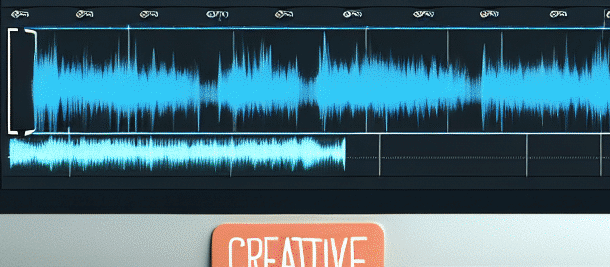
After selecting the video clips, we will reach a screen called “Timeline”. This is where we can arrange our clips in the order we want them to appear in the video. We can drag clips from side to side, cut them or even add more video clips if we want.
Step 4: Add effects and sound
To make our video more impressive, we can add various effects and sound. CapCut offers a wide range of cool effects that we can add to each clip. For example, we can add transition effects between clips, edit the soundtrack and have fun adding music or even record a narration.
Step 5: Final amount and save
Before we save the video, we will go over it and make sure that everything is in place and that we are satisfied. We can watch the video from beginning to end to check that it meets all our expectations. After we have finished checking, we will click the “Save” button to save the video to our gallery.
summary
Now that we’ve learned how to start a new editing project in CapCut, we’re ready to create amazing videos and share them with friends and family. With the great tools the app offers and your creative thinking, the sky’s the limit! Good luck with your editing!
Additional recommendations for editing in CapCut
To further enhance your videos, here are some additional tips:
- Using music: Choose music that fits the mood of your video. CapCut offers an extensive music library.
- Add texts: Add texts to highlight important points or add explanations to the video.
- Using special effects: Don’t hesitate to try different effects like filters, animations, and more.
- Share with friends: Once you’re done editing, share the video with friends and family to get feedback.
Frequently Asked Questions about CapCut
- Is CapCut free? Yes, CapCut is a free app, but there are in-app purchases.
- Can I edit videos of unlimited length? Yes, CapCut allows you to edit videos of unlimited length, but be aware of the limitations of your device.
- Is it possible to add special effects? Absolutely! CapCut offers a wide range of effects that can be added to videos.
Workshop summary
During our workshop, we learned how to use CapCut effectively. Now, you are equipped with the tools and knowledge needed to create stunning videos. Don’t forget to experiment and play with the different options the app offers. The more you experiment, the better you will get!
Good luck with your editing, and don’t forget to share your videos with the world!
Preparation before editing
Before you start editing, it’s a good idea to prepare all the materials you need. This includes:
- Videos you’ve taken or downloaded.
- Music you want to use.
- Images or graphics that can enhance the video.
- A script or general idea for your video.
Understanding CapCut tools
CapCut offers a wide range of editing tools. Here are some of the important ones:
- Trimming tool: Allows you to cut out unwanted sections from the video.
- Transitions: Allows you to add smooth transitions between video clips.
- Effects: Various effects such as blur, colors, and more.
- Texts: Add texts with various formatting options.
Using special effects
One of the advantages of CapCut is the ability to add special effects. For example:
- Video effects: Effects like “Superman” or “slow motion.”
- Filters: Various filters to upgrade the look of the video.
- Animations: Add animations to texts or images.
Sharing the video
Once you’re done editing your video, it’s time to share it! CapCut lets you share your video directly to social networks like TikTok, Instagram, and Facebook. This way, you can show everyone your creation!
summary
Editing videos in CapCut is a fun and educational experience. With the right tools and your creativity, you can create stunning videos that will capture the attention of viewers. Don’t forget to experiment and play with the different options the app offers. successfully!