
How to set up TradingView alerts in Crypto Hopper

This guide shows how to set up an alert in TradingView and explains what settings need to be filled in.
Prerequisites
Before you begin, check the following:
- You have a Cryptohopper account.
- You have a paid TradingView account .
How to set up an alert in TradingView
- Go to TradingView and log in to your account.
- Search for the pair and exchange you are using.
- Choose the candle size.
- Select the pointer you want to use.
- Click “Alert”.
- Fill in the “conditions.” Each pointer displays different fields.
- Choose how often you want to send an alert from TradingView to your bot.
- Fill in the expiration time.
- At the bottom of “Message” the “Webhook URL” options have been marked.
- Return to your Cryptohopper account.
- Click on “MarketPlace”.
- Click on “ Apps ”.
- Click on “ TradingView ”.
- There you will find the “Alert Generator”.
- Select the bot that should receive the alert from TradingView.
- Fill in the currency symbol, without the quote currency.
- Complete the action.
- Select the order type.
- Click “Generate”.
- Paste the alert message into the alert in TradingView.
- If you want to include a defined profit, add the parameter: take_profit:X.
- Click “Create” on the TradingView alert.
TradingView Settings
condition
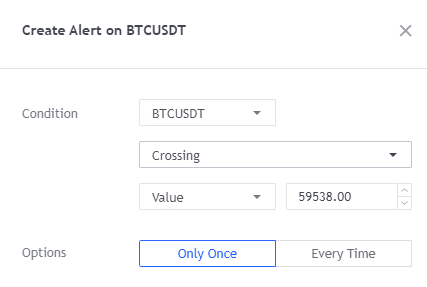
Fill in the condition. The conditions are different for each selected cicator.
Options
Fill in how often you would like to send an alert from TradingView to your bot. The options are different for each selected indicator.
Expiration time
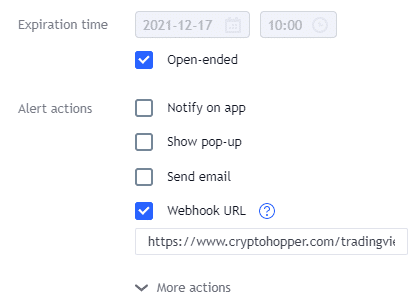
Fill in the time. This refers to the length of time the alert will be active.
message
Always check the “Webhook Url” option. This is the only option for notifications. The Webhook URL can be found here .
Cryptohopper settings
Bot
Select the bot that should receive the alert from TradingView.
currency
Select the currency you want to buy. There is no need to select the quote currency, as the bot knows what the quote currency is for the selected bot.
action
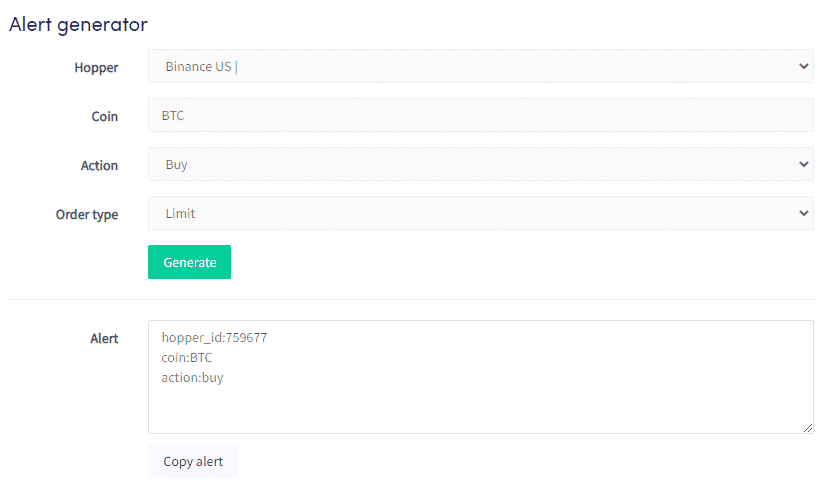
Choose between buy, sell, or strategy.order.action. If you want to use buy and sell alerts, you need to create 2 alerts or use {{strategy.order.action}}. This is not an option in the dropdown menu under “Action”. You can change the text under “Example Alert”. This will trigger a buy when a buy signal is detected and a sell signal when a sell signal is detected. All you need to do is create one alert for buy and sell instead of 2 alerts.
Order type
Select the type of order you want your bot to use for notifications.
spacious
This is not an option in the alert generator. You can add a “space” in the text under “Example Alert”.
For more details on how to configure your bot and what will be taken into account, you can click here.