
How to set up a template in Crypto Hopper

This guide explains how to set up a template.
Prerequisites
Before starting, make sure of the following:
- You have an Explorer, Adventurer, or Hero subscription to Cryptohopper .
Template definition
There are two ways to set up a template. With both options, you can skip the first 6 steps if you already have a template you want to use. The first option is:
- Access your Cryptohopper account.
- Click on “Marketplace”.
- Click on “Templates”.
- Choose a template. Want to know if a template is right for you? Click here.
- Click on that template.
- Click “Download” or “Buy.” Pay for the subscription if required.
- Click on “My bots”.
- Click on the bot to which you want to add the template.
- Click on “Configuration”.
- Click on “Baseconfig”.
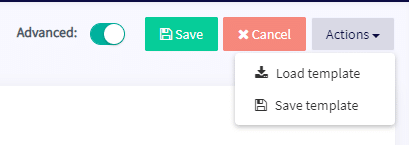
- Click on “Actions”.
- Click “Load Template”.
- Select the template you want to use.
- Click “Load Template”. Some bot templates include a signal subscription and the system will take you to a payment screen to make it easier to set up your trading bot.
- Click “Save”.
The second option is:
- Access your Cryptohopper account.
- Click on “Marketplace”.
- Click on “Templates”.
- Choose a template. Want to know if a template is right for you? Click here.
- Click on that template.
- Click “Download” or “Buy.” Pay for the subscription if required.
- Click on “My Library”.
- Click on “Templates”.
- Click “Load” on the template you want to use.
- There are 2 options:
A: Create a new bot. Select the exchange, fill in the API code or enable the “Paper trading” switch.
B: Loading into an existing bot. Select the bot you want to use. Some bot templates include a signal subscription and the system will take you to a payment screen to make it easier to set up your trading bot. - Click “Save”.