
How to optimally manage bots in Crypto Hopper

This article explains what information is available in the Bulk Bot Manager’s bot view and how it can help you use trading, configuration, and subscription settings more effectively.
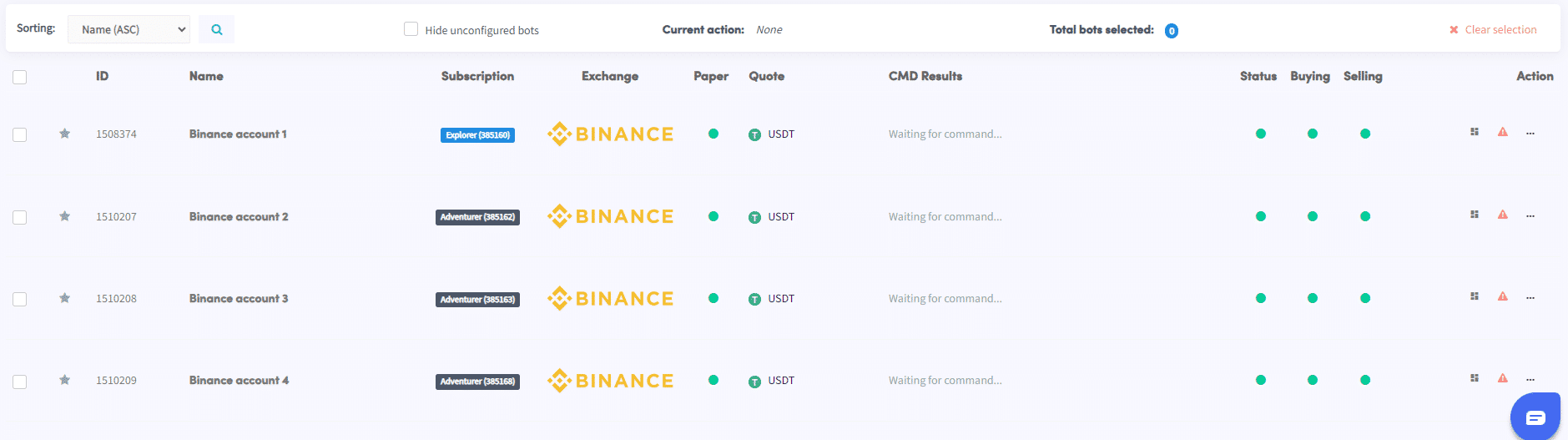
Bots display
The Bots View provides a variety of settings and features to improve the management of multiple bots. Let’s take a look at each of the components below:
sorting
Sort your bots based on various criteria such as newest, oldest, exchange (ascending), exchange (descending), bot type, name (ascending) or name (descending).
Search
Use the search function to quickly find a specific bot.
Hiding undefined bots
Check this box if you prefer not to see bots that have not been configured in the display.
Current action
This section displays the action that has been taken or is currently being taken on multiple bots.
Total number of bots
Displays the number of bots selected to perform trading, configuration, or subscription settings.
Clearing selection
Click “Clear Selection” to deselect any bots you previously selected.
Cleaning filters
Click “Clear Filters” to see all bots without active filters. This will restore the filters and display the full list of bots.
Check boxes
Use the checkboxes to select the bots you want to change.
Favorite bot
Select the bot as a favorite so that it is greeted first when you log in.
ID
The ID column displays the bot ID. If you encounter any issues, it is helpful to have the bot ID or name when contacting support. You can copy the bot ID by clicking on it.
name
Displays the bot name. If you encounter problems, it is helpful to provide the bot ID or name when contacting support.
subscription
Indicates the type of subscription associated with the bot. You can assign a subscription to an individual bot by clicking on the subscription name next to the bot name. Click “Subscription” to filter bots based on the subscription plan they are assigned.
stock exchange
Displays the exchange to which the bot is connected. Click on “Exchange” to filter the bots based on exchange.
Paper
Click on “Paper” to apply filters based on three different options:
- Select “Paper” to see both paper trading bots and real money bots. Red indicates bots that use real money to trade, while green indicates bots that use paper money to trade.
- Select “Only real bots” to see only real bots.
- Select “Only Paper Bots” to see only paper trading bots.
Note: When running multiple tests on paper bots, additional paper trading accounts may be required.
Quote
Displays the quote currency the bot is using. Click “Quote” to filter bots with a specific quote currency.
CMD results
Displays the action (command) currently being performed or the most recently performed action.
status
Green indicates that the bot is active, while red indicates that the bot is disabled. You can enable and disable an individual bot by clicking on the color.
Buying
Green means that buying is enabled in the bot, while red indicates that buying is disabled. You can enable and disable individual buying by clicking on the color.
sale
Green means that a sale is enabled in the bot, while red indicates that a sale is disabled. You can enable and disable an individual sale by clicking on the color.
action
This section provides several buttons for performing actions on individual bots, including:
- Control panel: Go to the bot’s control panel.
- Panic mode: sell all positions, delete open short positions and disable the bot.
- Configuration: Access the bot’s basic configuration.
- Cancel orders: Cancel any open orders for buying and selling in the bot.
- Automatic sync: Sync positions that are available on the exchange but not yet visible in the Cryptohopper dashboard.
- Save Template: Save the bot’s template.
- Clone Bot: Create a clone of the bot.
- Assign Subscription: Assign a subscription to the bot.
- Unsubscribe: Unassign a subscription from the bot.
- Cancel subscription: Cancel the recurring payment of the subscription.
- Delete: Permanently delete the bot.
For more detailed information on trading settings, configuration settings, and subscription settings, please refer to the appropriate literature.
Using the bot view in the Composite Bot Manager, you can efficiently manage and navigate between bots, perform required actions, and streamline your trading operations. If you encounter any issues or require further assistance, please refer to the Cryptohopper documentation or contact the support team for guidance.