
How to connect to Bitfinex on Crypto Hopper

To enable your bot to function with Bitfinex , you need to create an API key. This key acts as a link between Cryptohopper and the exchange, allowing your bot to perform actions such as placing automated orders and accessing your balance for calculations. Essentially, the API key serves as a way for your bot to communicate with the exchange and perform the actions required for automated trading.
UST and EUT on Cryptohopper are similar to USDT and EURT on Bitfinex.
You may encounter an error in the Cryptohopper login process when trying to connect to Bitfinex, even if your API keys are correct. Common reasons for this include insufficient funds in your exchange account, insufficient funds in your trading account (as some exchanges separate funding and trading accounts), or lack of KYC status with the exchange. In this case, click ‘Continue without testing’. You can always test your API keys later in your base configuration.
First step
Go to the Bitfinex website . If you don’t have an account, go to the top right corner of the website to create an account and complete their verification process.
Step two
Once you have agreed to Bitfinex’s terms and conditions, you can fund your account and connect it to Cryptohopper with your API keys!
Go to the top right corner of the screen and hover over the user icon. A drop-down menu will appear, from which click on “API Keys”.
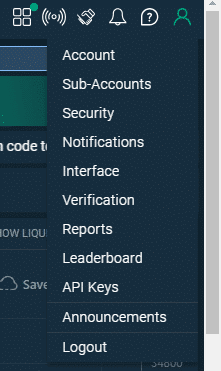
Click “Create new Key”.

Third stage
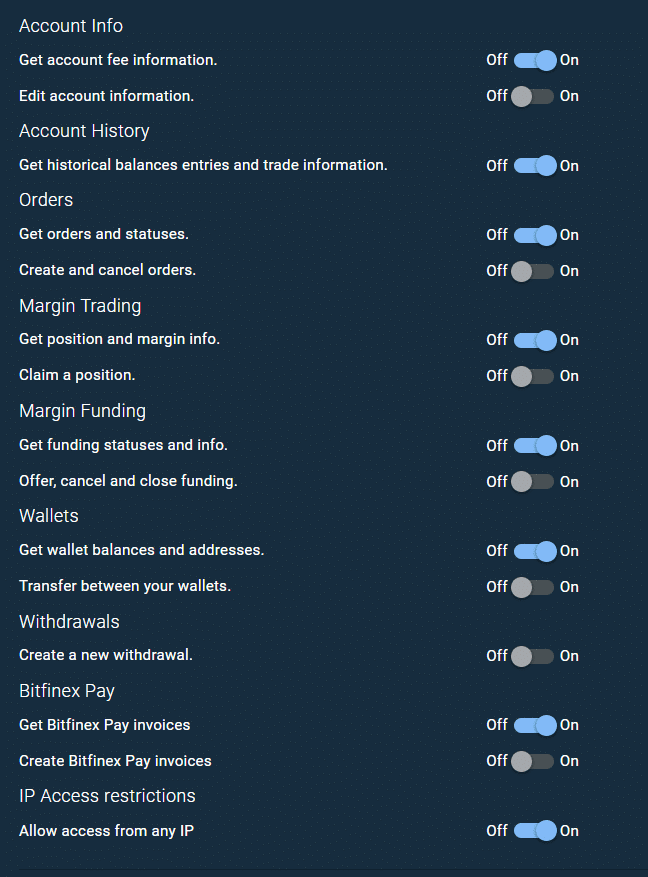
Make sure you have set the following permissions to “on”:
- Account Info: Get information about account fees
- Account History: Obtain historical records of balances and trading information
- Orders: Receive orders and statuses and create and manage order groups
- Wallets: Receive wallet balances and addresses.
- Bitfinex Pay: Receiving Bitfinex Pay invoices
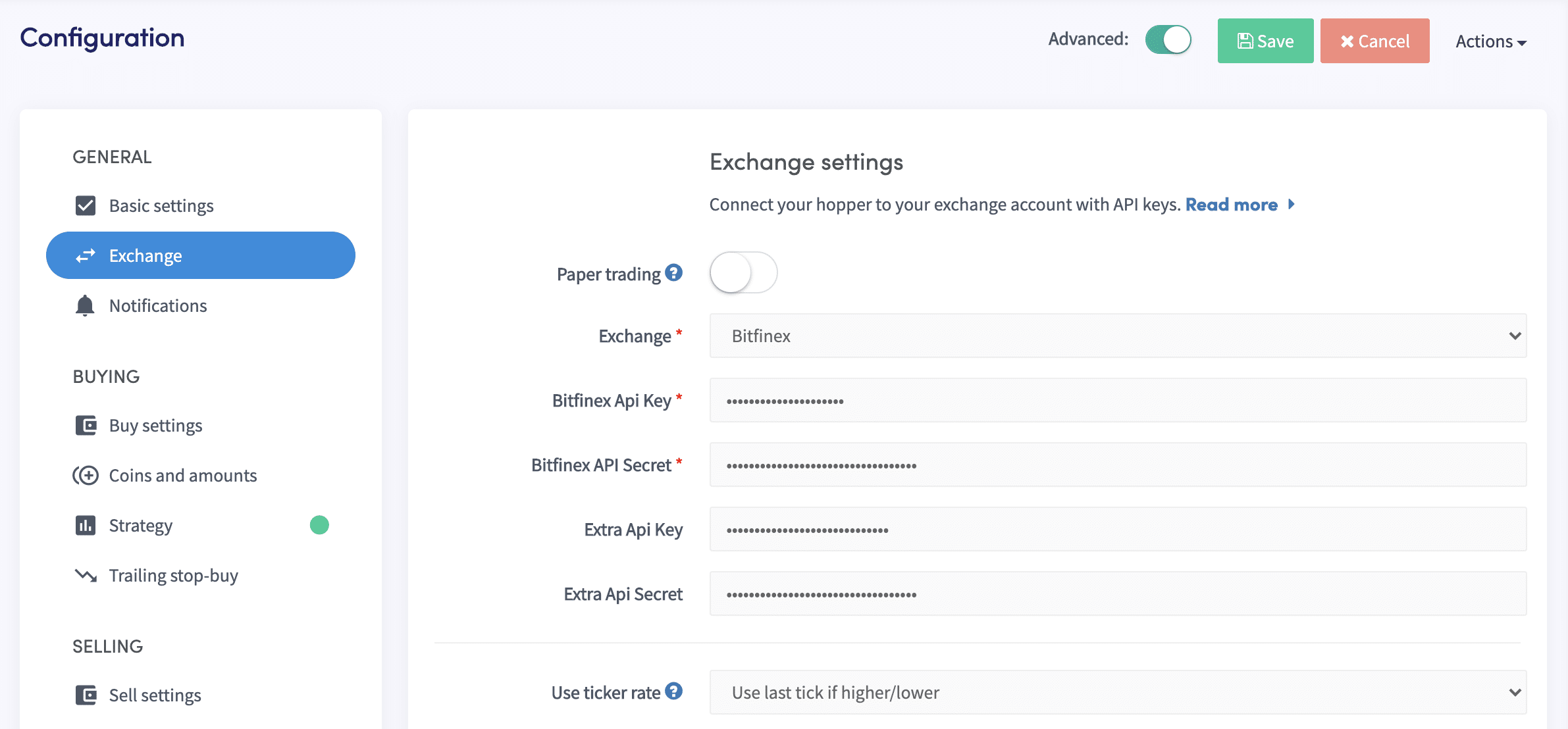
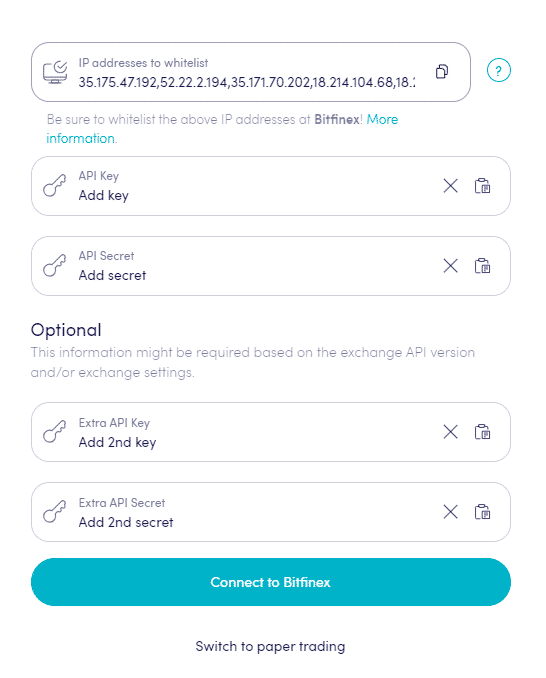
All other settings should be turned off. When you turn off Allow access from any IP, you should fill in the IPs from your Cryptohopper account. Go to your Cryptohopper account and copy and paste the addresses into Bitfinex’ API Key. From there, click on the tab marked “exchange”.
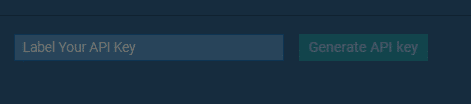
The last thing is to give your API key a name. You can do this in the area called “Label Your API Key.” Click “Generate API key.”
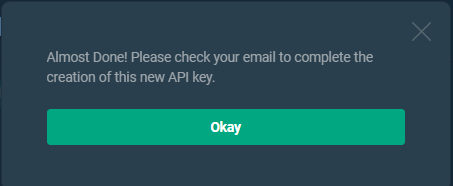
If necessary, verify with your 2FA. You will then receive an email to complete the API key.
Step four
(Recommended) On Bitfinex, you can use 2 API keys at the same time. Using 2 API keys is recommended because the trading bot will be able to make more API calls, which allows the bot to request and send more information to Bitfinex. This can improve your automated trading experience on Cryptohopper.
Repeat the previous steps and add the API key and the second service to your trading bot.
Unable to see the stock market balance
If you are unable to see your exchange balance, there may be some issues preventing your bot from syncing with your exchange. A common reason for this is that your browser has the “auto-fill” setting enabled. To fix this, you can try turning off auto-fill, using incognito mode, using a different browser, or turning off your password manager. For more information, you can watch the Cryptohopper Academy video on this topic or check out our troubleshooting article.
Minimum trading amounts on Bitfinex
Click here to check the minimum trading amounts on Bitfinex.
Bitfinex Status
Are you having trouble trading on Bitfinex? Click here to check the Bitfinex exchange status.