
How to connect Bitvavo to Crypto Hopper

To connect your bot to Bitvavo , you need an API key. You can think of an API key as a bridge between Cryptohopper and the exchange, allowing your bot to perform actions like placing automated orders and reading your balance for its calculations.
You may encounter an error during the Cryptohopper login process when connecting your bot to Bitvavo, even if your API keys are correct. Common reasons for this include insufficient funds in your exchange account, insufficient funds in your trading account (as some crypto exchanges differentiate between funding and trading accounts), or if you are not an approved user of the exchange (KYC). In this case, click ‘Continue without testing’. You can always test your API keys later in your basic settings.
First step
Access the stock exchange website and log in or create an account .
Step two
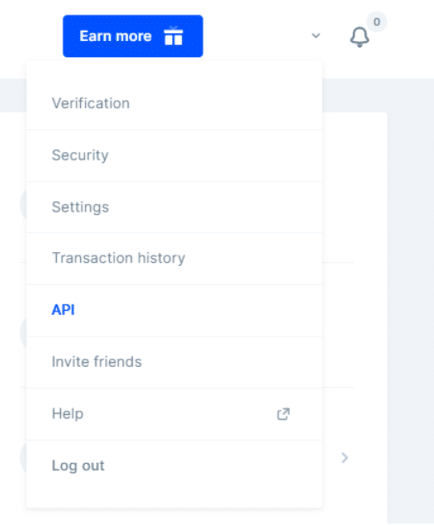
Once you have successfully logged in, click on your name in the top right corner and click on “API”.
Third stage
Creating the API.
You won’t see any API keys yet, because you’re generating your first one! Click “Request new API key”.
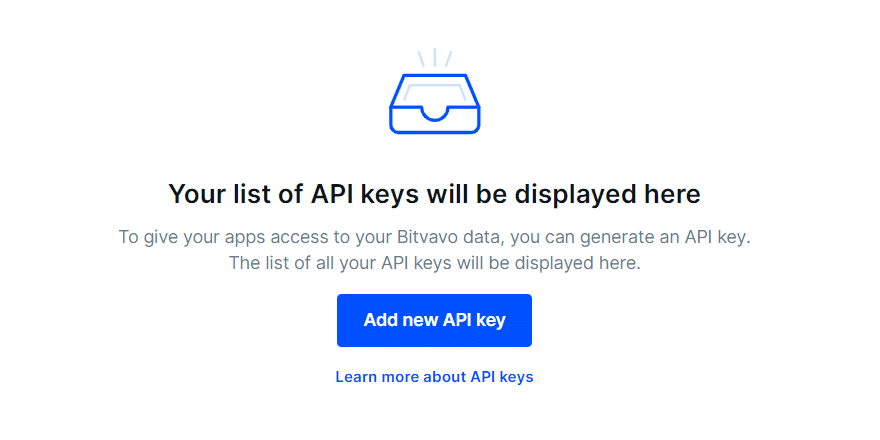
You will be directed to the following screen.
Step four
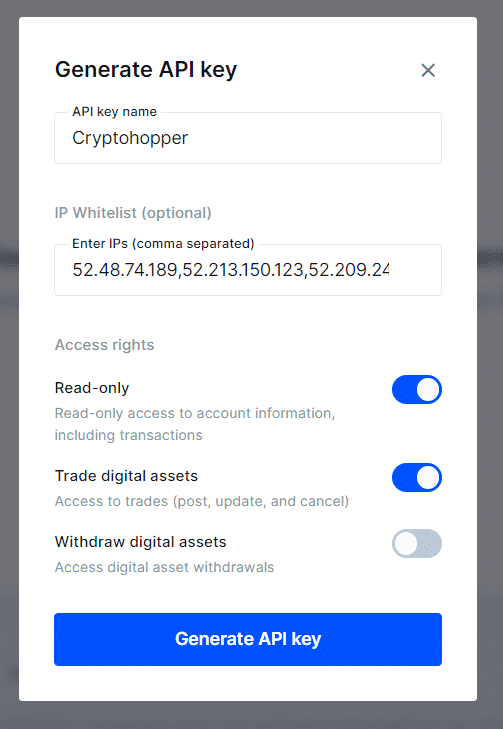
Give your API key a memorable name like “Cryptohopper API Key” and enable everything except “Withdraw Coins”.
Fifth stage
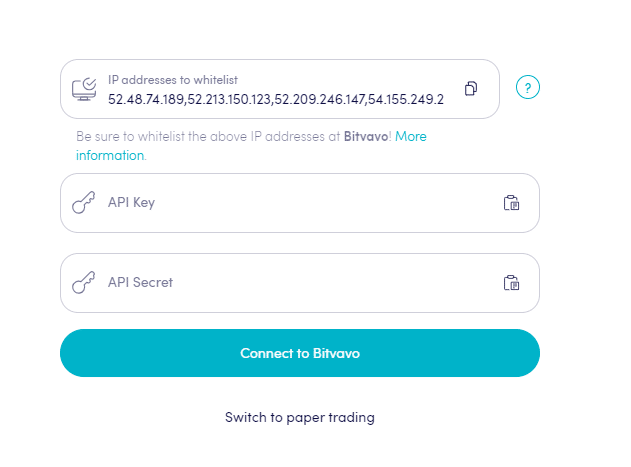
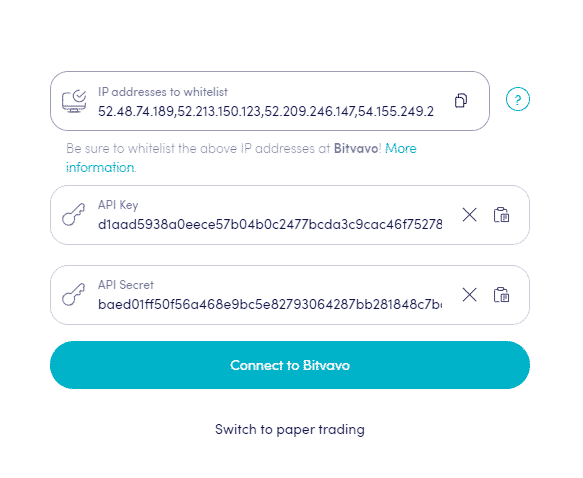
Go back to Cryptohopper and copy the IP addresses that need to be whitelisted. You can use the copy button. Then, go to Bitvavo and paste the IP addresses. Whitelisting the IP ensures that all buy and sell orders are only executed from Cryptohopper servers and is a necessary security measure.
Click “Generate API key” and enter your Bitvavo password and 2FA code. Do not click “OK, I saved my Secret Key” yet.
Step Six
Add the API to Cryptohopper.
Paste the API key and API secret into the spaces provided in Cryptohopper.
Seventh stage
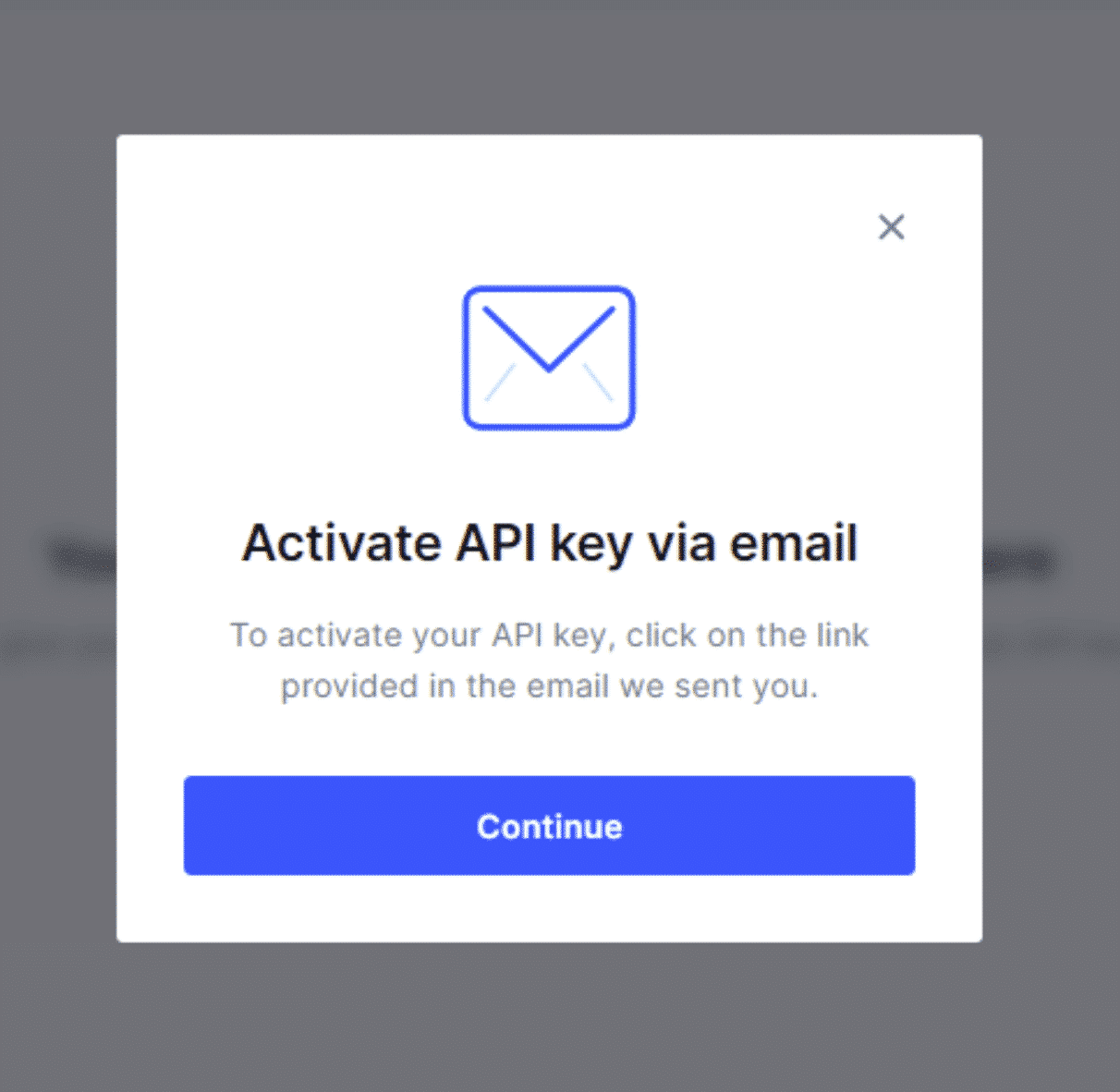
Activate the API key by checking the email from Bitvavo.
Step Eight
Click “Connect to Bitvavo” in Cryptohopper and proceed to create your trading bot. Once you are connected, you can click “OK, I saved my Secret key” in the previous Bitvavo browser tab.
Can’t see your balance on the stock exchange?
Click “Connect to Bitvavo” in Cryptohopper and proceed to create your trading bot. Once you are connected, you can click “OK, I saved my Secret key” in the previous Bitvavo browser tab. If you are unable to see your balance on the exchange, there may be some issues preventing your bot from syncing with the exchange. A common reason for this is that the “auto-fill” function is enabled in your browser. To fix this, you can try disabling the function, using privacy mode, trying a different browser, or disabling your password manager. For more information, you can watch the Cryptohopper Academy video on this topic or check out the troubleshooting article.
Bitvavo minimum transaction amounts
Click here to check the minimum transaction amounts on Bitvavo.
Bitvavo status
Having trouble trading on Bitvavo? Click here to check the status of the Bitvavo exchange.