
How to connect Binance US to Crypto Hopper

To enable your bot to communicate with Binance US , you need to create an API key. This key acts as a connection between Cryptohopper and the exchange, allowing your bot to perform tasks such as entering automated orders and accessing your balance for calculation purposes. Essentially, the API key serves as a way for your bot to communicate with the exchange and perform the actions required for automated trading.
You may encounter an error during the Cryptohopper onboarding process when connecting to Binance US, even if your API keys are correct. Common reasons for this are lack of funds in your exchange account, lack of funds in your trading account (due to some crypto exchanges differentiating between funding and trading accounts), or you are not a verified user on the exchange (KYC). In this case, click ‘Continue without testing’. You can then test your API keys in the basic configuration.
First step
If you haven’t already, go to the Binance US website and create an account.
Step two
Verify your account and start working with the API by going to API Management.

Third stage

Click “Create API”, select “System generated API Key” and click Next.
Step four

Start by giving your API key a name that is easy to remember, like “Cryptohopper API”.
Fifth stage

To complete the task, move the puzzle piece into place. Then, verify your API keys using any of the following methods: phone number verification code, email verification code, and authenticator code.
Step Six
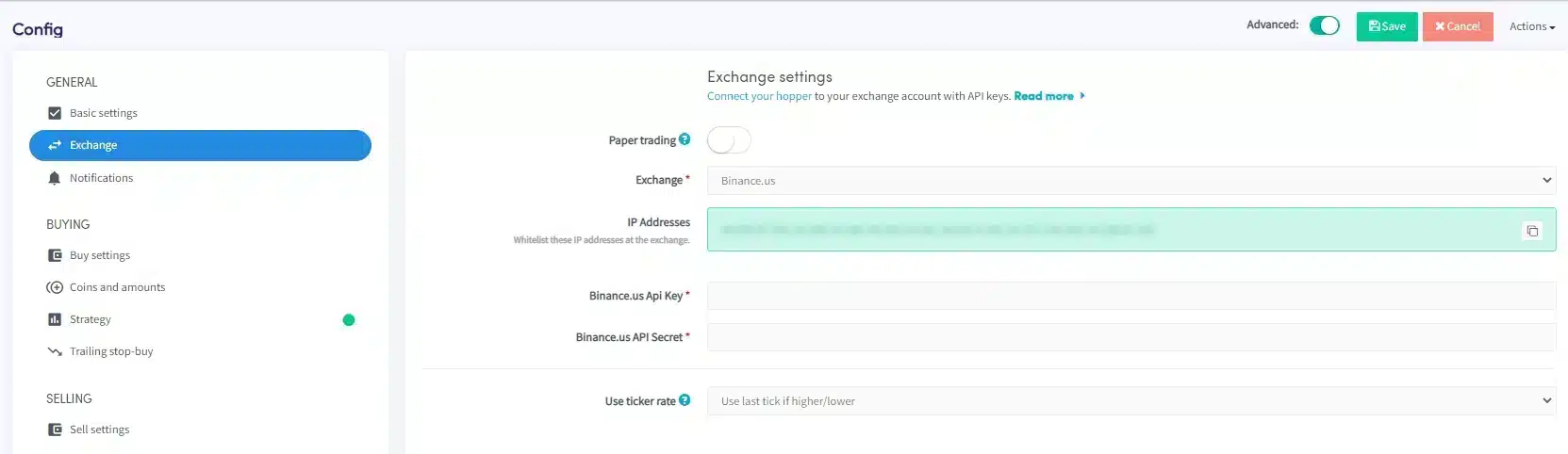
Your API key and secret have now been generated, but cannot be used for trading yet. To increase the security of your funds on Binance US, you should whitelist the IP addresses of the Cryptohopper servers in your API key settings. This will only allow Cryptohopper servers to perform operations on your Binance US account, preventing unauthorized third parties from accessing it. By following this step, you can ensure that your funds remain safe while trading on Binance US .
Go to the basic configuration in Cryptohopper and select “Exchange” then “Binance.” Click “Generate IP Addresses” and copy the IP addresses displayed.
Step Seven

Then, go back to Binance US and paste the IP addresses into the “Restrict access to trusted Ips Only” field, as shown in the image above. To enable trading, click “Edit” and check the box next to “Enable spot & Margin Trading.” No additional API restrictions should be enabled, and Cryptohopper will never request “Withdrawal” or “Universal Transfer” rights. Do not click “Save” yet, as there is another step to complete.
Step eight

Copy the API keys displayed on Binance US and paste them into Cryptohopper. Then, save the changes on both platforms, Binance US and Cryptohopper. Wait a moment for the bot to connect everything, and your balance should be updated.
If you can’t see the balance on the stock exchange
If you can’t see your exchange balance, there may be a few issues preventing your bot from syncing with the exchange. One common reason is that autofill is enabled in your browser. To fix this, you can try turning off autofill, using incognito mode, changing browsers, or disabling your password manager. For more information, you can watch the Cryptohopper Academy video on this topic or check out our troubleshooting article.
Minimum amounts for trading on Binance US
Click here to see the minimum trading amounts on Binance US.
Binance US Status
If you are experiencing problems trading on Binance US, you can check the current status of the exchange by clicking here .