
How to connect Binance exchange to Crypto Hopper

To enable your bot to communicate with Binance , you need to create an API Key. This key acts as a connection between Cryptohopper and the exchange, allowing your bot to perform tasks such as placing automated orders and accessing your balance for its calculations. In essence, the API Key serves as a way for your bot to communicate with the exchange and perform the necessary actions for automatic trading.
You may encounter an error during the Cryptohopper installation process when connecting to Binance, even if your API Keys are correct. Common reasons for this include insufficient funding in your exchange account, insufficient funding in your trading account (as some crypto exchanges distinguish between funding and trading accounts), or not being a verified user on the exchange (KYC). In this case, click ‘Continue without testing’. You can test your API Keys later in your basic settings.
First step
If you haven’t already, go to the Binance website and create an account.
Step two
Verify your account and start working with the API by going to API Management.
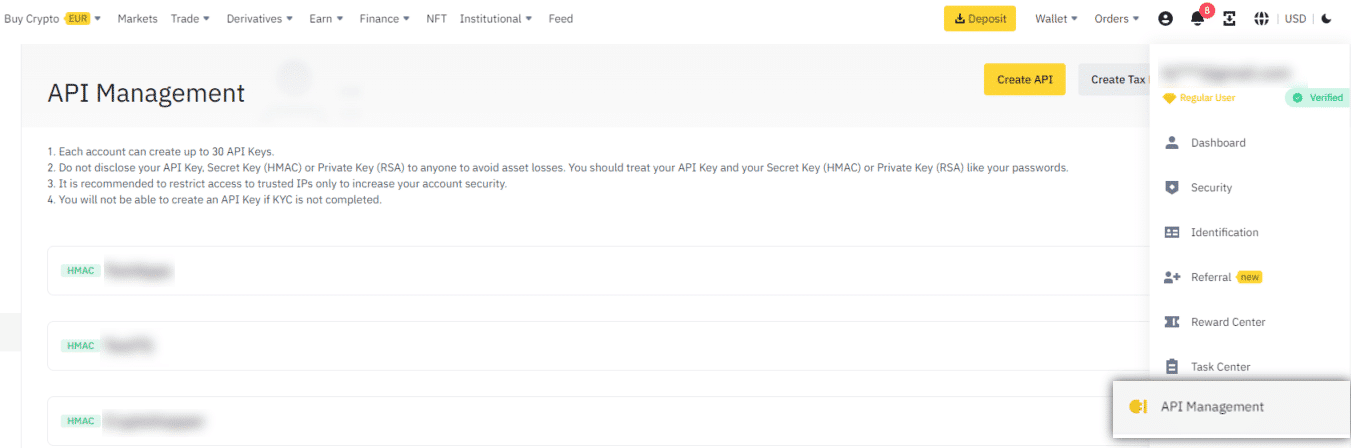
Third stage
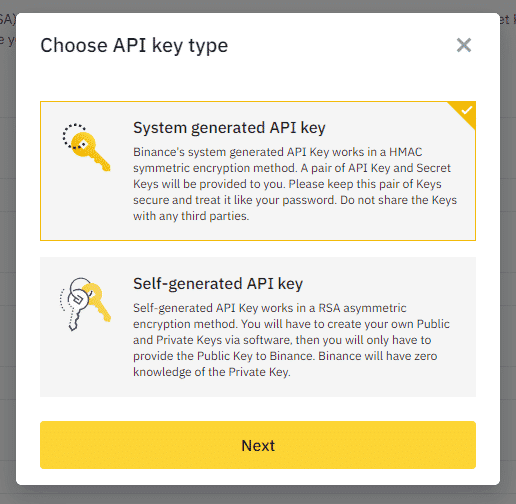
Click “Create API”, select “System generated API Key” and click Next.
Step four
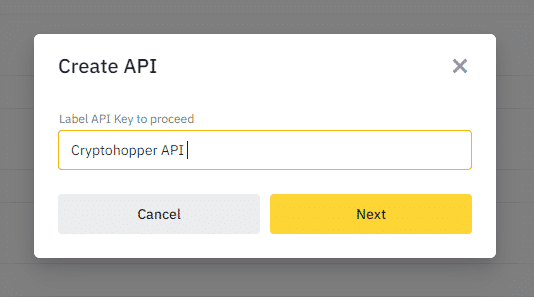
Start by naming the API with a memorable name such as “Cryptohopper API”.
Fifth stage
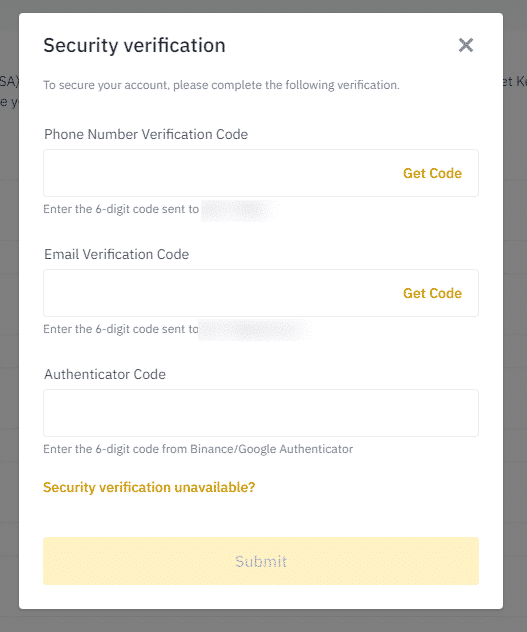
To complete the process, move the puzzle piece into place. Then, verify your API Keys using all of the following methods: phone verification code, email verification code, and authenticator code.
Step Six
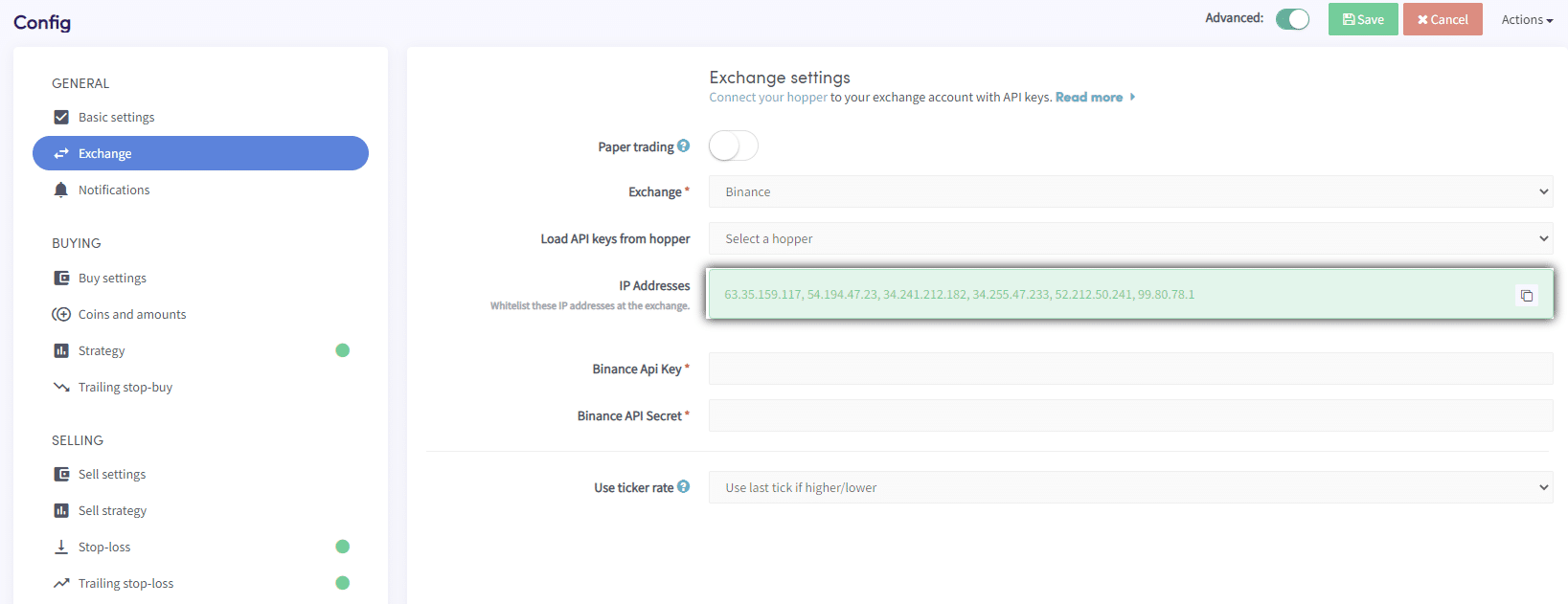
Your API Key and Secret have now been created, but they cannot be used for trading yet. To improve the security of your funds on Binance, you should whitelist the IP address of the Cryptohopper servers in your API Key settings. This will only allow Cryptohopper servers to perform operations on your account on the exchange, preventing unauthorized third parties from accessing it, even if your API Keys are compromised. Taking this step ensures that your funds remain safe while trading on Binance .
Go to Basic config in Cryptohopper and select “Exchange” and then “Binance.” Click “Generate IP Addresses” and copy the IP addresses displayed.
Seventh stage
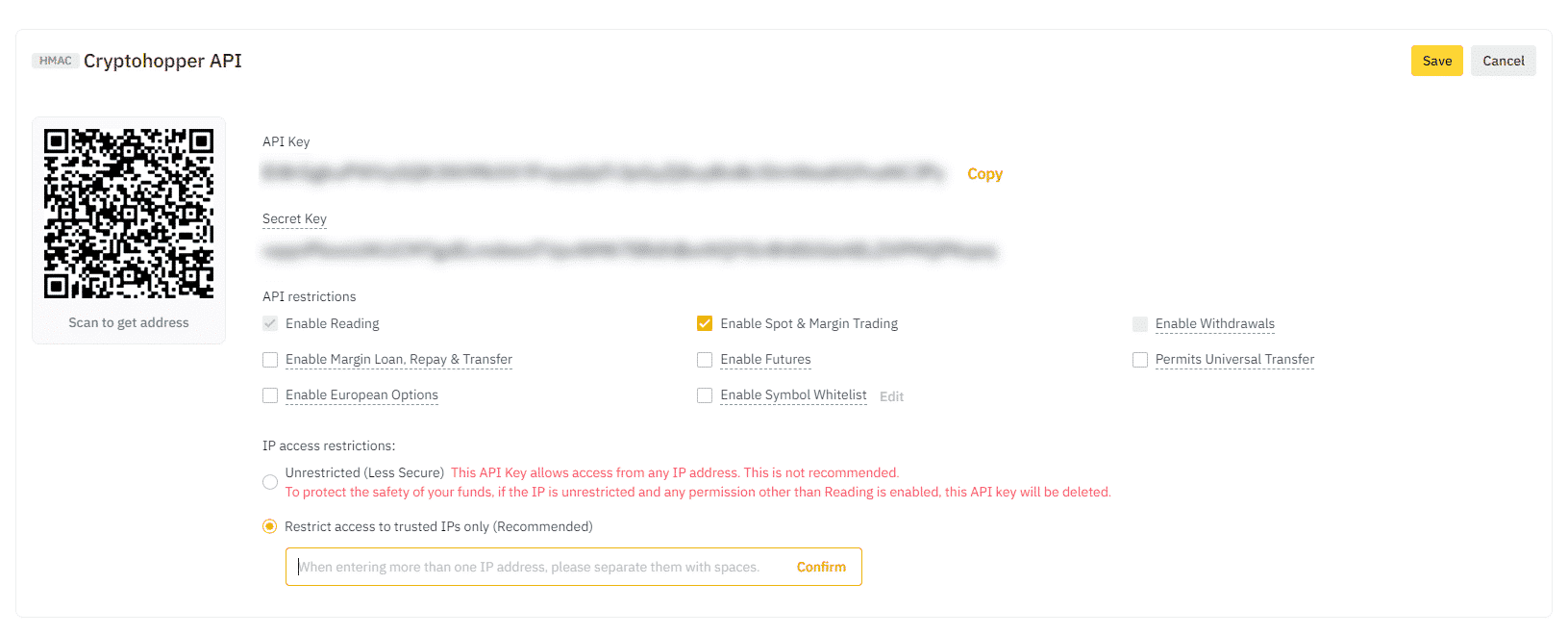
Then, return to Binance and paste the IP addresses into the “Restrict access to trusted Ips Only” field, as shown in the image above. To enable trading, click “Edit” and check the box next to “Enable spot & Margin Trading.” There is no need to enable any additional API restrictions, and Cryptohopper will not request or require “Withdrawal” or “Universal Transfer” rights. Do not click “Save” yet, as there is another step to complete.
Step Eight
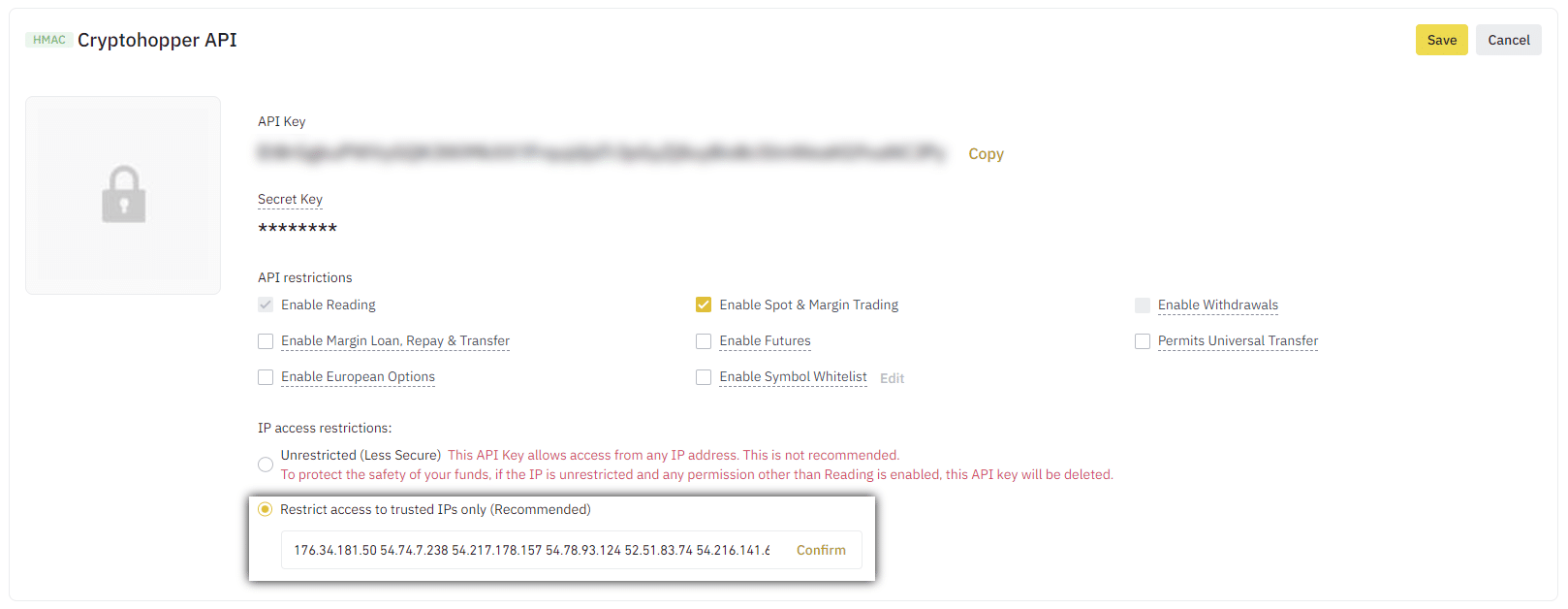
Copy the API Keys displayed on Binance and paste them into Cryptohopper. Then, save the changes on both platforms, Binance and Cryptohopper. Wait a moment for the bot to link all the details, and your balance should be displayed.
Leverage tokens
On Binance, you can trade leveraged tokens, but you must first complete a short questionnaire about the risks involved. Once you complete the questionnaire, you can trade these tokens like regular tokens.
Can’t see the balance on the stock market
If you are unable to see your balance on the exchange, there may be some issues preventing your bot from syncing with the exchange. One common reason is that your browser has auto-fill enabled. To fix this, you can try disabling auto-fill, using incognito mode, using a different browser, or disabling your password manager. For more information, you can watch the Cryptohopper Academy video on this topic or check out the troubleshooting article.
Converting Dust Positions to BNB
When using Binance, it is recommended to use the “convert dust to BNB” setting instead of Walletscrubber. Dust positions are positions that are too small to trade on the exchange.
Minimum trading amounts on Binance
Click here to see the minimum trading amounts on Binance.
Binance Status
If you are experiencing problems with trading on Binance, you can check the current status of the exchange by clicking here .