
How to configure the settings in Crypto Hopper’s Market Making bot

This guide explains the settings that need to be filled in for the Market Making bot.
Basic settings
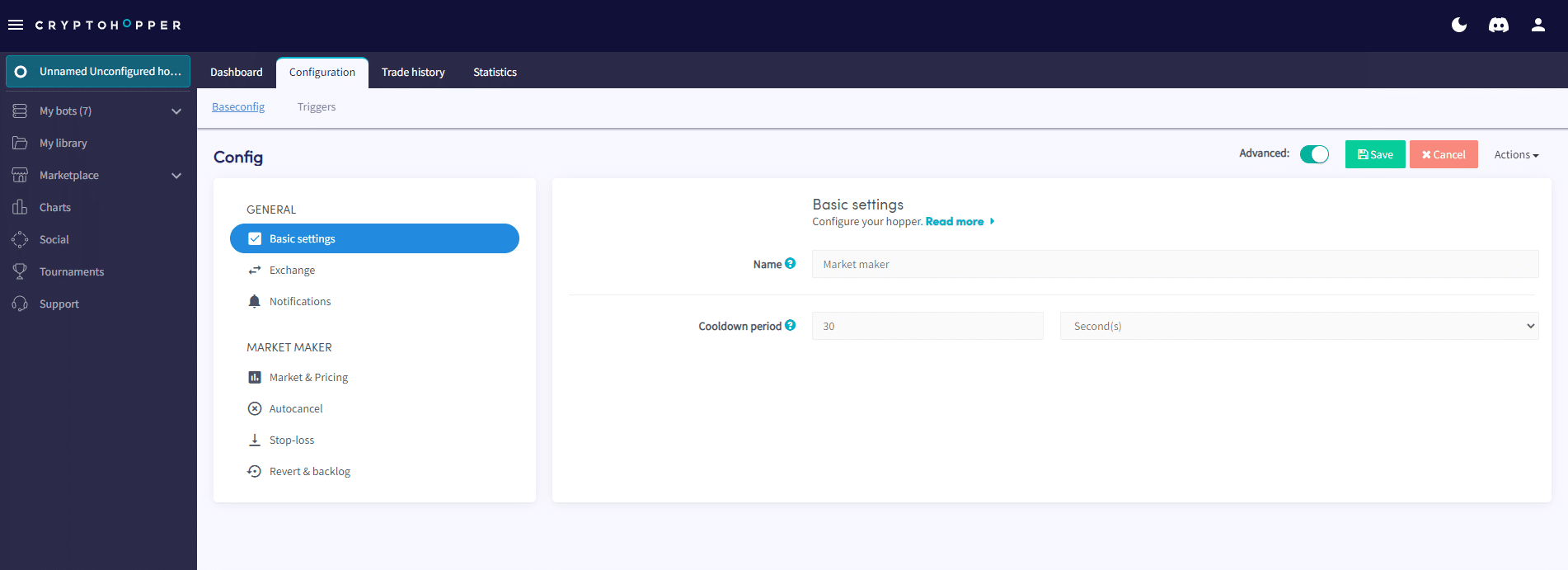
name
Give your bot a name.
Cooling off period
Decide if you want to use a cooling off period and how long it should last. The market bot will wait during this period before placing a new order.
Stock Exchange
Dummy trading
When you want to trade with simulated funds, toggle the switch.
stock exchange
If you want to trade with real money, choose your exchange.
API key
Fill in your API key.
Notifications
Trade Alert
Toggle the switch if you want to be notified when your bot has made a trade.
Trading Error Alert
Toggle the switch if you want to be notified when there is an error in a trade.
Cancelled order notification
Toggle the switch if you want to be notified when an order is canceled.
Market and prices

market
Select the market you want to “market” in. On the left side, you will see the current gap. Choose a market with a gap large enough to make a profit. Your profit should be at least double your trading fee. Check the charts category in the left menu and select the markets tab to see which currencies have a gap that you can profit from and sufficient trading volume.
strategy
Choose the strategy you want to use. You can create a strategy yourself or download one from the market .
Market trend
Toggle between Neutral, Uptrend, or Downtrend to define what the market trading bot should do in different markets. The order sequence should be different in different market trends. Or you can set it to buy smaller positions in downtrends (or not buy positions at all).
Order sequence
In a neutral market, it is normal to buy and sell at the same time. In an uptrending market, it is normal to buy first and then sell. The opposite is true in a downtrending market.
Order location
Choose where in the order book your orders should go. As a marketer, you want to place orders quickly. That’s why it’s a good idea to place your bot at the top of the order book.
Minimum gap
If you are trading to make a profit, then this setting should be set at twice your commission. Otherwise, you will be given a loss.
Order layers
Do you want orders at multiple locations in the order book? This is designed to create liquidity and a “healthy” tail of orders. Define the buy quantities for each layer or stick with only one layer.
Automatic cancellation
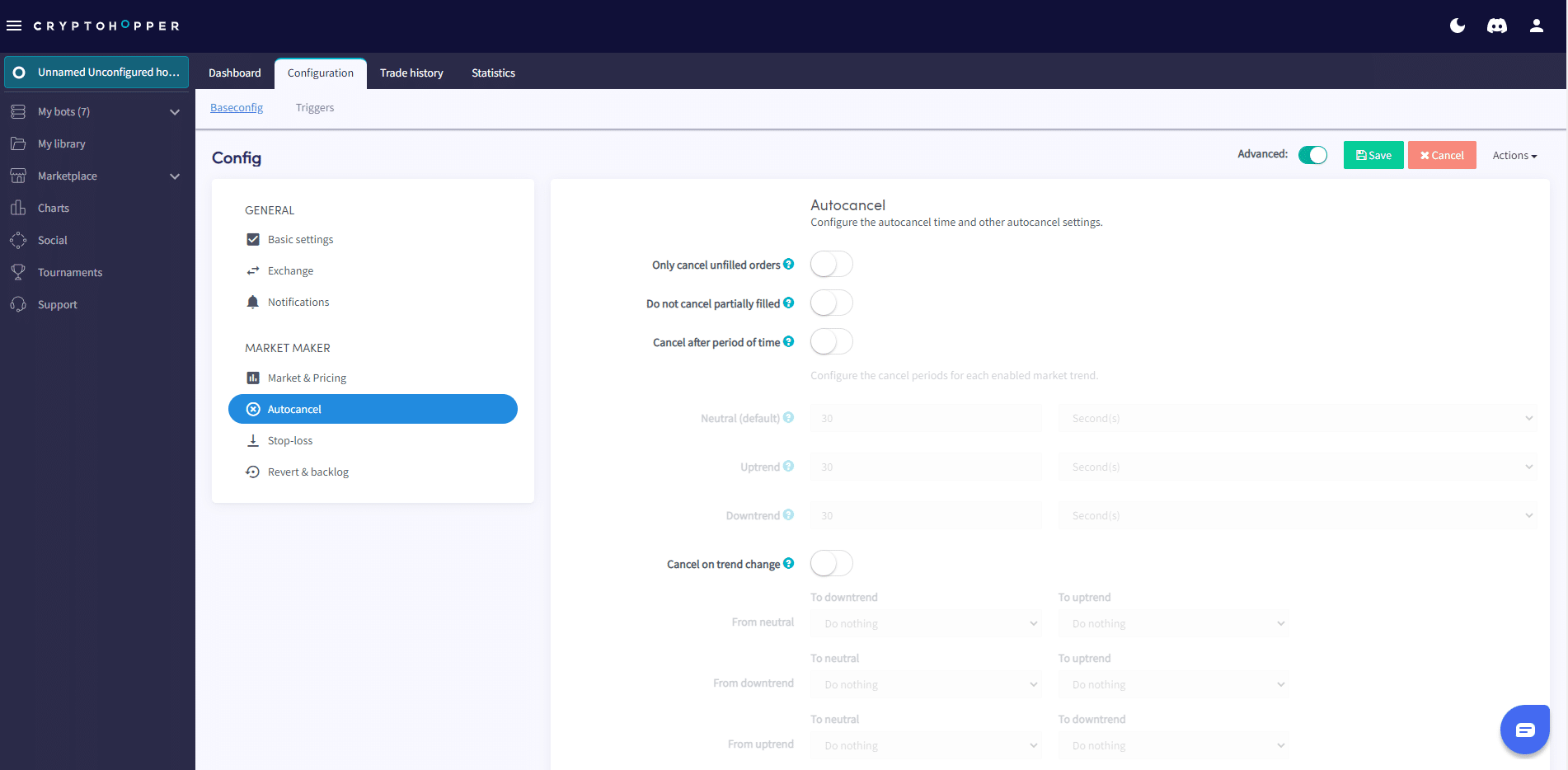
Except for unfilled orders
Toggle the switch if you want to use this setting. For example: if a buy is filled and a matching sell is not, then the sell will not be canceled.
Do not cancel partially fill
When this is enabled, resellers’ partial orders will not be canceled.
Automatic cancellation of orders
You don’t want your orders to stay open forever because it saves you some money! There are lots of options to decide why/when your orders should be automatically canceled:
After a certain period of time
Don’t want your orders to stay open longer than the selected time? It’s easy: just set the number of seconds/hours/days they can stay open. The minimum time is 30 seconds, and the maximum time is 99 days.
Cancel when there is a trend change
You will want to cancel your orders if the trend changes. For example, if you are in a neutral trend and the market is heading down. Determine when your orders should be canceled to add an extra layer of security.
Cancellation by percentage change
Use this setting when you don’t have a good trend strategy or are following the market yourself and know where there is support or resistance.
Cancel by depth
The market is changing, and other traders can place their orders above yours. Automatically cancel orders when X amount of orders are “on your back”.
Stop- Loss
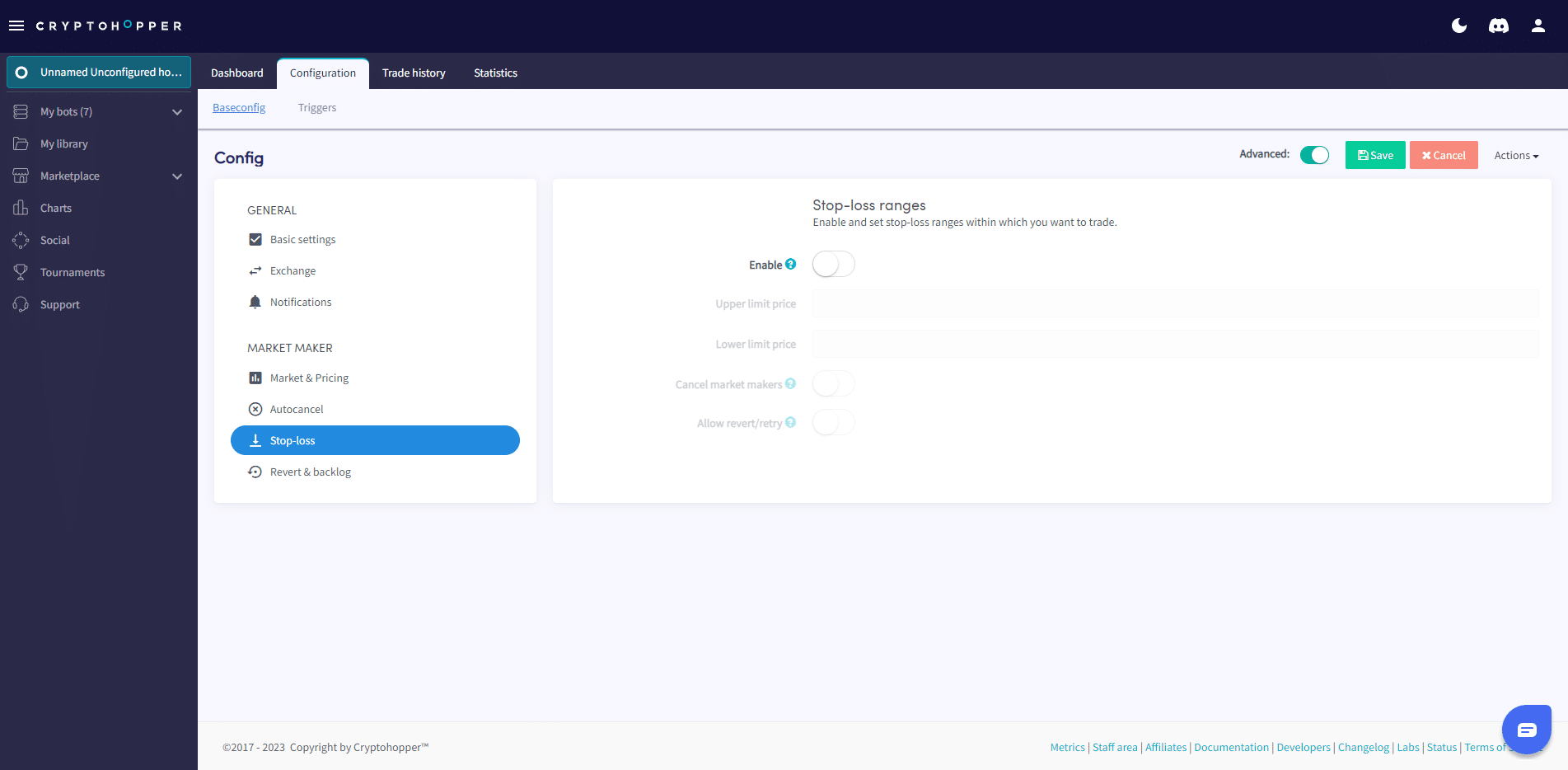
Activate
Toggle the switch if you want to use a stop-loss. A stop-loss is an important way to protect your investments. You can also use it with your trading bot, but it’s a little different. The stop-loss in your bot determines what price range the system is allowed to trade.
Upper limit price
Fill in a specific price. Your bot will only trade within these ranges.
Lower limit price
Fill in a specific price. Your bot will only trade within these ranges.
Canceling resellers
Toggle the switch to cancel orders (buy and sell) when your stop-loss is hit.
Allow retry/retry
Toggle the switch if you want your orders to be returned to the order book when the price returns to your price range, and your bot is allowed to trade again.
Return and push
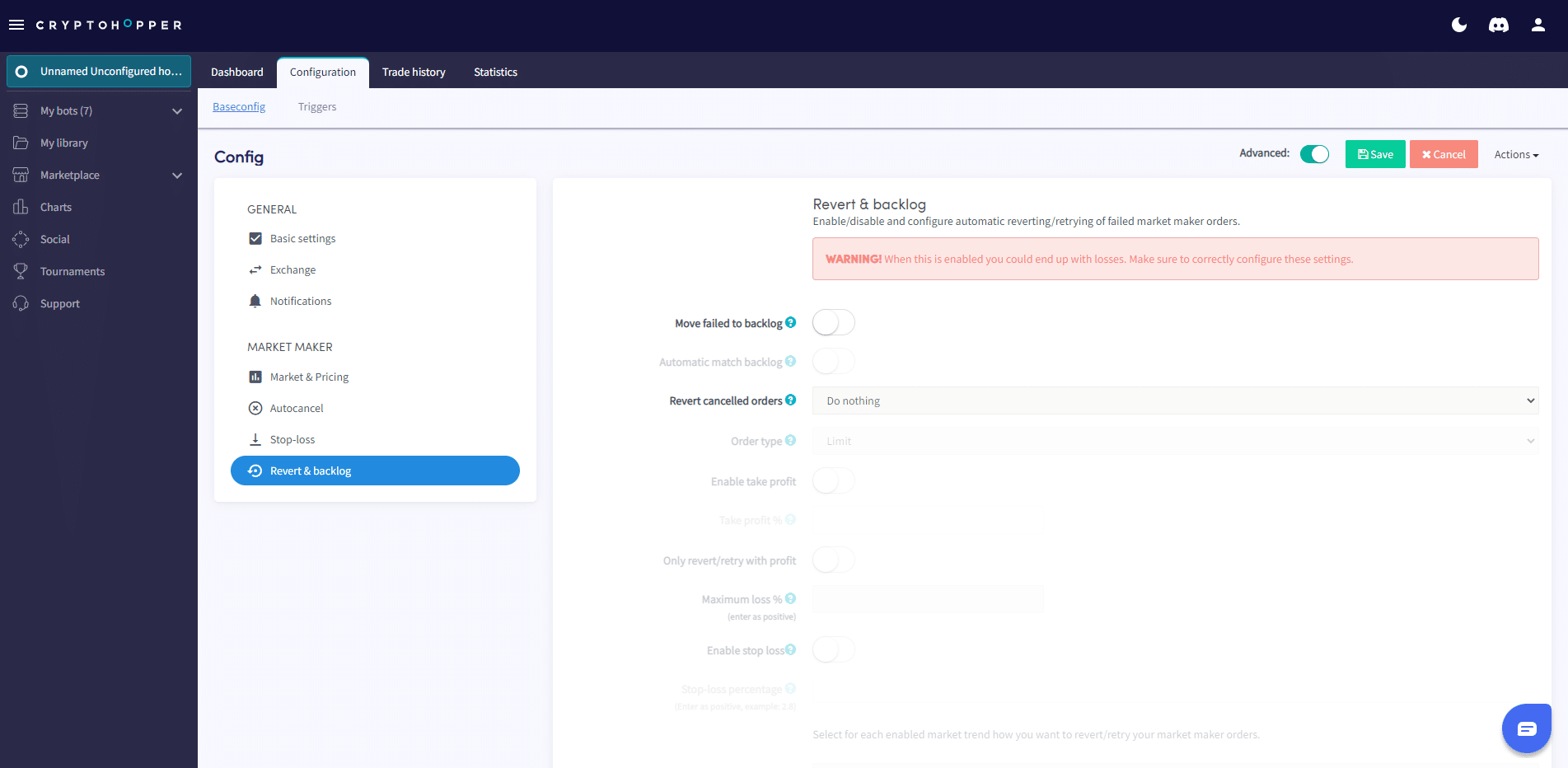
Retracement and push is a way to “save” failed and canceled orders with push access, suitable for trading again.
Let’s say your order was filled, but the corresponding feed failed. Move it to push so your bot can try again. It also shows how you are performing and what your losing orders are. It is recommended to use this feature to improve your profitability and ensure that you are not left with “bags”.
Failed push orders
Toggle the switch if you want failed and canceled orders to switch to push.
Automatic adjustment of urgent
Toggle the switch if you want to automatically match orders in a push. For example, if you have multiple sell feeds for the same currency that are not filling, they will be merged into one push position.
Return of cancelled orders
Toggle the switch so that orders placed in the marketing bot from the marketplace will return.
Order type
Select the order type you want to use to return orders that have been returned from reports.
Profit activation
Toggle the switch if you want “remaining” orders to generate profit.
Profit percentage
Fill in the percentage of profit you would like to earn on the “remaining” orders.
Just restart/retry with profit
Toggle the switch if you want to resume/retry only with a space.
Maximum loss percentage
Fill in the percentage.
Stop-loss activation
Toggle the switch if you want “remaining” orders to be sold when they fall below the specified percentage.
Stop-loss percentage
Fill in the percentage.
Neutral trend, uptrend and downtrend
Choose for each market how you want to revive/retry your bot’s orders.