
How to combine video and photos together in the same project in CapCut?
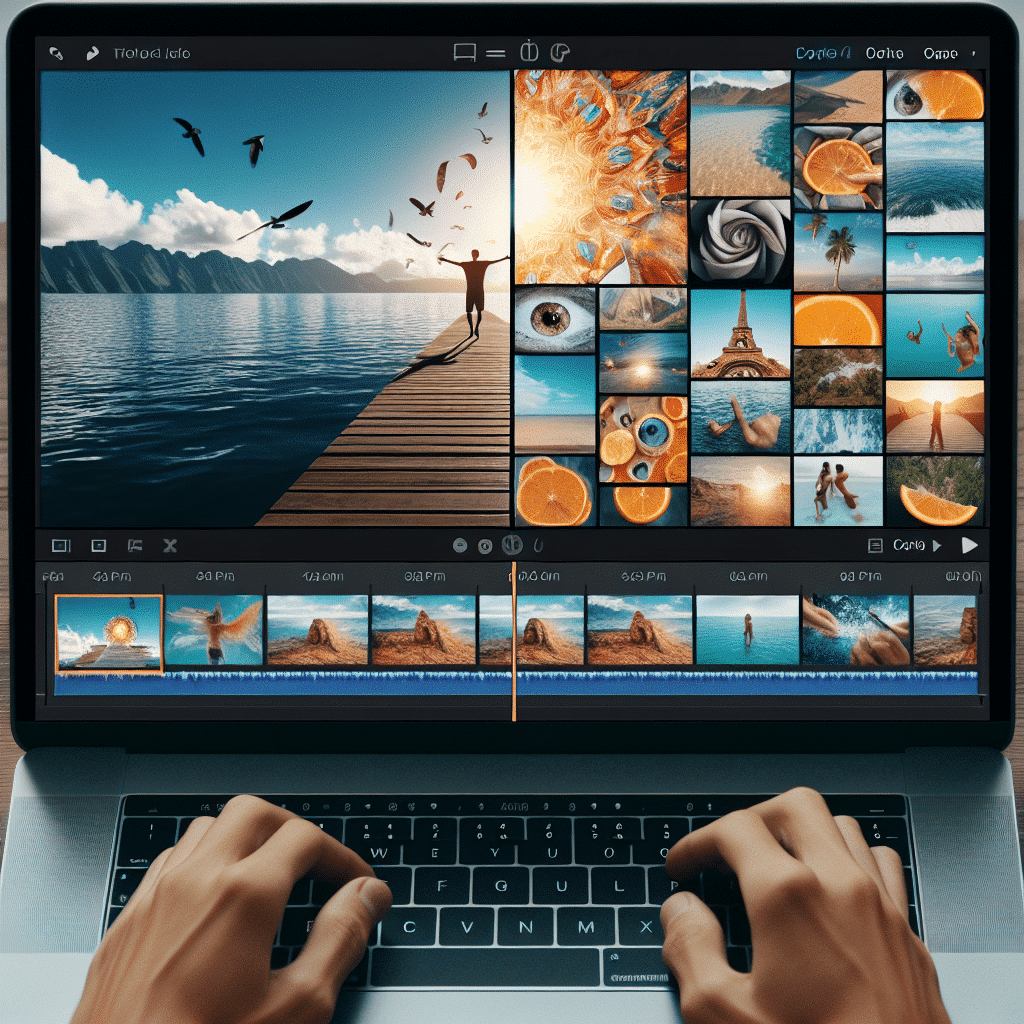
Thinking of creating colorful and impressive videos that combine video and images?
The CapCut app is exactly the tool you need! In this guide, we’ll explain how to combine video and photos in the same project in CapCut, in an easy and convenient way that anyone between the ages of 10 and 14 can understand.
What is CapCut?
CapCut is an excellent video editing app that is suitable for beginners and advanced users alike. It allows you to create impressive videos in no time. The app offers tools for combining video and images, editing audio, adding effects, and more.
Preparations before starting
Before you start editing, it’s important to gather all the files – photos and videos – that you want to include in your project. Make sure they’re saved on your phone or tablet. This will help make the editing process much faster and easier.
How to open a new project in CapCut
- Downloading the app : If you haven’t downloaded CapCut yet, search for it in the app store and install.
- Opening the app : Click on the CapCut icon to open it.
- Creating a new project : On the main screen, click the “+” button to start a new project.
Adding video and images to the project
Now that the project is open, you will begin adding the files you want to include in the project.
Add video
- Click “Add Media” at the top of the screen to select videos from your gallery.
- Select videos : Scroll through the files and select the desired videos.
- OK : Click “OK” to insert the videos into the project timeline.
Adding images
- Return to “Adding Media” : Follow the same procedure to add images.
- Select photos : Scroll and select the photos you want to add.
- OK : Click “OK” again to add the photos to the timeline.
Integration and editing
Editing the order of files
- Hold and drag files : Click and hold any file (image or video) and drag it to the desired location on the timeline. This allows you to change the order in which the materials appear.
Changing file length
- Change video/image length : Click on the edges of each file and drag in or out to shorten or lengthen the time each file appears.
Adding transitions
- Transition between files : Click on the small transition icon (between two files on the timeline) and select the type of transition you want, for example fade or waves.
Adding effects and captions
- Special Effects : Click the appropriate button to select and add special effects to the video.
- Add Captions : Using this option allows you to add fun captions to any photo or video. Choose your favorite font and color.
Saving your project
When you’re finished editing your video, it’s important to save your work.
- Click the “Save” button .
- Choose a save quality : Choose the quality that suits you and wait for the video to be saved to your gallery.
Tips for improving your video
- Pre-planning : Plan what you want to show in the video in advance.
- Maintaining order : A logical file order will help viewers understand the message.
- Adding music : Appropriate music can add a lot.
Suggest screenshots
- The timeline in the editing screen : Take a screenshot to demonstrate the placement of the video and photos on the timeline.
- Add Transitions Menu : Take a screenshot of the menu showing the transition options that can be selected.
- Add Effects Menu : Screenshot showing the available options for special effects.
Faq
What if I have problems adding files?
If you’re having trouble adding files, make sure the files aren’t corrupted and that you have enough storage space on your phone or tablet. If the problem persists, try restarting the app.
Does CapCut support different languages?
Yes, CapCut supports many languages, so you can choose the language you are comfortable with from the app settings.
Can I share my video directly from the app?
Absolutely! After saving the video, you can share it directly to social networks like Instagram, Facebook, and TikTok.
summary
Good luck editing your videos in CapCut! Remember, with enough practice, anyone can become an amazing content creator!
Additional recommendations
To improve your editing skills, it’s worth experimenting with other video editing apps, such as Adobe Premiere Rush or InShot. Each app offers different tools that can enrich your knowledge.
Participation in courses
If you want to learn more about video editing, consider taking online courses. There are many courses for beginners and advanced users that can help you develop your skills.
Inspiration from other videos
Watch other creators’ videos for inspiration. Search for videos on YouTube or TikTok, and try to understand what makes their videos special.
Collaboration with friends
Collaborating with friends can add a lot of fun to the process. You can create videos together, share ideas, and learn from each other.
Final summary
Video editing is not just a skill, it’s an art. With the right tools, like CapCut, you can bring your ideas to life. Don’t forget to enjoy the process and let your imagination run wild!