
How to add a package deal as a trader on Crypto Hopper

This guide shows the different settings for Package Deal as a seller in the marketplace.
Settings under Details
name
Enter a name for your Package Deal.
Description
Write a description for the product, include expected performance, and list your contact information, recommended settings, and anything else important.
Price in dollars (USD $). Select price
This price can change at any time. You can also choose a free price. You can see how much profit there is for each customer at each price level by clicking “View all prices and proceeds”.
Logo
UPLOAD Logo. This is the photo that will be displayed in the marketplace. The logo size must be 600px X 430px otherwise it will not work. To change the logo, click on the “Change Logo” button or on the image itself and then select “Upload Logo”.
Promo
Above_UPLOAD Promo. This image appears as a banner at the top of the description. The promo size must be 1200px X 450px. To change this, click the “Change Promo” button or on the image itself and then select “Upload Logo”.
Social networks
You need to enter your social media details. You can fill in your Twitter, Facebook, and Telegram details. Although you can enter your social media details in this section, it is usually a good idea to include them in the description as well.
Settings under Settings
On the left is another screen with settings.
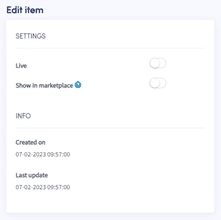
live
Toggle the switch and click “Save” to publish the Package Deal to the marketplace, making it available for customers to download.
Show in the market
Toggle the switch to also disable this feature. Only people who have the link to the Package Deal can purchase it. This is a great way to send discounts only to specific customers.