
How to activate Toridion on Crypto Hopper

This guide shows how to configure the Toridion Quantabotics and explains the settings that need to be filled out.
Prerequisites
Before you begin, check the following:
- Do you have an account on Cryptohopper?
- Do you have an account at Toridion Quantabotics?
Configure the Toridion Quantabotic
- Transfer it to your Cryptohopper account.
- Click on “Marketplace”.
- Click on “Apps”.
- Click on ” Quantabotics “.
- Enter Quantabotics.
- Choose whether you want to configure the Switcher or Volatility Protect.
- Fill in all required fields.
- Click “Save Hopper Configuration”.
Template Switcher Settings
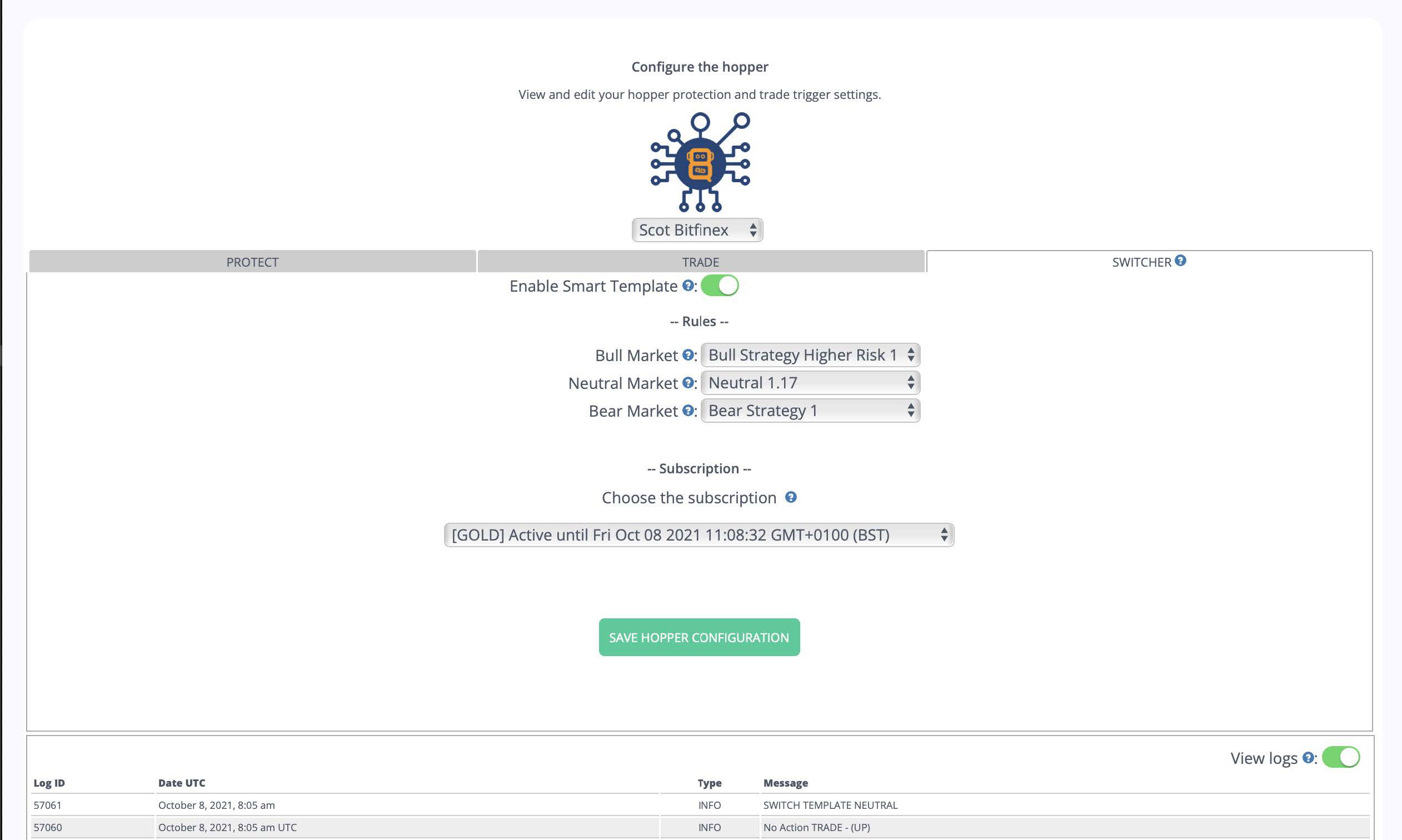
Activate the Smart Template
Switch between the buttons to configure your Switcher.
Rising market
Choose which Cryptohopper template to use in a rising market.
Neutral market
Choose which Cryptohopper template to use in a neutral market.
Market is falling
Choose which Cryptohopper template to use in a bear market.
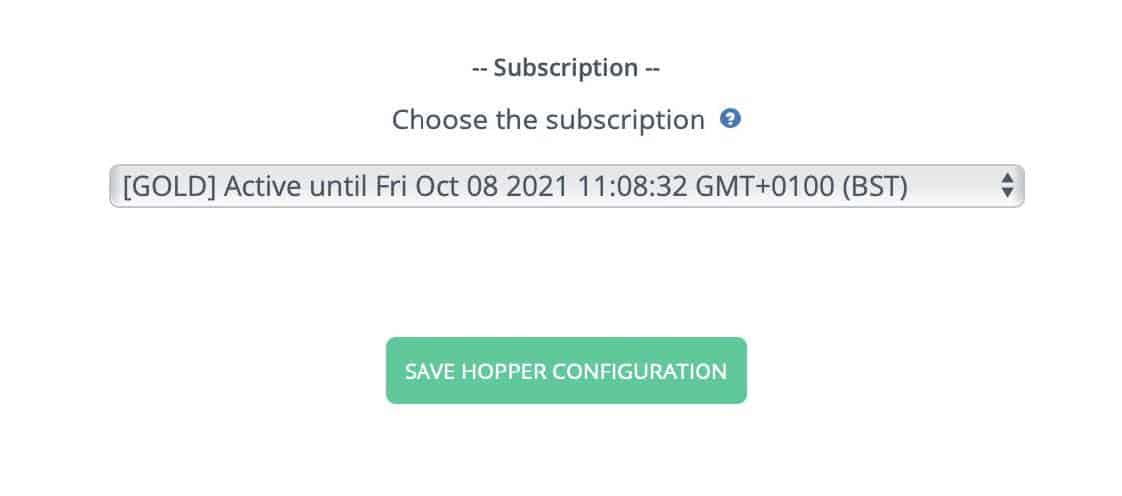
Choose the subscription
Select the subscription you want to use. Important: Quantabot without a subscription will not send commands to the Cryptohopper bot. The Switcher only works with Switcher services. It will not work with Volatility Protect.
Volatility Protect settings
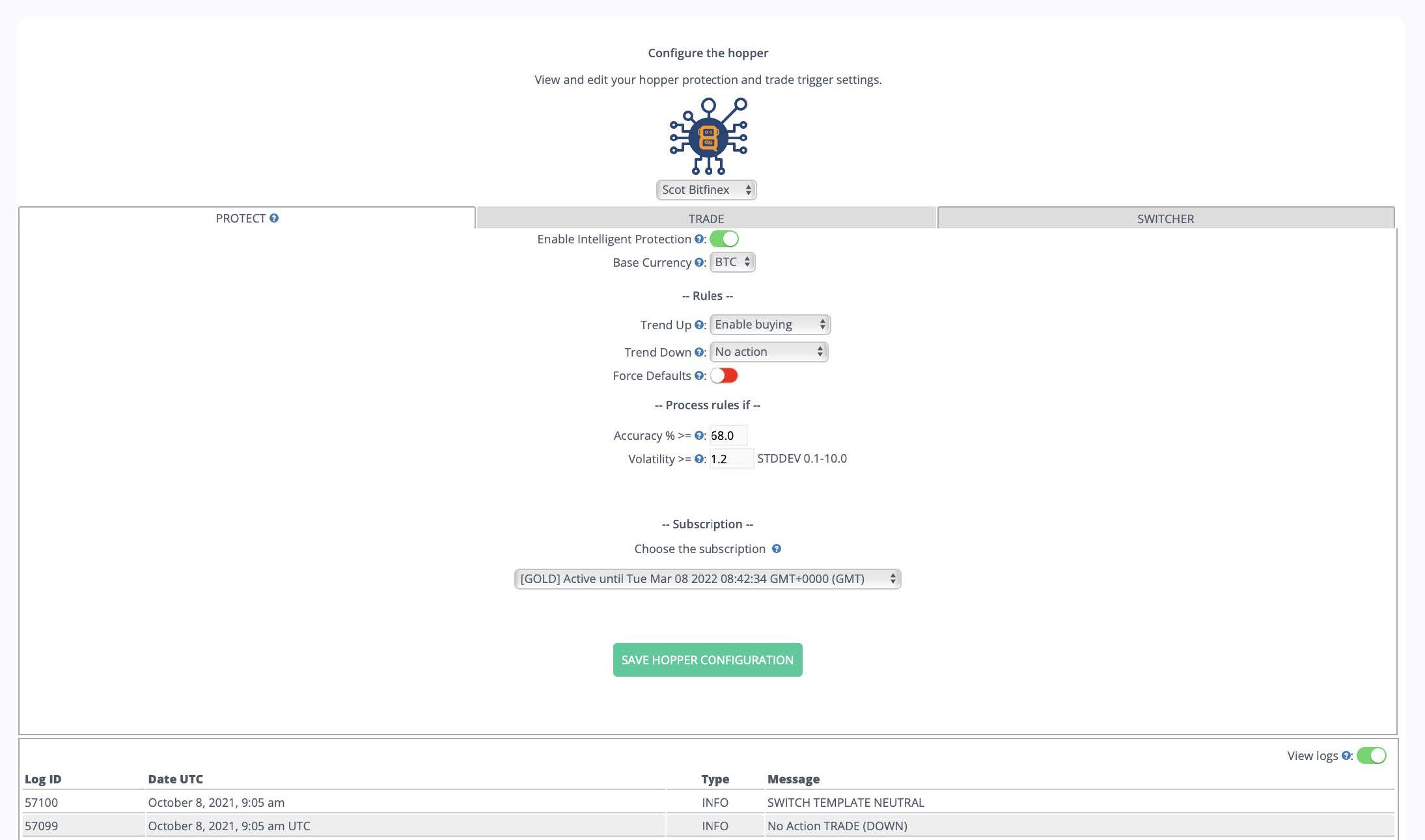
Enable Intelligent Protection
Switch between the buttons to set your Volatility Protect.
Base currency
Select the preferred currency to use. The default is BTC.
Rising trend
Choose what you want the trigger to do if the market is forecast to go up in the next hour. You can trigger 5 things:
- Do nothing.
- Open a position
- Sell a position
- Sell everything
- Panic selling
Downward trend
Choose what you want the trigger to do if the market is forecast to go down in the next hour. You can trigger 5 things:
- Do nothing.
- Open a position
- Sell a position
- Sell everything
- Panic selling
Enabling defaults
Toggle the buttons to instruct the trigger to first activate your bot’s buy and sell before processing the rules. If the trigger determines that the perfect action is to do nothing, the bot’s buy and sell will remain active.
Accuracy % >=
Fill in the minimum accuracy that Toridion must achieve in the 24 hours prior to processing the trigger rules. For example, if you enter 68% here and Toridion Finance calculates that it was only 64% accurate in predicting the trend direction in the last 24 hours, the action you selected will not be processed at this time. This condition is used to determine whether the “rule” was met and therefore the “action” should be performed.
Volatility >=
Fill in the minimum volatility required to process the trigger rules. For example, if you enter 1.2 and the volatility is calculated at 1.4 then the trigger will process the rules. This condition is used to determine if the “rule” has been met and therefore the “action” should be performed.
Toridion Finance calculates volatility and price movement as a result of a 20-day standard deviation of hourly closing prices. If the deviation is set to $100, then 1.5 means a movement of $100*1.5=$150. The accuracy and volatility constants give you control over when to trust forecasts based on historical market performance.
Our self-testing API does backtesting with your requirements, you instruct the API to process a rule only if it calculates its accuracy in predicting direction and volume over the last 24 hours and meets the levels you want. The higher the accuracy you specify, the lower the volatility is expected to be, so the bot may trade less frequently under high accuracy settings. The system defaults to 68% and 1.2 – 10 x change. Depending on the commissions you pay on your chosen exchange, profit may not always be possible for an hourly position and caution should be exercised when choosing low volatility and accuracy settings to avoid triggering unprofitable open or close orders.
Additional information
Automatic Merge of Positions Cryptohopper supports a feature called “Auto Merge Positions” which will merge new orders into one position with a single Take Profit value. This feature is very powerful and simplifies trading, but when using Toridion data it can result in multiple positions being opened when Toridion sends an SBI or BUY trigger. To simplify the process, Toridion has programmed its Quantabots to respect (where possible) the Cryptohopper settings regarding the number of positions the user wishes to have open. The Max Open Positions setting in your bot and the Buy settings are a sliding scale of 0-80. Before opening an order, your Quantabot will read this value and compare it to the number of current open positions, and if there are fewer open positions than the Max Open Positions value, the order will be filled. If you have “Auto Merge Positions” enabled, then you may find several previous orders merging into one position, so there will always be one position left! Naturally, if the Max Open Positions value is higher than 2, then Quantabot will always think it is okay to open another position. Caution should be exercised when using the Auto Merge feature and Quantabotics. Until you understand the settings and how they affect Quantabotics’ buy trigger, it is a good idea to set Max Open Positions to 1. This way, clients will not risk having multiple buy orders merged into one position. The information above is not a comprehensive overview of the phenomena that manifest themselves in how Cryptohopper’s buy settings may affect Quantabotics’ buy triggers. The most important point concerns the MAX OPEN POSITIONS value. Your Quantabot will simply count your open positions and compare the number to the MAX OPEN POSITIONS value. If the number of positions is less than this figure, it will attempt to open a position if a BUY trigger is received.