
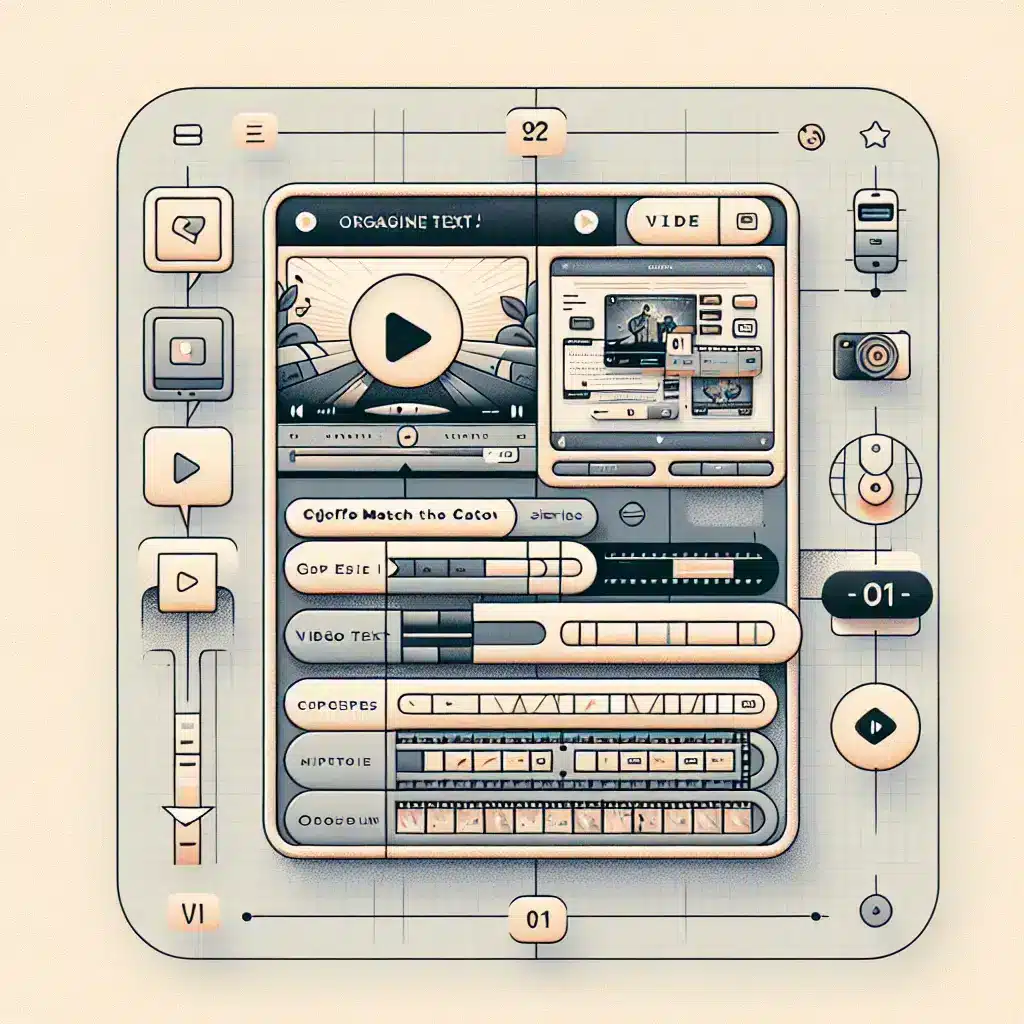
How do you arrange the text so that it exactly matches the content of the video in CapCut?
Introduction to CapCut
CapCut is one of the coolest video editing apps out there today. It lets you add text, effects, and music to your videos, creating something that will impress all your friends. In this post, we’ll learn how to arrange text to fit the content of your video in CapCut. It’s not only fun, but it’s also easy!
Tip: When starting a new project, it’s a good idea to choose a short, simple video to experiment with CapCut’s different tools. This way, you can learn the basic functions without getting too complicated.
Step 1: Open the app and prepare the video
First, open the CapCut app on your phone. Click “New Project” to start editing a new video. Select the video you want to add text to.
Step 2: Add text to the project
Now, click the “Text” button at the bottom of the screen. Then, click “Add Text” and type the text you want to add to the video. Your text will appear on top of the video, and you can move it to any position you want on the screen.
Step 3: How to arrange the text to fit the content
To ensure that the text fits the video exactly, several things must be considered:
- Text size: Use text large enough to be readable, but not so large that it obscures the important content of the video.
- Text color: Make sure the color of the text stands out against the background of the video. For example, if the video is dark, use light colors for the text.
- Text placement: Place the text where it won’t obscure important details in the video, such as people’s faces or details that need to be shown.
Tip: Try playing with the transparency of the text to blend it more seamlessly with the video. This can add another dimension to your design.
Step 4: Correct timing of the text
Once you have your text ready, it’s important to time it so it fits exactly with what’s happening in the video. Click on the text and drag the timeline to start it at exactly the right moment. If you have more than one text, make sure they don’t clash with each other.
Interesting use of CapCut: Many users use the app to create short, focused instructional videos, combining text and effects to emphasize important points. This is a great tool for teachers and instructors who want to convey information in a visual and engaging way.
Step 5: Add effects to the text
CapCut also offers a variety of effects that can enhance your text. You can add fade-in and fade-out effects to your text, choose a unique font, and add shadows or strokes to highlight your text.
Step 6: Save the video and share
Once you’ve finished editing and adjusting the text, click “Save” to save the video in the quality you want. You can now share the video with friends on your social networks.
Tip: Before sharing your video, double-check it to make sure there are no mistakes in the text or timing. This will save you unnecessary embarrassment.
summary
Now that you know how to arrange text to fit your video content in CapCut, you can easily create professional and impressive videos. Remember to adjust the size, color, and position of the text, and time it to appear at the right moments. Most importantly, have fun and share your amazing creations!
Expansion on CapCut
CapCut is not just a video editing app, but also a platform that allows users to easily create creative and professional content. The app is regularly updated with new content, effects, and filters, so there’s always something new to discover.
Additional CapCut features
- Advanced Video Editing: CapCut offers advanced video editing tools, including cutting, splicing, and adding music.
- Special effects: The app includes effects such as blurring, changing colors, and adding animations.
- Music Library: CapCut provides an extensive music library that can be used in videos.
- Easy sharing: Once you’re done editing, you can share your videos directly to social media.
Tips for editing videos in CapCut
- Try to use music that fits the atmosphere of your video.
- Play with different effects to find the style that suits you.
- Don’t forget to save a backup of the original video before you start editing.
- Use CapCut’s ready-made templates to save time.
Frequently Asked Questions about CapCut
Is CapCut free?
Yes, CapCut is a free app, but there are in-app purchases that can add additional content.
Can I use CapCut on a computer?
Currently, CapCut is mainly available as a mobile app, but there is a PC version that can be used.
Are there any restrictions on video length?
CapCut does not have strict limits on video length, but keep in mind that longer videos may take longer to process.
Further summary
CapCut is a great app for anyone looking to edit videos quickly and easily. With the many tools and options it offers, anyone can create stunning content that will grab attention. Don’t hesitate to try out all the different functions and discover the app’s capabilities.
Good luck with your editing, and don’t forget to share your videos with the world!