
How do I change the size and position of stickers and emojis in a video in CapCut?
CapCut – Video Editing App
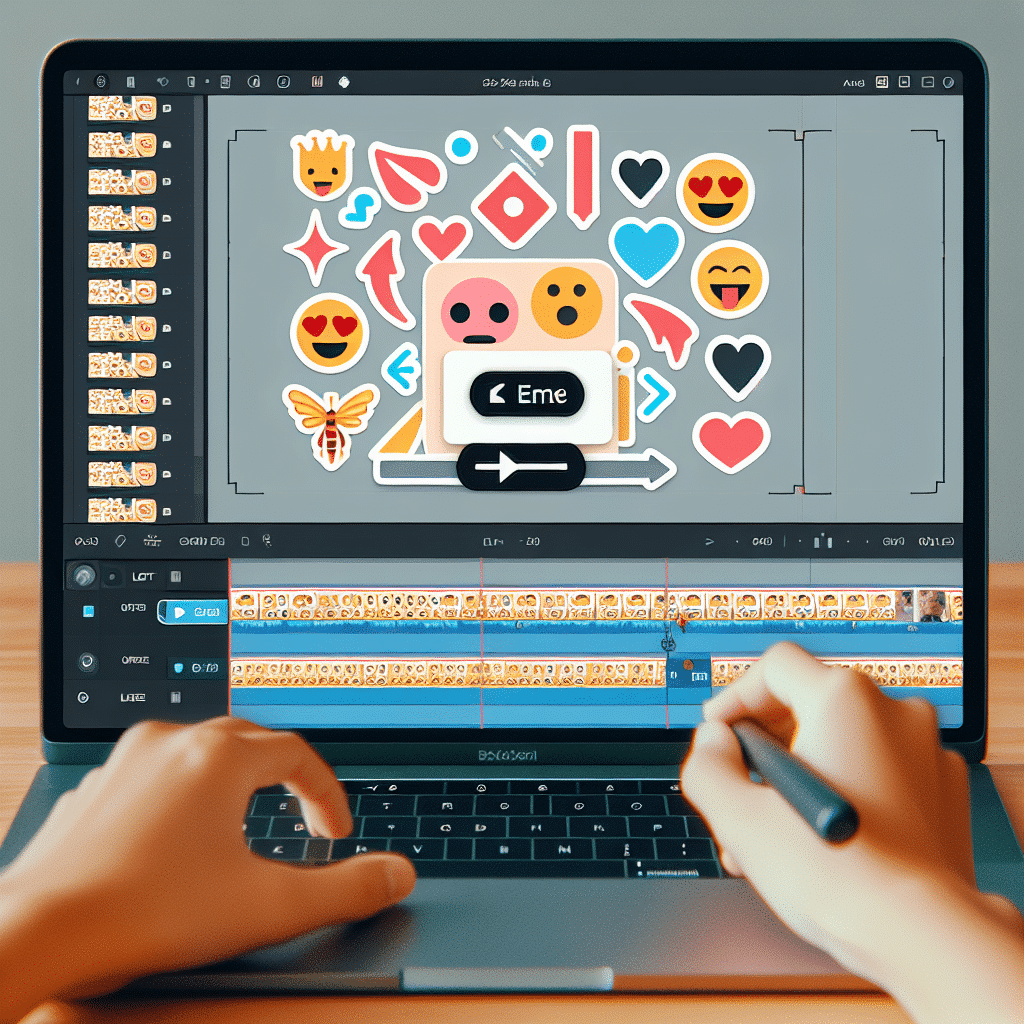
CapCut is a great video editing app that has a ton of fun options, including adding cool stickers and emojis to your video. In this tutorial, we’ll learn how to change the size and position of stickers and emojis to bring life and creativity to your video.
Why should you add stickers and emojis to videos?
Stickers and emojis can make any video special. They can express emotions, add humor, or simply make your video more interesting to the eye. Plus, they are the tools that will help your video stand out among your friends.
The benefits of stickers and emojis
-
Emotional expression: Stickers and emojis can convey emotions instantly and clearly.
-
Humor: Adding funny emojis can add a touch of humor to a video.
-
Visual interest: Stickers add color and visual interest to a video.
-
Highlighting moments: You can use stickers to highlight important moments in your video.
Getting started with CapCut
Start by downloading CapCut to your phone. The app is available for free on both the Google Play Store and the Apple App Store. Once you’ve downloaded and installed the app, open it and create a new project. You can do this by clicking the “+” button on the main screen.
[note_box] Tip: If you’re having trouble finding the app in the store, search for “CapCut” with a space between the words. Sometimes this helps find the app faster! [/note_box]
How to add stickers and emojis
When you have a video open in CapCut, follow these steps:
-
Tap the “Stickers” button:
When you’re editing your video, you’ll see the stickers icon in the toolbar at the bottom of the screen. Tap it to open the stickers and emoji gallery.
-
Choose a sticker or emoji:
Browse through the different categories until you find the sticker or emoji you like. There’s a lot to choose from, so have fun trying out a few.
-
Add to video:
Once you’ve chosen, tap on the sticker or emoji and it will appear right on your video.
Change the size and position of stickers and emojis
After you’ve added a sticker or emoji to your video, you can change their size and position like this:
-
Resize:
To resize the sticker or emoji, use two fingers. Pinch to zoom out, or spread to zoom in.
-
Change location:
Simply drag the sticker or emoji to the new location on the screen where you want it to be placed.
[note_box] Tip: Try putting stickers and emojis in unexpected places in your video, like on moving objects or next to talking characters. This can add an extra dimension of humor and interest! [/note_box]
Special tip: Combining stickers and emojis creatively
To make your video look even cooler and more original, try combining different stickers and emojis. You can create a little story, funny expressions, or add decorations around the character in the video.
Examples of creative combinations
-
Using heart stickers around romantic characters in the video.
-
Adding a laughing emoji next to funny scenes.
-
Incorporate pet stickers to add charm to your video.
-
Add stickers of stars or fireworks to highlight special moments.
Finish editing and save
Once you’ve added all the stickers and emojis and finished editing the video exactly how you wanted, tap the save button (the up or down arrow icon on the main screen). CapCut will let you save the video to your phone’s gallery or share it on social media directly from the app.
Screenshot suggestion
summary
CapCut is a free and fun video editing app with lots of options for creative expression. With your newfound knowledge of how to resize and position stickers and emojis, you’re ready to make any of your videos spectacular and interesting. So go ahead, experiment, have fun, and share your creations with friends and family!
[fact_box] Interesting use of CapCut: Many users take advantage of the app to create personalized greeting videos for birthdays or special occasions. By adding custom stickers and emojis, you can create a video that feels personal and special, making the greeting unforgettable! [/fact_box]
Additional recommendations for video editing
To further enhance your videos, here are some additional tips:
Using music
Adding music to a video can really enhance it. CapCut offers a wide variety of songs and music tracks that you can easily add. Choose a song that fits the mood of your video.
Smooth transitions
Using transitions between scenes can add a professional touch to your video. CapCut offers a variety of transitions that can be easily applied to different sections of your video.
Filters and effects
Filters and effects can enhance the look of your video. Try using different filters to change the mood of your video, such as dark or light filters, or effects like blur.
Faq
How can I share my video?
Once you’ve saved the video, you can share it directly from the app to social networks like Instagram, Facebook, and TikTok.
Does CapCut support different languages?
Yes, CapCut supports multiple languages, so you can choose the language you are comfortable with from the app settings.
Are there any restrictions on video size?
CapCut lets you edit videos up to 60 seconds long for free, but there are upgrade options if you want to edit longer videos.
Final summary
CapCut is a great video editing app with tons of creative options. With this tutorial, you’ll be equipped with all the tools you need to add stickers and emojis, resize and position them, and create stunning videos. Don’t forget to share your creations with others and have fun!